Configuration
SecTrail MFA's configuration menu provides centralized management of applications, clients, mobile registration, and password reset operations.
Applications
Application profiles define which authentication methods users will use. Each client connects to an application, and the authentication factors determined within the application are applied.
Creating an Application Profile
Application Types:
- Normal Application: Standard authentication applications
- Registration Application: Special application for mobile device registration
- Password Reset Application: Special application for password reset
Authentication Factors
Configure authentication factors for each application:
Single Factor:
- Only one authentication method
- Example: LDAP, Local User, SMS OTP
Two Factor:
- Two different authentication methods
- Example: LDAP + Soft OTP, LDAP + SMS
Multi Factor:
- More than two authentication methods
- Example: LDAP + Soft OTP + WebAuthn
Risk Analysis Toggle (Per Factor)
Each authentication factor has a Risk Analysis toggle. When enabled on a factor:
- Logins scoring Low or Moderate risk (per the application's Risk Policy) will have this factor injected as an additional MFA challenge, even if the factor is not part of the normal authentication chain.
- Logins scoring High risk are blocked entirely regardless of factor configuration.
- Logins scoring Safe proceed normally without triggering additional factors.
This allows you to configure a "step-up" authentication response to elevated risk — for example, requiring a push notification approval for any login that triggers an unusual location or new device signal, without changing the normal authentication flow.
To configure: go to Configuration → Applications → [Application] → Factors and toggle Risk Analysis on the desired factor. Assign a Risk Policy to the application to set the score thresholds.
Profile Configuration
Authentication Methods:
- LDAP Authentication
- Local Authentication
- LDAP+OTP
- Soft OTP
- SMS OTP
- Mail OTP
- Push Notification
- Approved OTP
- Email Link
- Login with QR
- WebAuthn
First Match Rules:
With First Match Rules, dynamically route users to profiles:
- LDAP group membership checking
- Username pattern matching
- RADIUS attribute checking
- IP address-based routing
Clients
Clients represent different system and application types that connect to SecTrail MFA for authentication. Each client type has its own specific configuration requirements and use cases.
RADIUS Clients
Purpose: Network Access Server (NAS) devices that use the RADIUS protocol for authentication.
Configuration Fields:
- Device Type: VPN, Firewall, Switch, Router, Wireless Controller
- NAS IP Address: IP address of the network device
- NAS Identifier: Unique identifier for the device
- Shared Secret: Pre-shared key for secure RADIUS communication
- Reply Message Rule: Custom reply messages based on authentication result
Common Usage:
- VPN gateways (Cisco ASA, FortiGate, Palo Alto)
- Network switches (Cisco Switches)
- Wireless access points (Aruba, Ruckus, Cisco WLC)
- Firewalls
Important Notes:
- Shared Secret must match on both SecTrail MFA and the NAS device
- NAS IP address is whitelisted for security
- Reply messages are shown to the user on VPN/WiFi login screen
API Clients
Purpose: Applications that integrate with SecTrail MFA through REST API using OAuth 2.0.
Client Types:
Agent Type (Machine-to-Machine):
- Machine-to-machine authentication for automated systems
- Client Credentials OAuth 2.0 grant type
- API access without user context
User Type (User-Based):
- API access with user credentials
- Password Grant OAuth 2.0 grant type
- API operations with user context
Configuration:
- Client ID: OAuth 2.0 client identifier
- Client Secret: OAuth 2.0 client secret
- Grant Types: Client Credentials or Password Grant
- Permissions: API endpoint permissions
- Rate Limiting: Request count limitation
Common Usage:
- Programmatic MFA integration for custom applications
- Monitoring and tracking systems
- Automated scripts and tools
- Third-party integrations
Security:
- Store Client ID and Secret securely
- Configure token expiration durations
- Use IP whitelist
- Enable API rate limiting
Federation Clients (SAML Service Providers)
Purpose: SAML 2.0-based Single Sign-On (SSO) service providers.
Configuration:
- Entity ID: Unique identifier for the service provider
- ACS URL: Assertion Consumer Service URL
- Metadata: XML configuration for SAML integration
- Certificates: SP public key certificate
- Attribute Mapping: User attribute mapping
SSO Sessions:
- Centralized session management
- Single Logout (SLO) support
- Session timeout configuration
- Active session viewing
Common Usage:
- Cloud applications (Office 365, Google Workspace, Salesforce)
- SaaS platforms
- Enterprise portals
- Custom web applications
Metadata Management:
- SP metadata import (XML upload or URL)
- IdP metadata export
- Automatic metadata updates
- Certificate rotation
Client Configuration Workflow
Create Client: Click the "Create" button and select the client type (RADIUS, API, or Federation)
Assign Application: Link the client to an Application profile that defines authentication factors
Configure Details: Click the + button to expand client details:
- RADIUS: Add NAS devices with IP, identifier, and shared secret
- API: Create OAuth clients with credentials (Agent or User type)
- Federation: Add SAML Service Providers with Entity ID and metadata
Manage Passwords: Use the eye icon button to show/hide sensitive information like shared secret
Edit/Delete: Use the pencil icon to edit or trash icon to remove configurations
Create Client → Assign Application → Add client-specific details (NAS/API/SAML) → Configure authentication factors in Application → Client ready for use
Registration Panel
Registration Settings configure the registration panel where users register their mobile devices for SoftOTP (Time-based One-Time Password) and Push authentication methods.
Registration Panel Configuration
Registration Settings Fields:
URL (Required):
- Public domain where users will access the mobile registration panel
- Example:
https://register.company.com - This URL must be accessible to all users
- DNS records must be configured
Syslog Profile (Optional):
- Log registration events for auditing and monitoring
- All registration activities are sent to syslog
- Successful/failed registration attempts
- Device information and user information
Geographic Location Profile (Optional):
- Restrict registration panel access based on geographic location
- Country, region, IP range-based restrictions
- Block registration from suspicious locations
When using the mobile application, a domain must be configured to allow access to the registration panel, and necessary DNS records must be created. Domain information must also be specified in Registration settings.
Registration Application
After creating Registration Settings, you must create an Application of type Registration.
Registration Application Features:
- Authentication factors to be completed before viewing the QR code
- Usually LDAP or Local User authentication
- SMS or Email OTP can be added for additional security
Example Registration Application:
- Application Type: Registration
- Factor 1: LDAP Authentication (username + password)
- Factor 2: SMS OTP (optional, for additional security)
How Users Register Their Mobile Devices
Step-by-Step Registration Process:
Download Mobile Application
- User downloads and installs SecTrail Authenticator on their mobile device
- Available from iOS App Store or Google Play Store
Access Registration Panel
- User goes to the configured registration URL via web browser
- Example:
https://register.company.com
Authenticate
- User completes authentication using the factors defined in the Registration Application
- Example: LDAP username + password, then SMS OTP
View QR Code
- After successful authentication, the system displays a QR code
- The QR code contains the user-specific Soft OTP secret
Add Account in Application
- User opens SecTrail Authenticator
- Taps "New Account" or "+" button
- Scans the QR code
Enter OTP Code
- User enters the 6-digit code displayed in the application
- Code is entered in the "OTP Code" field below the QR code
- This step verifies the device has been successfully registered
Submit and Complete
- After clicking the "Submit" button
- User sees the "Successfully Registered" confirmation page
- Device is now ready for Soft OTP and Push Notification
Users can repeat this process to register multiple devices (phone, tablet, backup phone).
Registration Troubleshooting
QR Code Not Appearing:
- Authentication may have failed
- Registration Application is not configured properly
- Required information is missing from user profile
OTP Code Invalid:
- Device time is not synchronized (use NTP)
- QR code was scanned incorrectly
- Code has expired (30 seconds)
Cannot Complete Registration:
- User is already registered (delete existing registration first)
- Network connection problem
- Backend service error (check logs)
Configure Registration URL → Create Application of Registration type → Define authentication factors → Users register their mobile devices → Use SoftOTP/Push authentication
Password Reset
Password Reset Profiles enable self-service password reset functionality for users. Users verify their identity via an OTP delivered by SMS or email, complete a CAPTCHA challenge, then set a new password — without any administrator intervention.
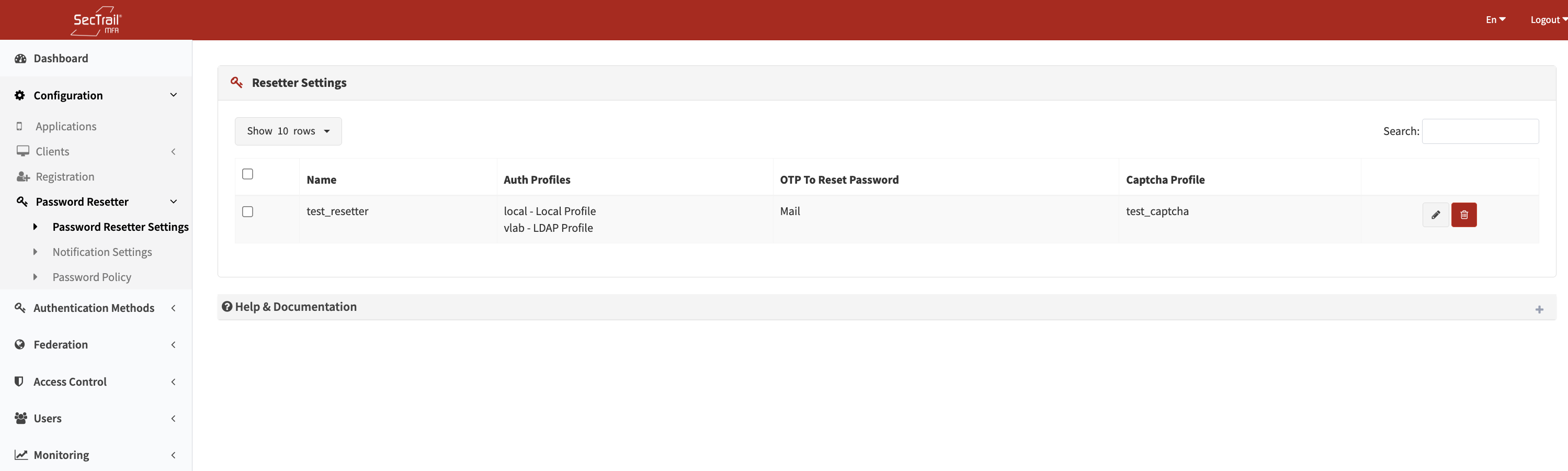
Password Reset profile list — Configuration → Password Reset
Multiple profiles can exist in the system. For full configuration details, see the dedicated Password Resetter page.
Password Reset Profile — Summary of Fields
| Field | Description |
|---|---|
| Profile Name | Descriptive label for the profile |
| Auth Profiles (Ordered) | LDAP (LDAPS only) and/or Local profiles to search when looking up the user; order determines lookup priority |
| CAPTCHA Profile | CAPTCHA challenge shown on the username entry page |
| OTP Channel | SMS or Email — the delivery method for the one-time password |
| OTP Profile | The SMS or Mail profile used to send the OTP |
| OTP Message | Message body with <%TOKEN%> placeholder for the OTP code |
| OTP Expiry (seconds) | How long the OTP is valid (default: 180 seconds) |
| Email Subject | Email subject line (only when OTP channel is Email) |
→ Full Password Resetter documentation
Security Features
Two-Factor Verification:
- Both PIN and Token codes are required to complete password reset
- Dual verification mechanism
Time-Limited Codes:
- PIN and Token codes expire after a configurable period
- Default: 5 minutes
- Maximum: 15 minutes
Captcha Protection:
- Captcha prevents automated brute force attempts
- reCAPTCHA v2 or custom captcha
- Bot detection
Single Use:
- Each PIN and Token code can only be used once
- Becomes invalid after use
- Replay attack protection
Audit Log:
- All password reset attempts are logged for security monitoring
- Successful/failed attempts
- IP address, timestamp, username
- Log analysis for anomaly detection
How Users Reset Their Passwords
Access Point:
Users access the Password Reset panel through the Registration Panel. After going to the registration panel, click the "Reset Password" button to start the password reset process.
Step-by-Step Password Reset Process:
Access Mobile Registration Panel
- User goes to the registration panel URL
- Example:
https://register.company.com
Click Reset Password
- User clicks the "Reset Password" button on the registration panel
- Redirected to password reset page
Enter Username/Email and Captcha
- User enters username or email address
- Completes Captcha verification (bot protection)
- Clicks "Submit" button
Receive PIN Code
- System sends a PIN code via selected method (SMS/Email)
- PIN code is valid for 5 minutes
- User checks SMS or email
Enter PIN Code
- User enters the received PIN code for verification
- Clicks "Verify" button
Enter New Password
- If PIN is correct, user is directed to password reset page
- User enters new password according to password policy rules
- Password requirements are displayed (minimum length, complexity)
Receive Token Code
- Before saving new password
- System sends a Token code via selected method (SMS/Email)
- Token code is valid for 5 minutes
Enter Token Code
- User enters the received Token code
- Clicks "Confirm and Save" button
Password Updated
- If Token is correct, password is successfully changed
- Success message is displayed
- User can now log in with new password
- Password is updated in LDAP/Active Directory
Password Policy Requirements
Minimum Requirements:
- Minimum 8 characters
- At least 1 uppercase letter
- At least 1 lowercase letter
- At least 1 digit
- At least 1 special character (!@#$%^&*)
Additional Rules:
- Last 5 passwords cannot be repeated
- Must not contain username
- Common passwords prohibited (password123, admin, etc.)
- Expiration period (optional)
Password Reset Troubleshooting
PIN/Token Not Received:
- Check if phone number/email address is correct
- Verify SMS gateway is working
- Check email server configuration
- Check spam folder
Code Invalid:
- Code may have expired (5 minutes)
- Code was already used
- Wrong code entered
Password Does Not Meet Policy:
- Read password requirements
- Create a stronger password
- Ensure all requirements are met
For password reset to work, ensure users have valid phone numbers or email addresses in their profiles. If using LDAP, this information is automatically pulled from LDAP.
- Never share PIN and Token codes with anyone
- Codes must be used within 5 minutes
- If you notice suspicious activity, report it to your IT department immediately
Create Password Reset Profile → Select LDAP servers and authentication methods → Configure PIN/Token messages → Enable Captcha for security → Users can now safely reset their passwords
Best Practices
Application Configuration
- ✅ Meaningful Names: Give application profiles descriptive names
- ✅ Correct Factors: Choose the number of factors appropriate for security requirements
- ✅ First Match Rules: Use rules for dynamic profile assignment
- ✅ Testing: Test each application before production
Client Management
- ✅ Strong Shared Secrets: Use long and complex shared secrets for RADIUS
- ✅ IP Whitelist: Add only known NAS IP addresses
- ✅ API Key Security: Store client secrets securely
- ✅ Metadata Current: Keep SAML metadata up to date
Registration and Password Reset
- ✅ SSL/TLS: Use HTTPS for registration and password reset panels
- ✅ Captcha: Always enable captcha for bot protection
- ✅ Geo-Restriction: Block access from suspicious locations
- ✅ Log Monitoring: Regularly review registration and password reset logs