User Management
User management in SecTrail MFA is organized according to different usage scenarios. On this page, you can manage API clients, local users, mobile application users, and blocked users.
API Clients
Create specialized user accounts for API requests. API clients can be of two different types:
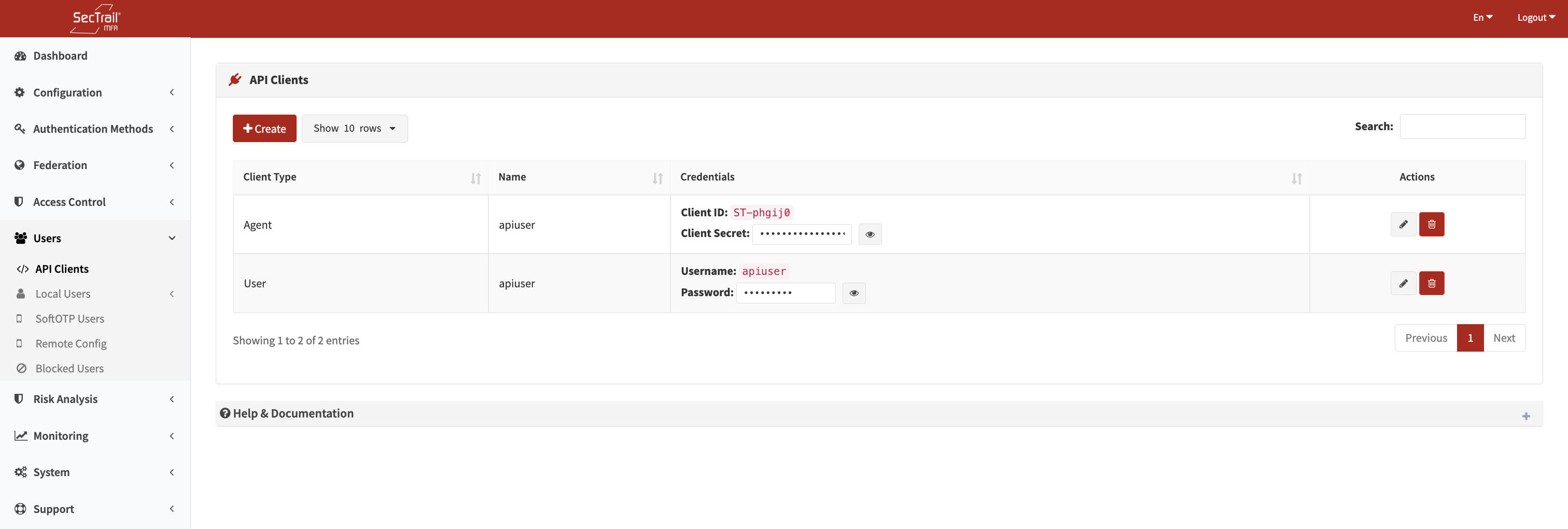
API client list - Agent and User type OAuth 2.0 clients for API integration
Agent Type API Clients
Agent type is used for system-level integrations:
Use Cases:
- ADFS Integration: API access for Active Directory Federation Services
- RDP/Login Operations: Authentication for remote desktop and login scenarios
- Linux Login: Authentication with PAM module on Linux systems
- Mac Login: Authentication integration on macOS systems
User Type API Clients
User type is used for application-level integrations:
Use Cases:
- API integration in web applications
- Mobile application backend integration
- MFA support in custom software solutions
- Third-party application integrations
Creating API Clients
Click the "Create" button to add a new API client and enter the required information.
Required Information:
- Client Type: Agent or User
- Client Name: Identifying name of the API client
Credentials:
Client IDandClient Secretare automatically generated during creation- API requests are made using Bearer token
Local Users
SecTrail MFA allows you to create users in the local database and perform authentication independent of Directory (LDAP/Active Directory).
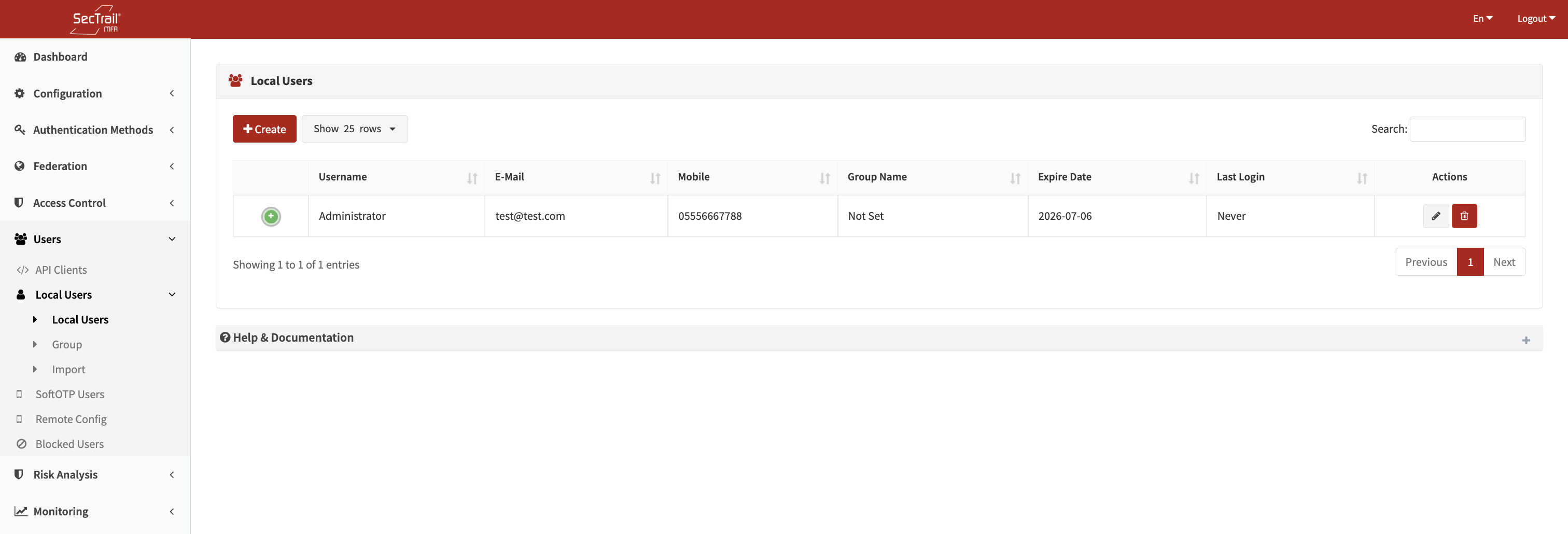
Local user list - Username, email, expiration date and status information
Creating Local Users
Click the "Create" button to add a new local user. The following information is required:
Basic Information:
- First Name: User's first name
- Last Name: User's last name
- Username: Unique username to be used for login
- Email: User's email address
- Phone Number: Phone number for SMS OTP (in format 05554443322)
Security Settings:
- Password: User's password
- Password Confirmation: Password verification
- Expiration Date: ⚠️ User account validity period (IMPORTANT)
Optional Fields:
- Framed IP Address: Static IP address assigned to user (RADIUS attribute)
- Sponsor Name: Name of person approving the user
- Sponsor Email: Sponsor email address
- Description: Notes about the user
Importance of Expiration Date
Expiration Date is one of the most important security controls for local users. After this date, the user is automatically disabled and cannot log in.
Local User Management
Editing Users:
- Update user information
- Change password
- Extend expiration date ⭐
- Edit contact information
User Status:
- Enable/disable users
- Temporarily block users
- Terminate user sessions
Bulk Operations:
- Bulk user loading with CSV file
- Export user list
- Bulk password reset
- Bulk expiration date update
SoftOTP Users
The list of users registered with the SecTrail Authenticator mobile application is displayed here.
SoftOTP User List
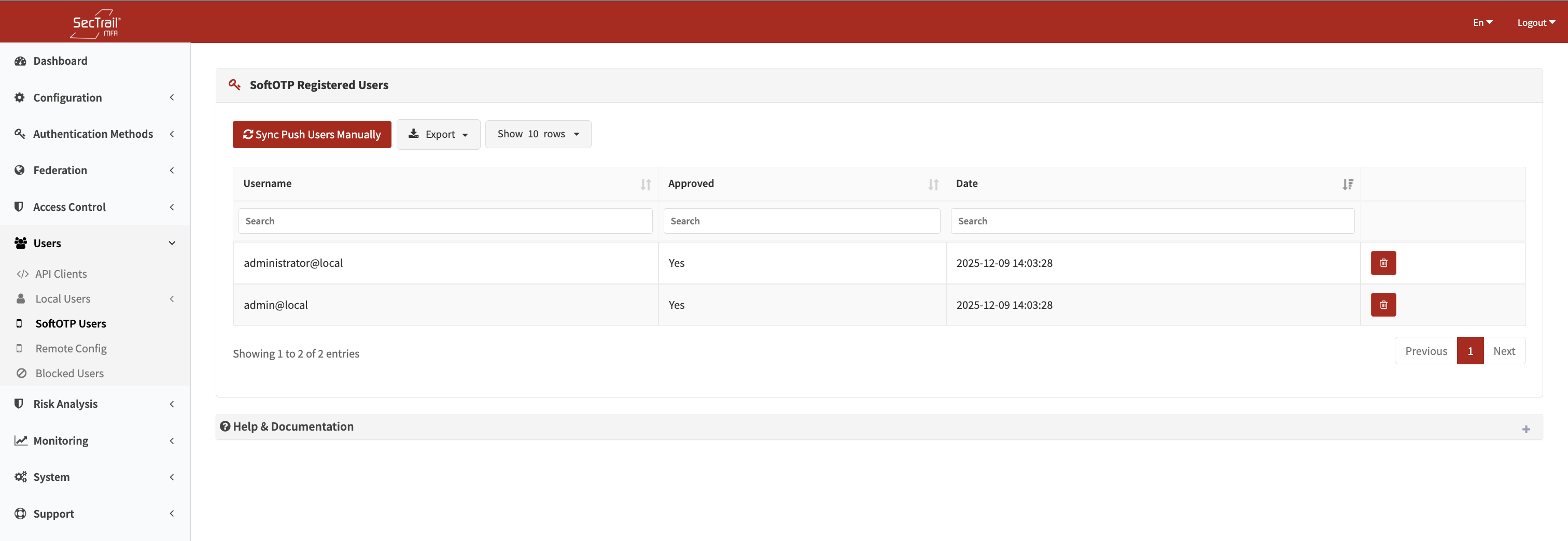
SoftOTP user list - Registered users and the critical "Verified" column
Importance of Verified Column
Users showing "Yes" in the "Verified" column have successfully completed mobile application registration. To use SoftOTP and Push Notification verification methods, this column must show "Yes".
Verification Statuses:
| Status | Description | Available Features |
|---|---|---|
| ✅ Yes | Registration successfully completed | Soft OTP, Push Notification, QR Login |
| ❌ No | Registration not completed or pending | None (registration must be completed) |
Reasons for Incomplete Registration
1. QR Code Not Scanned:
- User has not scanned QR code yet
- QR code has expired (needs to be regenerated)
2. Registration Not Confirmed:
- User did not complete registration in mobile application
- Initial OTP verification failed
3. Technical Issues:
- Network connectivity problem
- Mobile application version not up to date
- Server synchronization error
Remote Configuration
Remote configuration is the feature to remotely change the security configuration in the user's SecTrail Authenticator mobile application.
Security Configuration
Administrators can remotely control the security methods that users will use when logging into the mobile application:
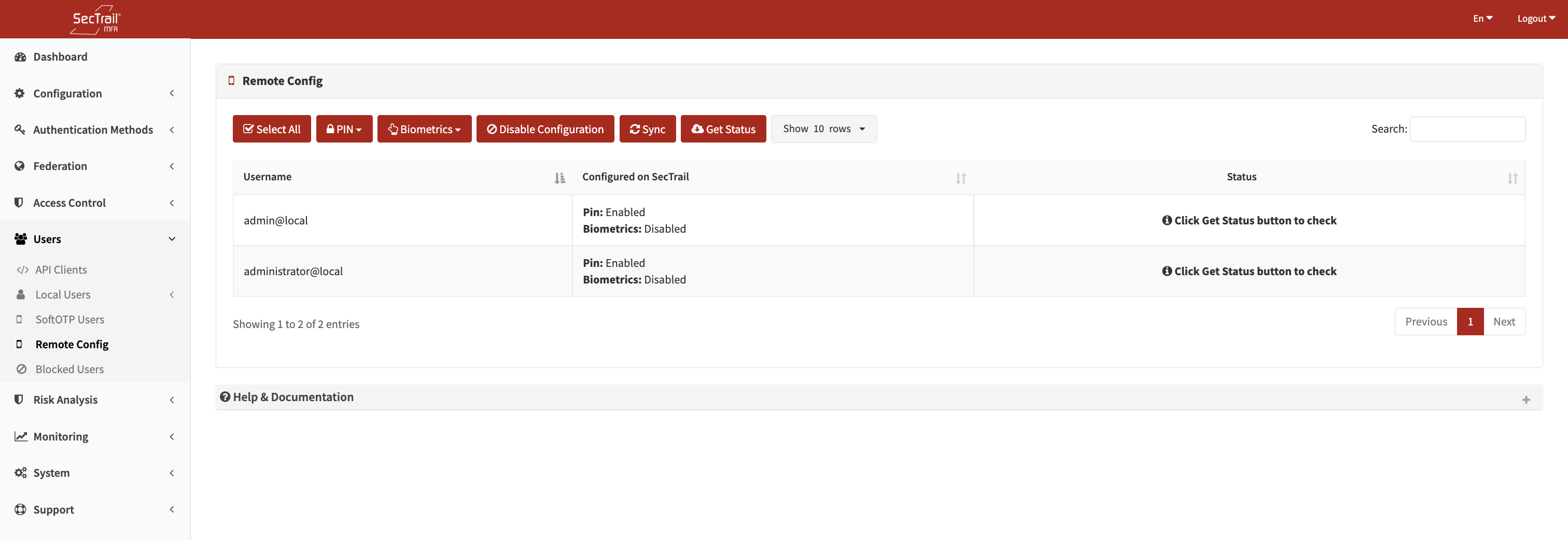
Remote Configuration - PIN and Biometric verification switches
Configuration Options:
1. PIN Verification:
- User must enter a 4-6 digit PIN code on each login to mobile application
- PIN code is known only to the user
- Account is temporarily locked after 3 failed attempts
2. Biometric Verification:
- Fingerprint verification (Touch ID / Fingerprint)
- Face recognition (Face ID)
- Based on biometric method supported by device
3. Disabled (No Security):
- Direct access to mobile application
- Device lock protection only
Remote Configuration Management
Bulk Configuration:
For selected users:
- Activate/deactivate PIN requirement
- Activate/deactivate biometric requirement
- Change security level
Individual Configuration:
- Special settings for specific user
- Per-user security policy
- Remove security requirement in emergencies
Users with access to critical systems must have PIN or Biometric verification activated. If a device is lost or stolen, unauthorized access to the application is prevented.
Remote Configuration Process
Step 1: Select target user from user list Step 2: Click "Remote Configuration" button Step 3: Choose security level:
- PIN Required: On/Off
- Biometric Required: On/Off Step 4: Save changes Step 5: User's mobile application is automatically updated (on next synchronization)
User Experience
User experience after configuration change:
When PIN is Activated:
- User opens mobile application
- "Create PIN" screen appears
- Creates 4-6 digit PIN
- PIN is confirmed
- PIN is now required on each login
When Biometric is Activated:
- Device biometric support is checked
- User is asked for biometric permission
- Fingerprint/face recognition is enabled
- Biometric verification is now required on each login
When Security is Disabled:
- User receives notification
- PIN/Biometric is no longer required
- Direct access to application is provided
Remote configuration changes may not be real-time. The change is applied when the user's mobile application synchronizes with the server (typically within a few minutes).
Blocked Users
When the blocking mechanism is active, blocked users and the duration of their block are displayed here.
Blocking Mechanism
SecTrail MFA can automatically block users by detecting failed login attempts.
Reasons for Blocking:
- ❌ Consecutive failed password attempts
- ❌ Consecutive incorrect OTP code entries
- ❌ Suspicious activity detection
- ❌ Manual administrator intervention
Blocked Users List
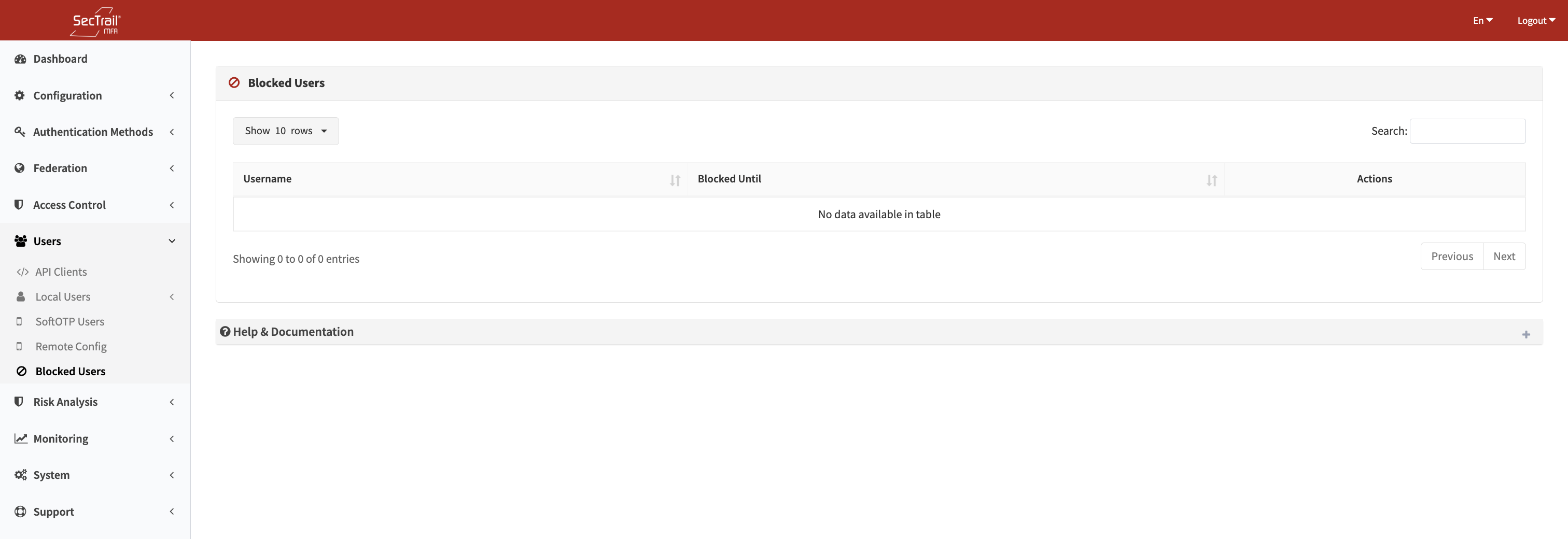
Blocked Users - Block information, remaining time and unblock button
Automatic Blocking Configuration
Blocking mechanism is configured from Security Settings section:
Configuration Parameters:
- Failed Attempt Limit: Number of failed attempts before blocking (e.g., 5)
- Time Window: Period during which attempts are counted (e.g., 10 minutes)
- Block Duration: How long user remains blocked (e.g., 30 minutes)
- Permanent Block: Indefinite block (requires manual intervention)
Manual Block Removal
Administrators can manually remove the block for blocked users:
Block Removal Steps:
- Go to blocked users list
- Click "Remove Block" button in relevant user's row
- Select "Yes" in confirmation window
- User can immediately log in again