System
You can manage SecTrail MFA system administration and security configurations here.
Panel Management
Manage the users and their permissions who have access to the administration panel.
Administrator Users
Define and manage users who can access the SecTrail MFA administration panel.
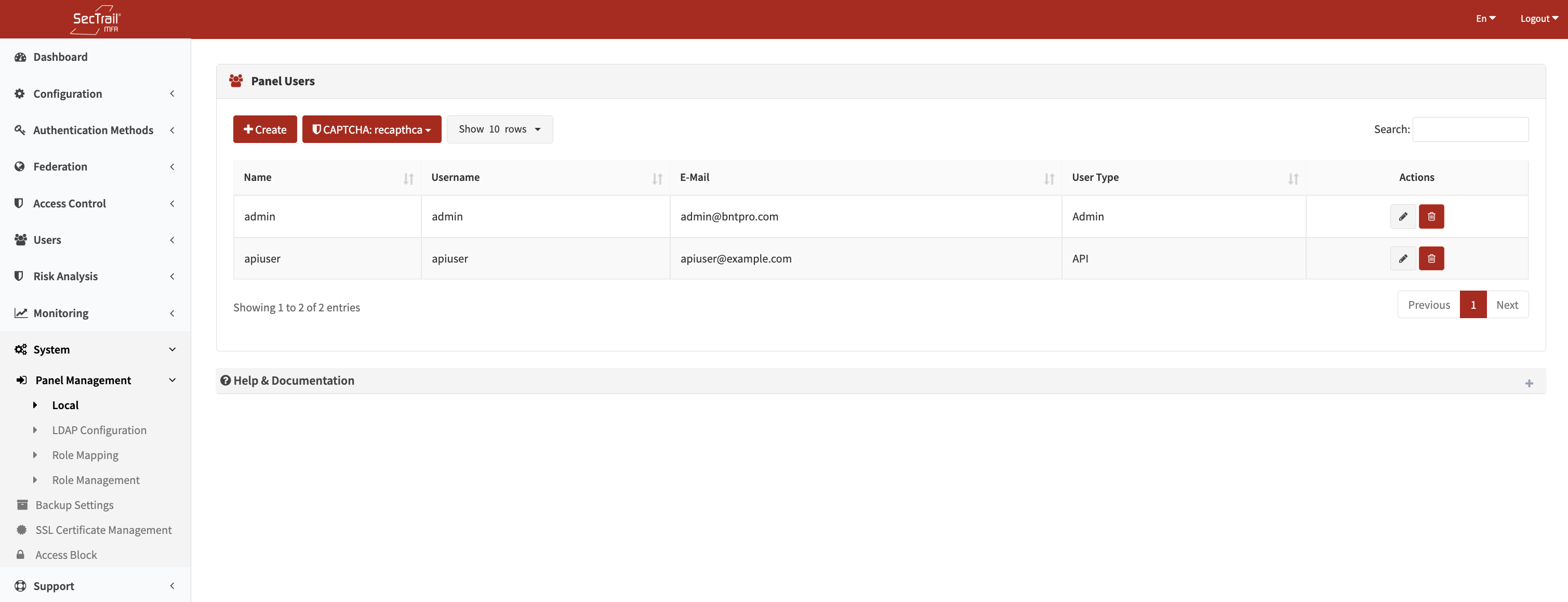
Panel Administrators - Local and LDAP users and their roles
User Types:
1. Local Administrator Users:
- Administrator accounts defined within SecTrail MFA
- Authentication with username and password
- Manually created and managed accounts
2. LDAP Administrator Users:
- Panel access for LDAP/Active Directory users
- Login with LDAP credentials
- Centralized user management
LDAP Configuration:
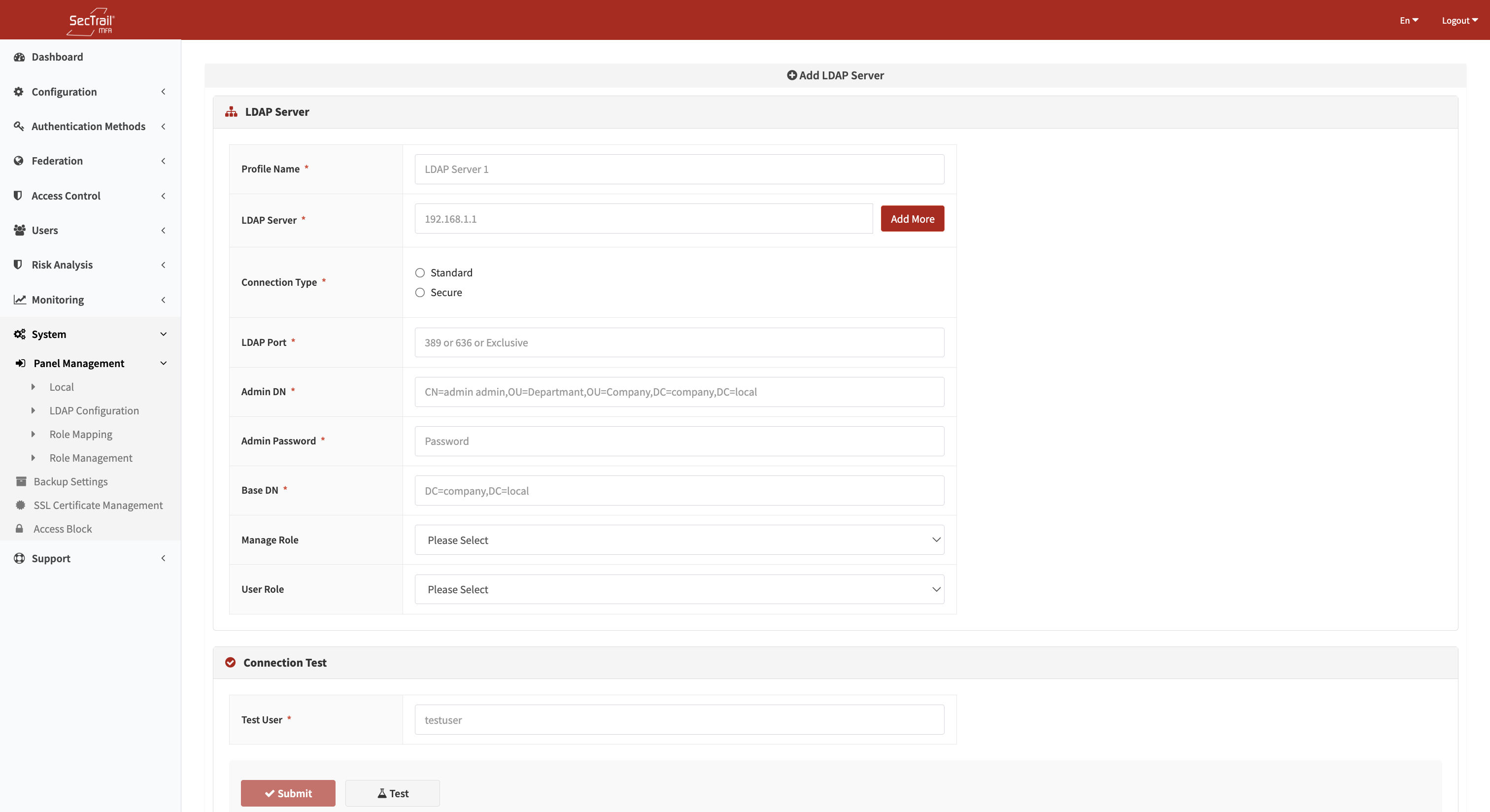
LDAP Policy Mapping - Mapping LDAP groups to SecTrail roles
For LDAP users to access the administration panel, the following are required in the LDAP configuration:
LDAP Connection Settings:
- LDAP server address and port
- Bind DN and password
- Base DN configuration
- User search filter
Authorization Management Option:
- Policy: Automatic authorization via group mapping (recommended)
- Remote Admin: Manually designating specific LDAP users as administrators
If you are using LDAP integration, it is recommended to use the "Policy" mode for authorization management. This provides automatic authorization based on group memberships and reduces the need for manual management.
Role Management
Create and manage roles that you can assign to administrator users.
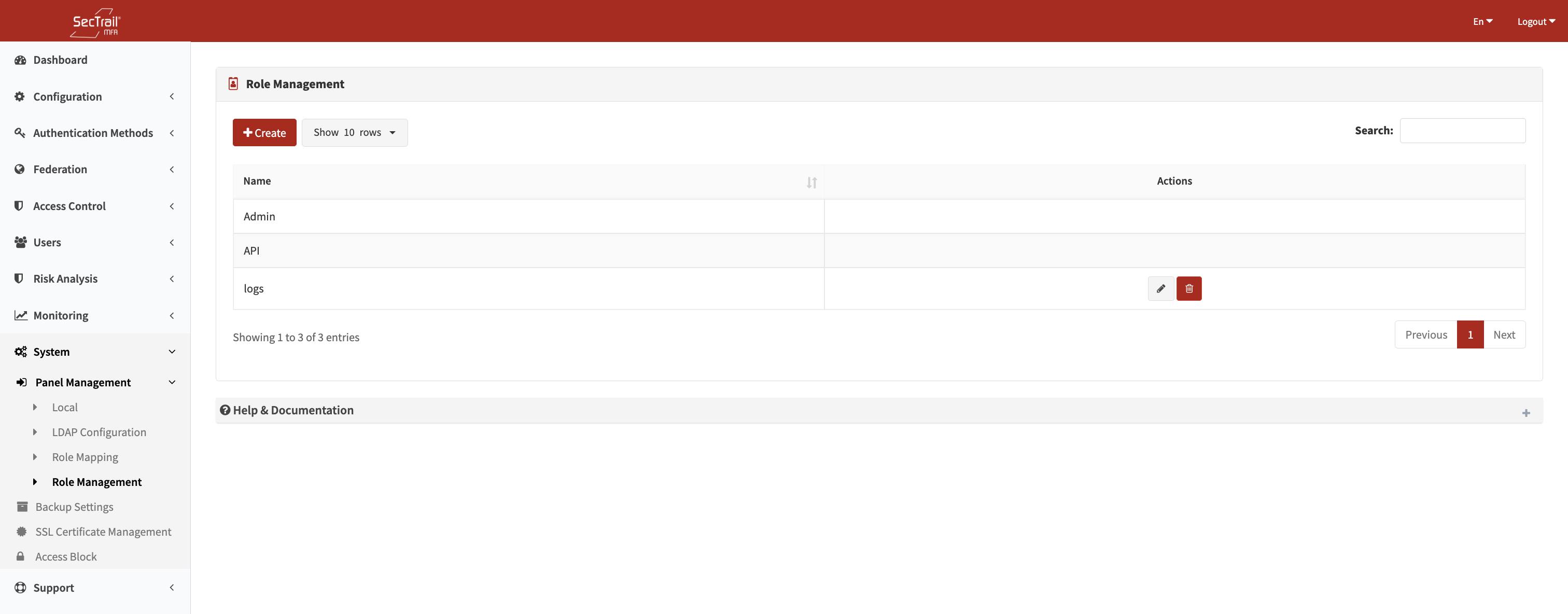
Role List - Administrator roles and authorization levels
Default Role:
Admin (Administrator):
- Possesses all permissions
- Modifies system configuration
- Manages other administrators
- Full access to all modules
Creating Custom Roles:
You can create roles with permissions customized to your needs:
Steps to Create a Role:
- Go to Panel Management → Roles page
- Click the "Create New Role" button
- Enter the role name (e.g., "Audit-Only", "User-Manager")
- Select permissions (modular permissions below)
- Save
Modular Permissions:
| Module | Permissions |
|---|---|
| Dashboard | View |
| Users | View, Add, Edit, Delete |
| Applications | View, Add, Edit, Delete |
| Policies | View, Add, Edit, Delete |
| RADIUS Clients | View, Add, Edit, Delete |
| Authentication | Profile Management, Method Configuration |
| Logs | User Logs, GUI Logs, Reset Logs |
| Reports | View, Export |
| System Settings | Backup, License, Service Management |
| Panel Administrators | View, Add, Edit, Delete |
Permission Mapping (LDAP Policy)
Map LDAP/Active Directory groups to SecTrail MFA panel permissions. This feature is used when the 'Authorization Management' option is set to 'Policy' in the LDAP configuration.
The Permission Mapping feature only works when the 'Authorization Management' → 'Policy' option is enabled in the LDAP configuration. Check the LDAP configuration first!
Mapping Options:
1. MemberOf Attribute (Group Membership):
- Maps users based on group memberships
- Ideal for Active Directory groups
- Provides dynamic authorization
2. Username Attribute:
- Maps users based on username attribute values
- Specific authorization for particular users
- Provides manual control
How It Works
Only users matching at least one policy can log in to the panel. LDAP users who do not match any policy will be denied panel access.
Backup Settings
Configure automatic backup schedules for the SecTrail MFA system database and configurations. Backups provide data recovery in case of system failure.
Backup Configuration
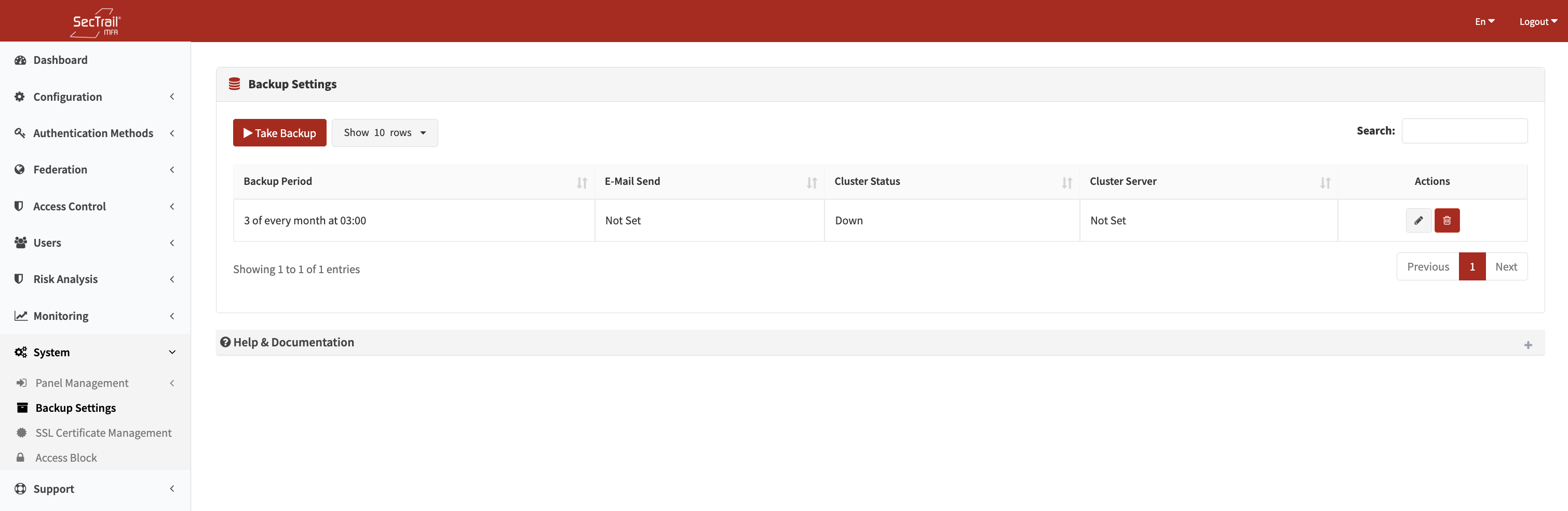
Backup Settings - Period, time, notification, and manual backup options
Configuration Parameters:
| Parameter | Description | Options |
|---|---|---|
| Backup Period | When backups will run | Daily, Weekly, Monthly |
| Backup Time | Time for daily backup | 00:00 - 23:59 |
| Backup Day | Day for weekly backup | Monday - Sunday |
| Backup Date | Date for monthly backup | 1 - 31 |
| Email Notification | Notification when backup is complete | Yes / No |
| Notification Emails | Email addresses to send notifications to | admin@company.com, backup@company.com |
| Cluster Backup | Which server will perform the backup | Node 1, Node 2, Node 3 |
Regular backups are essential for disaster recovery. For maximum protection, store backups in a secure, remote location. Copy the backup files to an offsite server or cloud storage.
Manual Backup
Create an instant backup at any time, independent of the automatic schedule.
Manual Backup Steps:
- Go to System → Backup Settings page
- Click the "Backup Now" button
- Select "Yes" in the confirmation window
- Backup starts, progress bar is displayed
- Success message appears when complete
Use Cases:
- Emergency backup before a system update
- Before a major configuration change
- For disaster recovery testing
- Before offsite copying
Backup Retention and Cleanup
Retention Policy:
- Daily backups: Last 7 days are kept
- Weekly backups: Last 4 weeks are kept
- Monthly backups: Last 12 months are kept
Automatic Cleanup:
- Old backups are automatically deleted (to conserve disk space)
- Manual backups are not automatically deleted
- Retention periods are configurable
Only one backup schedule can be active. Ensure sufficient disk space is available before starting a backup. The backup will fail if the disk is full!
Access Restriction
Control which IP addresses can access the SecTrail MFA administration panel. Only the listed IP addresses can access the system.
How IP Restriction Works
Default Behavior:
- If no rules are defined: All IPs can access the panel
- When at least one rule is defined: Only allowed IPs can access, others are blocked
Be extremely careful when adding IP restrictions!
Risk: If you enable the rules without adding your current IP address to the allow list, you will lose access to the administration panel!
Best Practices
Panel Management
- ✅ Principle of Least Privilege: Grant users only the permissions they need
- ✅ LDAP Integration: Use central management with LDAP if possible
- ✅ Custom Roles: Create custom roles according to departmental needs
- ✅ Regular Audit: Review the administrator list and permissions monthly
- ✅ Strong Passwords: Enforce strong passwords for local administrator accounts
Backup
- ✅ Daily Backup: Daily backup is mandatory for Production systems
- ✅ Test Restore: Perform a restore from backup test once a month
- ✅ Email Notification: Activate email to monitor backup status
- ✅ Disk Monitoring: Ensure the backup disk does not fill up
Access Restriction
- ✅ Default Deny: Block default access using IP restriction
- ✅ Narrow Ranges: Use the narrowest possible IP ranges
- ✅ VPN Requirement: Enforce VPN usage for remote access
- ✅ Regular Update: Update the IP list regularly
- ✅ Multi-Layer: Use IP restriction + strong authentication + MFA
Related Pages
- Dashboard: General system overview
- Users: End-user management
- Monitoring: System monitoring and logs
- LDAP Authentication: LDAP configuration