CAPTCHA
CAPTCHA protection helps prevent automated attacks and bots by requiring users to solve visual or interactive challenges during authentication. This adds an extra layer of security against brute force attacks.
CAPTCHA (Completely Automated Public Turing test to tell Computers and Humans Apart) are tests that computers cannot solve automatically but humans can easily solve.
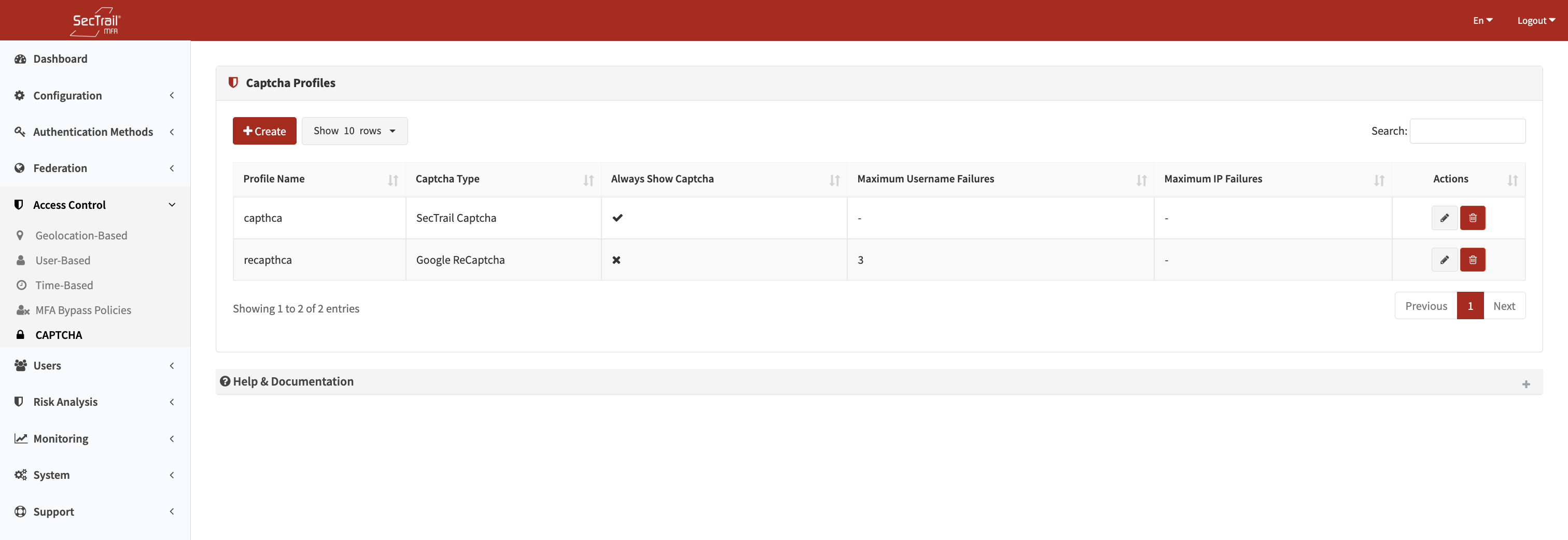
CAPTCHA Profiles
Configuration Options
Profile Name
Enter a descriptive name for the CAPTCHA profile (e.g., "Login Page CAPTCHA", "VPN Access Bot Protection").
CAPTCHA Type
SecTrail MFA supports two different CAPTCHA types:
1. SecTrail Captcha
- ✅ Self-hosted on its own server
- ✅ No external dependencies
- ✅ Customizable appearance
- ✅ Does not require internet connection
2. Google reCAPTCHA
- ✅ Advanced bot detection
- ✅ v2 and v3 support
- ❌ Requires internet connection
- ❌ Requires Google account and API keys
Triggering Conditions
Always Show CAPTCHA
If enabled, CAPTCHA is displayed on every login attempt (maximum security).
Username Failure Count
Show CAPTCHA after this many failed attempts for the same username.
Example: 3 → CAPTCHA becomes mandatory after 3 failed attempts with the same username.
IP Failure Count
Show CAPTCHA after this many failed attempts from the same IP address.
Example: 5 → CAPTCHA becomes mandatory after 5 failed attempts from the same IP.
Google reCAPTCHA Integration
To use Google reCAPTCHA, the server must have internet access to communicate with Google's reCAPTCHA service. Make sure your firewall allows HTTPS connections to Google services.
Required Access
One-way (outbound) access from the SecTrail MFA server to Google services is required:
| Target Domain | Port | Protocol | Description |
|---|---|---|---|
| *.google.com | 443 | HTTPS | Google main services |
| *.gstatic.com | 443 | HTTPS | Google static content service |
| *.recaptcha.net | 443 | HTTPS | reCAPTCHA service |
| *.googleapis.com | 443 | HTTPS | Google API services |
reCAPTCHA Setup Steps
Step 1: Go to Google reCAPTCHA Admin Console
https://www.google.com/recaptcha/admin
Step 2: Register your domain
- Label: SecTrail MFA
- reCAPTCHA type: select v2 or v3
- Domains: add your SecTrail MFA domain
Step 3: Get Site Key and Secret Key
Site Key: 6LdXXXXXXXXXXXXXXXXXXXXXXXXXXXXXXXXX
Secret Key: 6LdYYYYYYYYYYYYYYYYYYYYYYYYYYYYYYYYY
Step 4: Add keys to SecTrail MFA
Access Control → CAPTCHA → Create New Profile
    ↓
CAPTCHA Type: Google reCAPTCHA
Site Key: [Paste your Site Key]
Secret Key: [Paste your Secret Key]
reCAPTCHA Versions
reCAPTCHA v2:
- User solves visual challenge ("I'm not a robot" checkbox)
- More visible protection
- Requires user interaction
reCAPTCHA v3:
- Runs in the background
- Returns risk score (0.0 - 1.0)
- Does not require user interaction
- Smoother user experience
CAPTCHA Validation
- Challenge Display: CAPTCHA is displayed (SecTrail or Google)
- User Solution: User solves the CAPTCHA
- Validation: Solution is verified
- Access Decision:
- ✅ Correct → Login process continues
- ❌ Incorrect → "CAPTCHA validation failed" error
Configuration Examples
Example 1: Balanced Protection
Configuration:
Profile Name: Standard Bot Protection
CAPTCHA Type: SecTrail Captcha
Always Show CAPTCHA: No
Username Failure Count: 3
IP Failure Count: 5
Result: CAPTCHA is shown after 3 failed attempts for the same username OR 5 failed attempts from the same IP.
Use Case:
- Normal users are not affected
- Bot attacks are quickly detected
- Balanced user experience
Example 2: Maximum Security
Configuration:
Profile Name: High Security CAPTCHA
CAPTCHA Type: Google reCAPTCHA v2
Always Show CAPTCHA: Yes
Username Failure Count: -
IP Failure Count: -
Result: CAPTCHA is required for every login attempt.
Use Case:
- Critical systems (financial applications)
- High targeted attack risk
- Maximum bot protection
Result: Users typically don't see CAPTCHA, but it activates during suspicious activities.
Use Case:
- User experience priority
- Low-medium risk environments
- Background protection
Quick Setup Guide
Step-by-Step Setup
1. Create CAPTCHA Profile
Access Control → CAPTCHA → Create New Profile
2. Select CAPTCHA Type
- SecTrail Captcha (recommended - easy setup)
- Google reCAPTCHA (advanced protection)
3. For Google reCAPTCHA (Optional)
- Register at https://www.google.com/recaptcha/admin
- Copy Site Key and Secret Key
- Add to SecTrail MFA
4. Configure Triggering Conditions
Recommended Initial Configuration:
- Always Show: No
- Username Failure: 3
- IP Failure: 5
5. Assign Profile to Application
Configuration → Select Application → Assign CAPTCHA Profile
6. Test
- Successful login test (should not see CAPTCHA)
- Failed attempt test (should see CAPTCHA after threshold)
Troubleshooting
CAPTCHA Not Appearing
Possible Causes:
- CAPTCHA profile not assigned to application
- Threshold not reached
- JavaScript disabled
Solution:
- Check profile assignment
- Make several failed attempts
- Check browser console
Google reCAPTCHA Not Working
Possible Causes:
- No internet access
- Incorrect API keys
- Domain mismatch
Solution:
- Test server internet connection:
curl -I https://www.google.com/recaptcha
- Verify Site Key and Secret Key
- Check domain in reCAPTCHA Admin Console
CAPTCHA Showing Every Time
Reason: "Always Show CAPTCHA" option is active
Solution: Disable this option from profile settings
Related Pages
- User Blocking: Failed login attempt policies
- IP Blocking: IP-based access control
- Monitoring: Viewing CAPTCHA logs
- Configuration: Assigning CAPTCHA profile to application