User Blocking
User-based access control automatically blocks user accounts after multiple failed authentication attempts. This provides protection against brute force attacks and unauthorized access attempts.
This policy applies globally to all authentication methods (LDAP, Local, RADIUS, SAML, etc.).
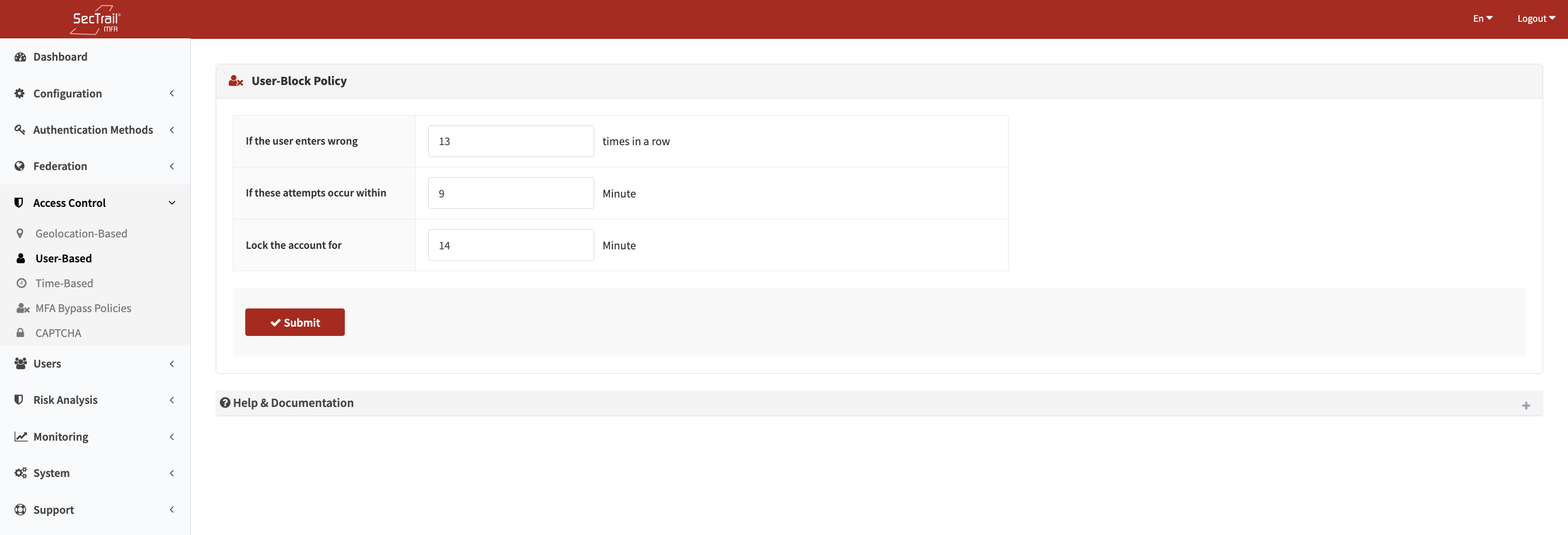
User Based Policy
Configuration Parameters
Failed Attempts
The number of consecutive failed authentication attempts before blocking the user.
Example Values:
3→ Very strict (not user-friendly)5→ Recommended (balanced security)10→ Flexible (weak against attacks)
Occurrence Within Duration (Minutes)
The time window for counting failed attempts. If attempts are spread beyond this window, the counter resets.
Example Values:
5 minutes→ Fast attack detection10 minutes→ Recommended30 minutes→ Wide time window
Blocking Duration (Minutes)
The duration for which the user account remains blocked after reaching the failure threshold.
Example Values:
15 minutes→ Short blocking30 minutes→ Recommended60 minutes→ Long blocking
To disable user-based blocking, leave all fields empty.
How It Works
Step-by-Step Explanation
1. Failed Attempt Tracking
The system tracks failed login attempts per username.
┌────────────────────────────────────────────────┐
│ User: ahmet@company.com                        │
├────────────────────────────────────────────────┤
│ Failed Attempts: 3/5                           │
│ First Attempt: 10:00                           │
│ Last Attempt: 10:05                            │
│ Time Window: 10 minutes                        │
│ Status: ⚠️  2 attempts remaining               │
└────────────────────────────────────────────────┘
2. Threshold Check
When the user reaches the configured number of failed attempts within the time window, the account is blocked.
┌────────────────────────────────────────────────┐
│ User: ahmet@company.com                        │
├────────────────────────────────────────────────┤
│ Failed Attempts: 5/5 ❌                        │
│ Status: 🔒 ACCOUNT BLOCKED                     │
│ Blocking Duration: 30 minutes                  │
│ Unblock Time: 10:35                            │
└────────────────────────────────────────────────┘
3. Automatic Unblocking
After the blocking duration expires, the account is automatically unblocked.
4. Counter Reset
Successful authentication or timeout resets the failed attempt counter.
Counter Reset Conditions:
✅ Successful login → Counter = 0
⏱️  Time window expired → Counter = 0
🔓 Admin manually unblocked → Counter = 0
Example Configuration
Scenario: Balanced Security
Configuration:
Failed Attempts: 5 times
Occurrence Within Duration: 10 minutes
Blocking Duration: 30 minutes
Result: If a user fails authentication 5 times within a 10-minute period, their account will be blocked for 30 minutes.
Example Timeline:
| Time | Event | Status |
|---|---|---|
| 10:00 | 1st Failed login | ⚠️ 4 attempts left |
| 10:02 | 2nd Failed login | ⚠️ 3 attempts left |
| 10:04 | 3rd Failed login | ⚠️ 2 attempts left |
| 10:06 | 4th Failed login | ⚠️ 1 attempt left |
| 10:08 | 5th Failed login | 🔒 ACCOUNT BLOCKED |
| 10:38 | Block duration expired | ✅ Account active |
Example Scenarios
Scenario 1: User Forgot Password
Situation:
- User forgot their password and made 5 incorrect attempts
- Account blocked for 30 minutes
Solution:
- User is informed about the block
- Wait 30 minutes (automatically unblocks)
- OR administrator manually unblocks
- User performs password reset
Scenario 2: Brute Force Attack
Situation:
- Attacker is making automated attempts on a user account
- 5 failed attempts within 10 minutes
Protection:
Attacker → 5 failed attempts
    ↓
Account Blocked (30 minutes)
    ↓
Attacker cannot access during block period
    ↓
Administrator detects attack from system logs
    ↓
Necessary security measures taken (IP blocking, etc.)
Scenario 3: Multi-User Attack
Situation:
- Attacker is trying with different usernames
- Separate counter maintained for each user
Protection:
User: user1 → 5 failed → Blocked
User: user2 → 5 failed → Blocked
User: user3 → 5 failed → Blocked
Each user account is blocked independently, making the attacker's job more difficult.
Manual Unblocking
Administrators can manually unblock blocked users.
Viewing Blocked Users
User Guide → Users → Blocked Users
Unblocking Process
- Find the relevant user from the blocked users list
- Click the "Delete" button
- Accept the confirmation message
- Block is removed
- User can login again
Before unblocking, investigate the reason for blocking. If there was an attack attempt, take additional security measures (IP blocking, mandatory password reset, etc.).
Related Pages
- IP Blocking: Admin panel IP restrictions
- Geo-Location Policies: Country-based access control
- CAPTCHA: Bot protection
- Monitoring: Failed login logs
- Users: Blocked users management
Summary: User Blocking Best Practices
✅ Balanced Threshold: Provide protection without bothering users with 3-5 attempts
✅ Time Window: 5-15 minute windows are ideal for fast attack detection
✅ Blocking Duration: 15-60 minute blocking duration is a balanced choice
✅ Monitoring: Regularly review blocked accounts
✅ User Communication: Inform users about the policy
✅ Combined Protection: Use together with IP blocking
✅ Manual Intervention: Have the ability to quickly unblock when needed
✅ Root Cause Analysis: Investigate accounts that are repeatedly blocked
❌ Don't Be Too Strict: 2-3 attempts unnecessarily bother users
❌ Don't Be Too Flexible: 10+ attempts provide weak protection against attacks