Geolocation Policies
Geolocation policies allow you to control which countries users are allowed to authenticate from. This feature enables you to permit or deny access based on the user's geographic location, aligned with your organization's security requirements.
What Is Geo-Location?
Geo-location access control determines the user’s country by analyzing their IP address and decides whether to allow or deny access according to configured policies. The system supports two operation modes: Whitelist and Blacklist.
Configuration Options
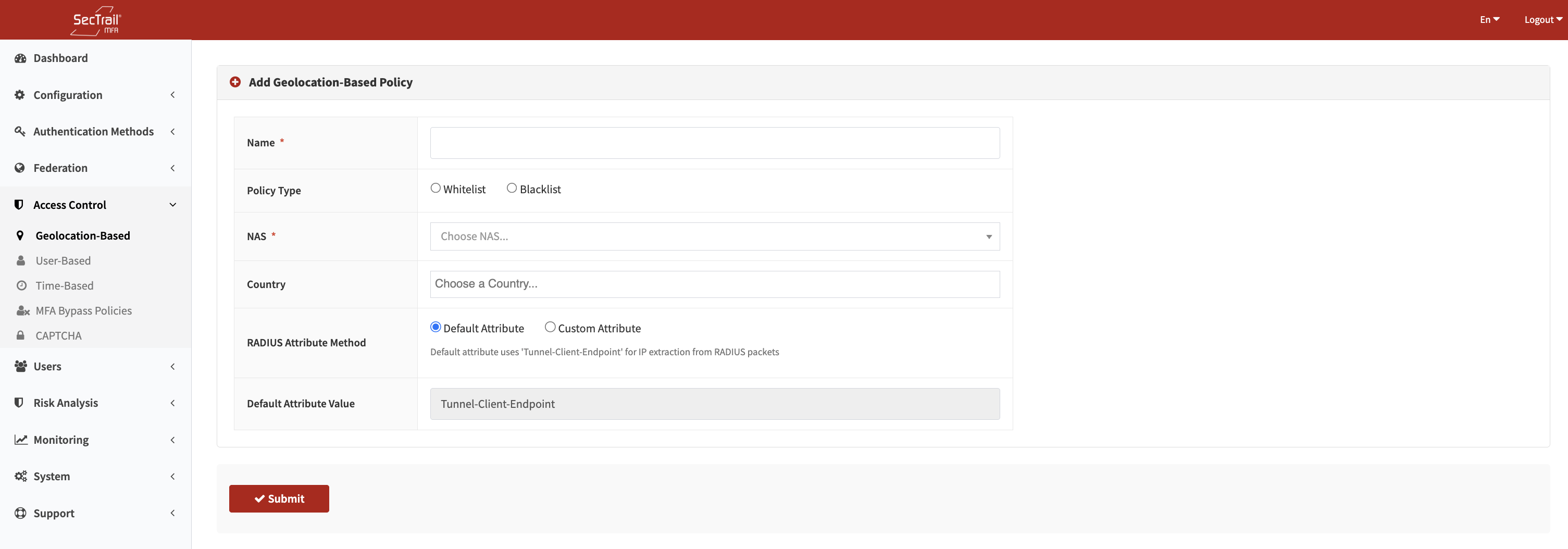
Geo Location Policies
Profile Name
A descriptive name used to identify the policy profile.
Policy Type
Geolocation policies operate in two modes:
1. Whitelist Mode
Only selected countries are allowed. Any country not on the list is automatically blocked.
Use Case: If you want to allow access only from Turkey, Germany, and the USA, you add these countries to the whitelist and all others are denied.
2. Blacklist Mode
Selected countries are blocked. All other countries are allowed.
Use Case: If you want to block access from known high-risk regions, you add those countries to the blacklist.
RADIUS Attribute
Specifies which RADIUS attribute will be used to retrieve the user’s IP address.
Common Attributes:
Framed-IP-AddressCalling-Station-IdNAS-IP-Address
Country Selection
Select one or more countries to allow (whitelist) or deny (blacklist).
NAS Configuration
Defines which NAS (Network Access Server) devices the policy applies to. Different VPN servers or network devices may use different geolocation policies.
How It Works
Whitelist Mode
- User Attempts Login
- IP Address Retrieved: Extracted from the configured RADIUS attribute
- Country Identified: Mapped using the GeoIP database
- Whitelist Check:
- Country in list: Access allowed
- Not in list: Access denied
Blacklist Mode
- User Attempts Login
- IP Address Retrieved
- Country Identified
- Blacklist Check:
- Country in list: Access denied
- Not in list: Access allowed
Use Cases
Regional Access Restrictions
Scenario: The company operates only within Turkey and the EU.
Solution: Add Turkey and all EU countries to the whitelist.
Threat Prevention
Scenario: Attacks originate from specific countries.
Solution: Add these countries to the blacklist.
Compliance Requirements
Scenario: Regulations require blocking or restricting access from certain locations.
Solution: Use whitelist mode to allow only compliant regions.
Corporate Policy Enforcement
Scenario: Employees are allowed remote access only from specific countries.
Solution: Whitelist approved locations.
Setup Steps
- Create a Geolocation Profile in the Access Control → Geolocation Policies section
- Select the Policy Type: Whitelist or Blacklist
- Define the RADIUS Attribute: Choose the attribute containing the user’s IP
- Select Countries: Add countries to allow or block
- Configure NAS Devices: Select which servers the policy applies to
- Test the Policy: Try logging in from different IPs
Advantages
- ✅ Geographic Security Control: Block access from high-risk regions
- ✅ Compliance: Aligns with data protection regulations
- ✅ Flexible: Supports both whitelist and blacklist strategies
- ✅ Automated Detection: IPs automatically mapped to countries
- ✅ NAS-Specific Configuration: Apply different rules per device
Technical Details
- IP Database: Uses MaxMind GeoIP2 or a similar database
- Updates: Database is updated regularly
- Performance: Lookup completes within milliseconds
- Logging: All blocked access attempts are logged
- RADIUS Integration: Fully compatible with RADIUS workflows
Important Considerations
- Geolocation databases are not 100% accurate, especially with VPNs or proxies
- With whitelisting, consider countries employees may travel to
- Blacklists must be regularly updated to include new threat regions
- NAS configuration must be correct for policies to take effect
- Selected RADIUS attribute must contain the correct IP
- For VPN users, the VPN egress IP determines the country
- Ensure you do not accidentally lock yourself out when using whitelists
Geo-Location Database Maintenance
- Update the GeoIP database monthly
- Test functionality after each update
- Keep backups of previous versions
- IP ranges can change frequently, so updates are critical
Troubleshooting
Authorized Users Are Blocked
- Verify the user’s country is in the whitelist
- Ensure the RADIUS attribute contains the correct IP
- Check whether the GeoIP database is up to date
Policy Doesn't Apply
- Confirm NAS configuration is correct
- Verify the chosen RADIUS attribute
- Review SecTrail MFA logs
VPN-Related Issues
- Determine the VPN’s public exit IP country
- Add corporate VPN exit locations to the whitelist