MFA Bypass Policy
MFA Bypass Policy allows users who have recently completed a full multi-factor authentication to skip additional MFA factors on subsequent logins — for a configurable time window. Factor 1 (the primary credential) is always required; only factors 2 and beyond are bypassed.
This feature balances security with usability: users on trusted devices or within a corporate session do not have to re-authenticate with every factor on each login while the bypass window is active.
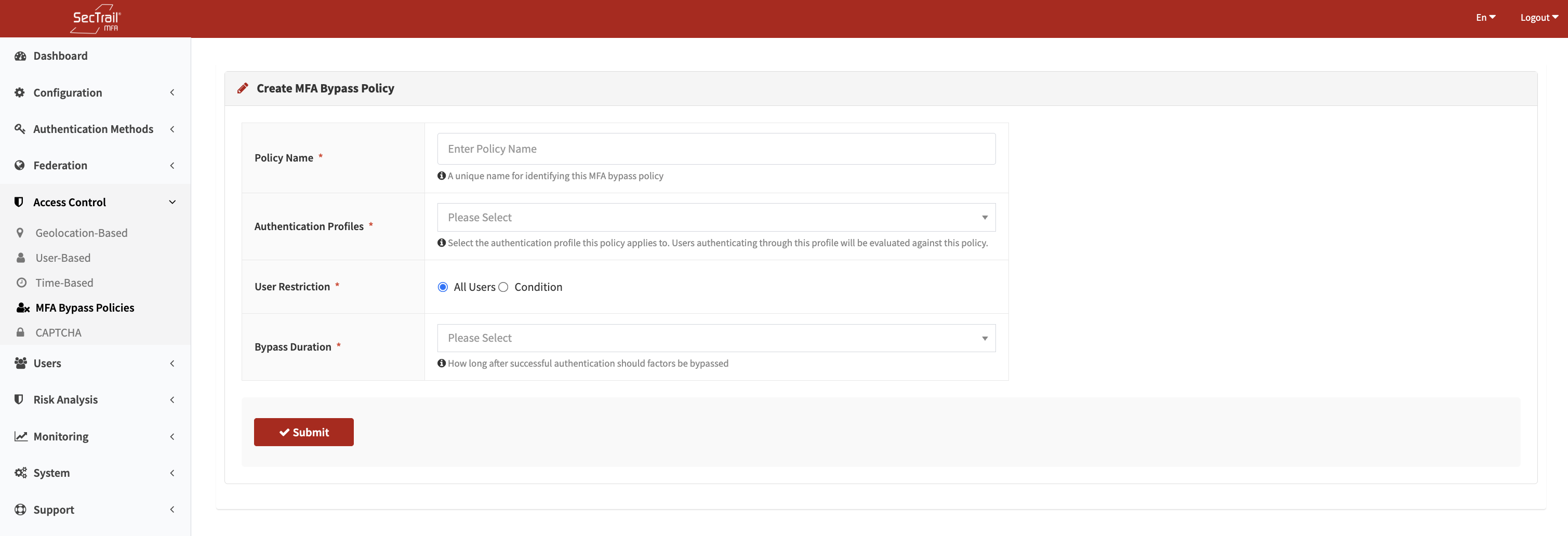
MFA Bypass Policy create form — Auth profile, user restriction, and bypass duration
How It Works
- A user completes a full MFA authentication (all configured factors) for an application.
- SecTrail MFA records this event in a server-side cache, keyed to the user and the application.
- On the next login attempt within the bypass window, the system checks whether a valid cache entry exists.
- If it does, all factors after factor 1 are skipped and the user is authenticated directly.
- Each successful full authentication refreshes the bypass window — the timer restarts.
- When the window expires, the next login requires a full MFA again, which then resets the timer once more.
The bypass is per-application. The same user can have a bypass active for one application but still be required to complete full MFA for another.
Policy Fields
Policy Name
A unique, descriptive label for the policy (required).
Auth Profile
The authentication profile this policy applies to. The dropdown lists all configured LDAP profiles and Local profiles. A policy is scoped to exactly one profile.
User Restriction
Controls which users on the selected profile the policy applies to:
All Users
The policy applies to every user who authenticates through the selected profile. No attribute filtering is performed.
Condition
The policy only applies to users whose profile attribute matches a specific value. When this option is selected, two additional fields appear:
Attribute — The user attribute to evaluate:
- For LDAP profiles:
distinguishedName,sAMAccountName,memberOf,mail,displayName,userPrincipalName - For Local profiles: any column from the local user table (e.g.,
username,email,group)
Attribute Value — The value the attribute must contain. Matching is case-insensitive substring — the attribute only needs to contain the specified string, not match it exactly. For multi-value attributes like memberOf, the match succeeds if any value in the attribute contains the specified string.
Example: To apply the policy only to members of the VPN-Users AD group, set Attribute to memberOf and Attribute Value to VPN-Users. This matches any DN that contains VPN-Users as a substring.
Bypass Duration
How long the bypass window remains active after a successful full authentication. Available options:
| Duration | Value |
|---|---|
| 1 minute | — |
| 5 minutes | — |
| 10 minutes | — |
| 15 minutes | — |
| 30 minutes | — |
| 45 minutes | — |
| 1 hour | — |
| 2 hours | — |
| 4 hours | — |
| 8 hours | — |
| 12 hours | — |
| 24 hours | — |
Priority
Multiple policies can exist and are evaluated in priority order (lower number = higher priority). When a user authenticates, the system evaluates policies in order and uses the first matching policy to determine the bypass duration.
The policy list includes Move Up and Move Down buttons for reordering. After reordering, click Save Order to persist the new priority sequence.
Assigning Policies to Applications
Policies are assigned per application in Configuration → Applications. An application can be assigned multiple bypass policies. Policies are evaluated in priority order at each login.
A policy that is assigned to one or more applications cannot be deleted until it is removed from all applications first.
Behavior Details
| Scenario | Result |
|---|---|
| First login ever | Full MFA required; bypass window opens on success |
| Login within bypass window | Factor 1 only; additional factors skipped |
| Login after bypass window expires | Full MFA required; bypass window refreshes on success |
| Successful full auth during active bypass | Bypass window timer resets (extended) |
| Login to a different application | Bypass state is independent per application |
Use Cases
Corporate VPN Users
Scenario: Users connect to VPN multiple times per day. Requiring push notification or OTP on each reconnect is disruptive.
Solution: Create a bypass policy for the VPN LDAP profile with a 4-hour duration. Users complete full MFA once and reconnect freely for the rest of their work session.
Privileged User Groups
Scenario: A specific AD group (e.g., IT-Admins) needs tighter control than regular users.
Solution: Create a short-duration policy (15 minutes) scoped to memberOf containing IT-Admins. Regular users on the same profile can use a longer policy (4 hours).
Workstation Login
Scenario: Users log into their Windows workstation at the start of the day and should not be challenged again for the session.
Solution: Create a bypass policy with an 8-hour or 12-hour window for the Windows login application.
Setup Steps
- Go to Access Control → MFA Bypass Policy
- Click Create Policy
- Enter a policy name
- Select the auth profile (LDAP or Local)
- Choose All Users or Condition (and fill in attribute / attribute value)
- Set the bypass duration
- Save the policy
- Go to Configuration → Applications, select the target application, and assign the policy
- Adjust priorities if multiple policies apply to the same profile users
Important Considerations
- Factor 1 is never bypassed — primary credential authentication always occurs
- The bypass window is stored as a server-side cache entry; clearing the application cache will reset all active bypass windows
- If multiple policies match a user, only the first (highest priority) policy determines the duration
- A condition policy uses substring matching — be specific enough to avoid unintended matches
- Bypass state is not visible to the user; they are silently authenticated without additional prompts