Login With QR
QR login profiles allow users to authenticate instantly by scanning a QR code using the SecTrail MFA Authenticator mobile application. This method provides a strong, user-friendly experience, especially when used with SSO (Single Sign-On) integrations.
How It Works
1. QR Code Generation
When a user attempts to log into an application or service, a dynamic QR code is displayed on the screen. This QR code contains a cryptographically secure token with session information.
2. Scan Using Mobile Application
The user opens their previously registered SecTrail Authenticator mobile app and scans the QR code. The app reads the session information from the QR code and processes the authentication request.
3. Instant Authentication
The mobile application communicates with the cs.sectrail.com service to process the user's QR code verification request and can authenticate the user within seconds.
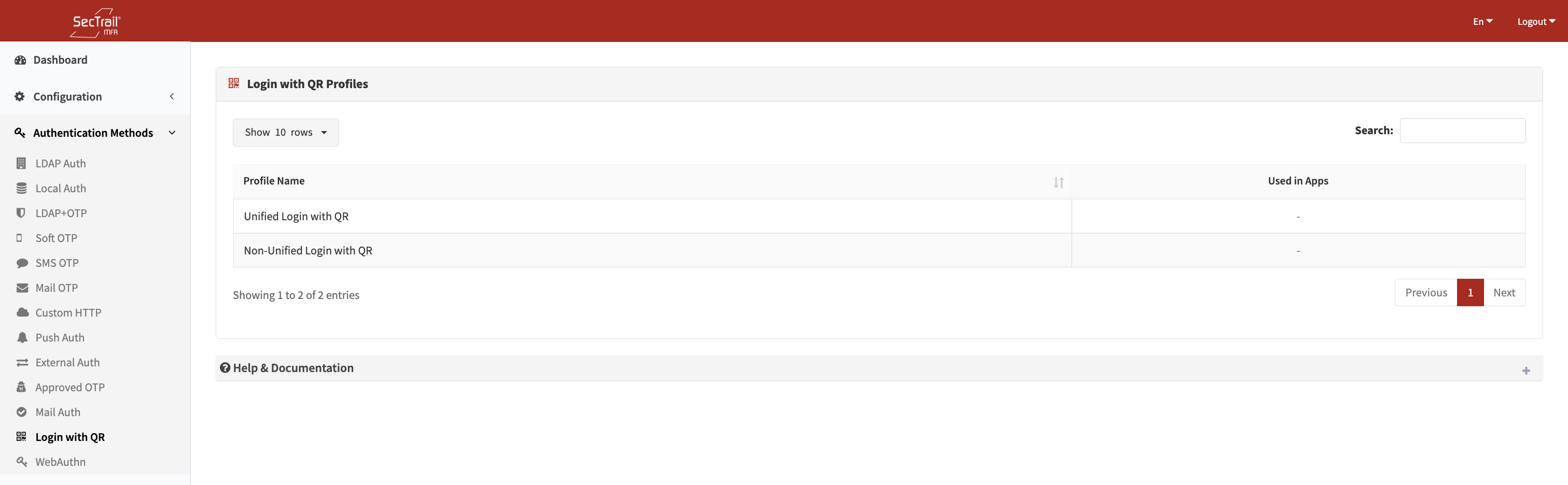
Login with QR Authentication Method
Profiles
QR login profiles contain the necessary configuration required for QR code–based authentication.
Key Features
- SSO-Only Usage: QR login profiles work only with SSO (Single Sign-On) integrations
- Automatic Profile Creation: QR Login profiles are created and managed automatically by the system
Before Use:
- SSO Application Required: QR login works only with SSO integrations
- Mobile App Registration Required: Users must install and complete registration in the SecTrail Authenticator mobile app
User Registration Process
Initial Setup (One-Time Only)
- Download the App: Install SecTrail Authenticator mobile from the App Store or Google Play
- Registration Panel: Perform verification on the SecTrail MFA Registration panel.
- QR Registration: Scan the QR code displayed in the portal using the mobile app
- Account Verification: You must enter the code generated for your account in the mobile application into the field below the QR code on the registration panel.
- Registration Complete: QR login is now ready to use
Daily Use
- Open the application where you want to log in
- A QR code will appear
- Open your mobile app and scan the QR code
- Approve the login request
- You will be automatically logged into the desktop/web application
Technical Requirements
User Requirements
- Mobile Device: iOS or Android
- Mobile App: SecTrail Authenticator mobile must be installed
- Internet Connection: Active internet connection required
- Camera Permission: The app must have camera access enabled
Advantages
- ✅ Passwordless Experience: No need to enter username or password
- ✅ Mobile-First Security: Additional security through mobile-based approval
- ✅ Session Isolation: Each QR code is tied to a unique session
- ✅ Fast Login: Authentication completes in 3–5 seconds
- ✅ User-Friendly: Simple and intuitive
- ✅ Cross-Platform: Works seamlessly across devices
Use Case
Fast and secure login to a corporate SSO portal by scanning the QR code displayed when users open the login page.
Security Features
- One-Time Codes: Each QR code is single-use
- Time-Based Validity: QR codes expire after a short duration
- Session Binding: QR codes are bound to a specific session and cannot be reused
- Encryption: QR content is cryptographically encrypted
- Device-Level Authentication: Mobile device registration provides an additional layer of identity verification
Setup Steps
- Configure SSO Integration: Set up SAML/SSO
- Check QR Login Profile: Ensure the auto-generated QR Login profile is available
- Application Integration: Link your SSO application with the QR Login profile
- User Notification: Notify users to complete mobile app registration
- Test: Test the QR login process using a test user
Users who want to use QR login must download and complete registration in the SecTrail Authenticator mobile app. Otherwise, the QR scanning feature will not work.
Account Priority and Multiple Account Management
Account Order for QR Login
To use QR login, users must be registered in the SecTrail Authenticator mobile app. When logging in via QR code, the first account (top position) in the mobile app is automatically used.
Multiple Account Scenarios
If a user has multiple accounts registered in the mobile app:
First Account Is Used: When logging in via QR code, the first account (top position) in the mobile app is used for authentication.
Account Order Can Be Changed: Users can reorder accounts in the mobile app:
- Open the mobile app
- Drag the desired account to the top of the accounts list
- This account will be used for QR login
Selecting the Correct Account:
- Before using QR login, check the account order in the mobile app
- Ensure the account you want to use is at the top
- If the wrong account is at the top, reorder the accounts in the app
Example Scenario
Accounts in Mobile App:
┌─────────────────────────────┐
│ 1. john.doe@company.com  ✓  │ ← QR Login uses this account
│ 2. john@personal.com        │
│ 3. j.doe@client.com         │
└─────────────────────────────┘

To change account order:
- Drag "john@personal.com"
- Move to the top
- QR Login will now use this account
Move your frequently used account to the top of the mobile app to speed up QR login. Account order changes take effect immediately.
Important Considerations
- QR code screen must always be served over HTTPS
- Avoid setting an excessively long QR code validity period (2–5 minutes is typical)
- Ensure users have granted camera permissions
- The mobile app should be up-to-date
- QR code quality must be sufficient (not too small or blurry)
- Stable internet connection is required
Troubleshooting
QR Code Cannot Be Scanned
- Check camera permissions
- Increase screen brightness
- Make sure the entire QR code is visible
- Update the mobile app
Login Cannot Be Completed
- Check internet connection
- Ensure QR code has not expired
- Refresh the browser/application session
- Generate a new QR code