Mail Auth (Email Link Authentication)
Mail Auth is a passwordless authentication method that allows users to verify their identity using secure links sent to their email addresses. It operates in two modes: User Approval and Manager Approval.
What Is Mail Auth?
Mail Auth profiles allow users to authenticate securely without a password by clicking a one-time link sent to their email. This method is both user-friendly and secure.
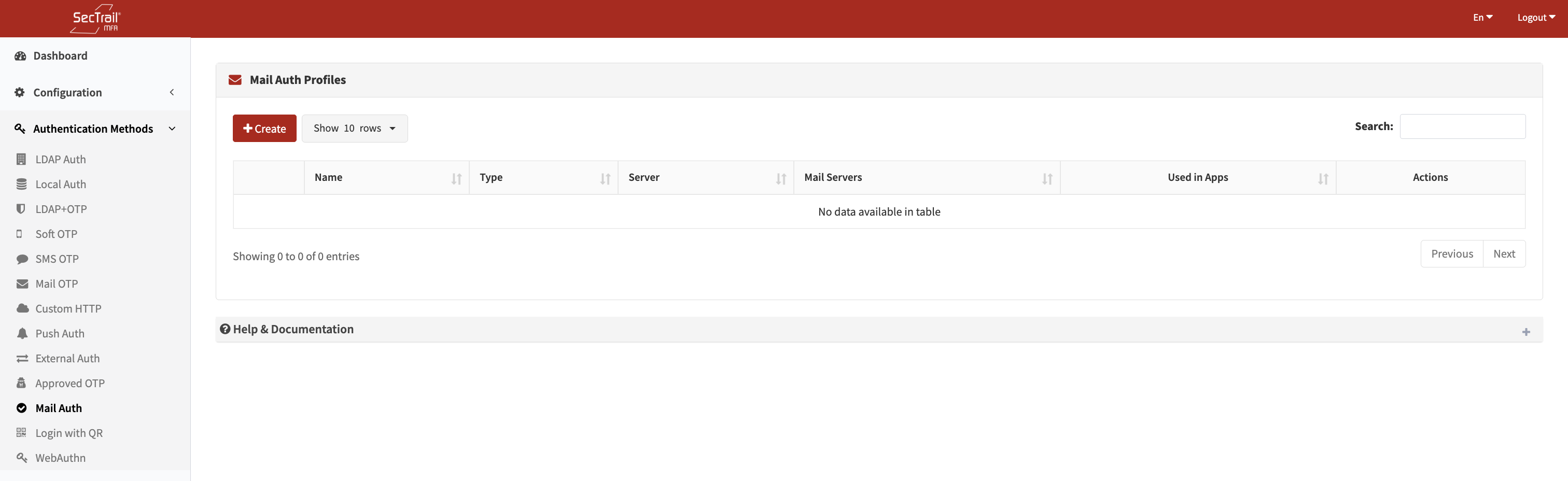
Mail Auth Authentication Method
Profile Types
1. User Approval
Allows the user to log in directly by clicking the verification link sent to their own email.
Purpose:
- Passwordless login experience
- Fast and easy authentication
- Eliminates issues with forgotten passwords
Recipient: The user
Required Action: User clicks the verification link
User Access: Granted immediately upon clicking the link
2. Manager Approval
Requires the user’s manager to approve the login request via an emailed link.
Purpose:
- Additional security layer for sensitive access
- Manager-level oversight
- Compliance with corporate policies
Recipient: User’s manager
Required Action: Manager clicks the approval link
User Access: Granted after manager approval
Profiles
Email approval profiles define how the email authentication process will operate.
Profile Configuration Fields
- Profile Name: Identifier for the profile
- Type: User Approval or Manager Approval
- Server: SecTrail MFA server URL used in verification links
- Message: The email body sent to the recipient
- Link Expiration Time: Validity duration of the link (in minutes)
- Mail Servers: SMTP servers to send emails
- Email Subject: Subject line of the email
- Failed Login Notification: Option to notify manager of failed attempts
- Fallback Auth Profiles: LDAP/Local profiles used to retrieve user identity
For LDAP Users:
mailattribute must be configured- Example: The
mailfield must contain the user’s email address
For Local Users:
- Email address must be defined in the user record
For Manager Approval:
- LDAP must contain the
managerattribute - For local users, sponsor email must be defined
Incorrect email configuration will prevent users from receiving verification links.
:::
Type Comparison
| Feature | User Approval | Manager Approval |
|---|---|---|
| Purpose | Passwordless login | Access requiring manager validation |
| Link Recipient | User | Manager |
| Required Action | User clicks the link | Manager approves the request |
| User Access | Immediate upon click | After manager approval |
| Link Validity | Yes (time-based) | Yes (time-based) |
| Use Case | Daily login | Sensitive system access |
Authentication Flows
User Approval Flow
- User initiates login
- System sends verification link to user
- User checks email and clicks the link
- User is granted access
Manager Approval Flow
- User initiates login
- System sends approval link to user’s manager
- User sees “Waiting for manager approval”
- Manager checks email
- Manager approves or denies the request
- If approved, user is granted access
Approval time may vary depending on the manager’s email response.
Policies
Email approval policies determine which users authenticate with which profile.
Policy Configuration Fields
- Email Auth Profile: Email approval profile to use
- Authentication Profile: LDAP/Local profile used to fetch user attributes
- Must be included in the approval profile’s fallback profiles
- Attribute: User attribute to match (e.g.,
memberOf,department,mail,username,group_name) - Attribute Values: Allowed values
- Can be selected from dropdown
- Wildcards (*) and regex supported
Policy Behavior
- No Policy: All users use the default profile
- With Policy: Only matching users are authenticated using that profile
- Order: Policies are evaluated top to bottom; first match applies
You can authenticate IT department users with User Approval and executives with Manager Approval.
Common Use Cases
Scenario 1: Passwordless Login
Type: User Approval
Used when simplifying user experience and reducing password-related issues.
Scenario 2: Controlled Access
Type: Manager Approval
Used for sensitive resources and privileged accounts.
Scenario 3: Hybrid Workflow
Type: Mixed
Different groups use different approval methods based on risk level.
Quick Setup Steps
- Configure SMTP mail servers
- Prepare LDAP/Local fallback profiles
- Create Email Approval Profile (select user/manager type)
- Set link expiration time (e.g., 15 minutes)
- Verify email attributes on LDAP/Local users
- Create policies (optional)
- Add profile to the application profile
Very short expiration times may prevent users from completing authentication in time.
Recommended: 15–30 minutes.
Advantages
- ✅ Passwordless authentication
- ✅ Secure one-time, time-limited links
- ✅ Flexible approval options
- ✅ User-friendly
- ✅ Audit logging for all events
Technical Details
- Link Format: Cryptographically secure, one-time token
- Security: HTTPS encrypted transactions
- Validity: Time-based expiration
- Usage: Tokens are single-use
- Mail Protocol: SMTP with TLS/SSL
Considerations
- Do not set link validity too short or too long
- Ensure SMTP configuration is correct
- Verify user email attributes regularly
- Ensure manager attributes are valid for Manager Approval
- Ask users to check spam/junk folders
- Monitor mail server performance