SSL Certificate Management
SecTrail MFA allows administrators to upload and manage SSL/TLS certificates for the web panel directly from the admin interface — without requiring SSH access or manual file operations. The system supports uploading new certificates, automatic rollback to the previous certificate if needed, and viewing the current certificate details for each configured virtual host.
Accessing SSL Management
Go to System → SSL Certificates in the admin panel.
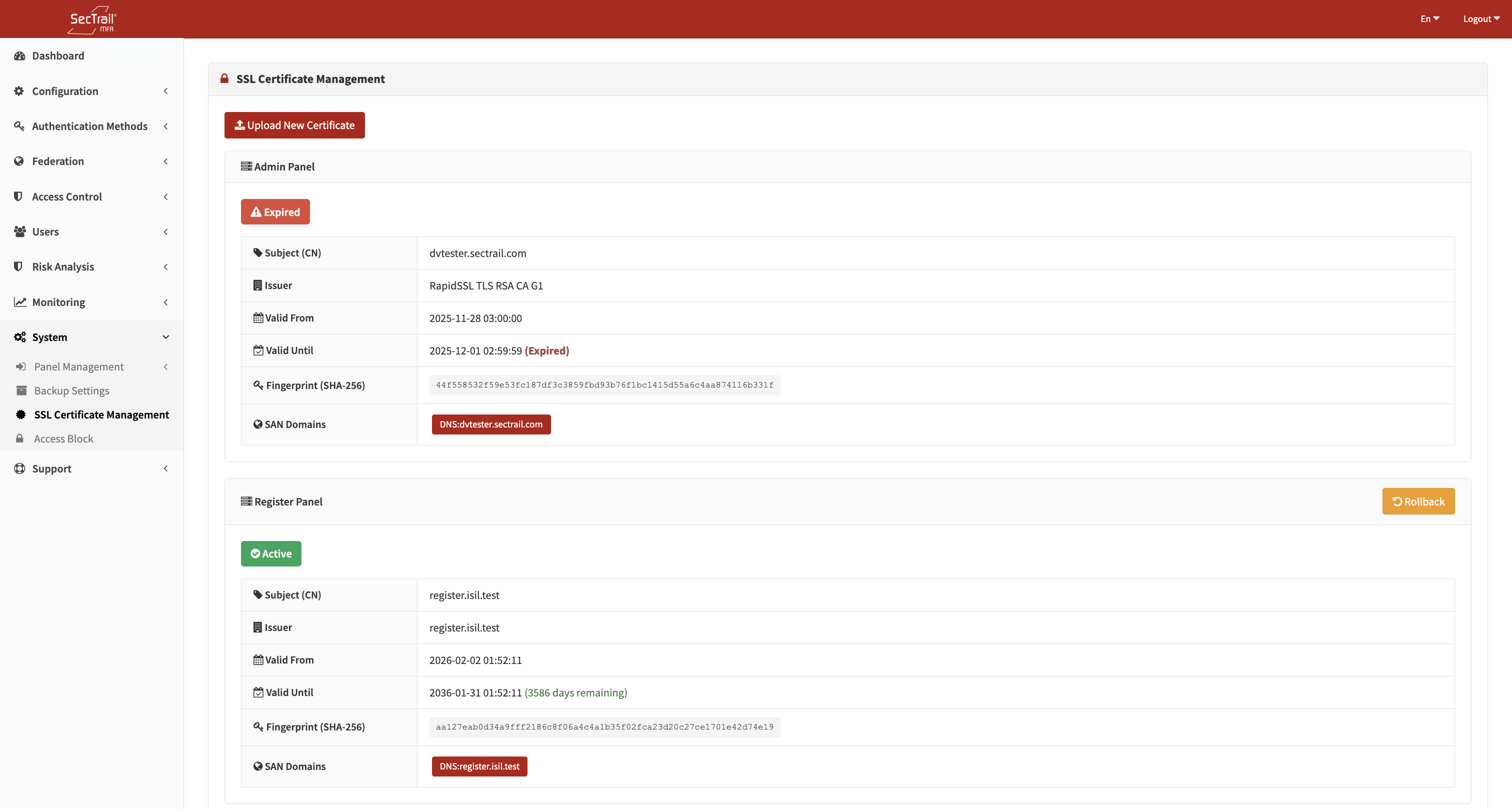
SSL Certificate Management — virtual hosts and certificate status list
Certificate List
The main page shows all configured virtual hosts and their current certificate status:
| Column | Description |
|---|---|
| Virtual Host | The hostname or panel name (e.g., admin panel, registration panel) |
| Issuer | Certificate authority that issued the certificate |
| Subject / Common Name | The domain the certificate is issued for |
| Subject Alternative Names | Additional domains covered by the certificate |
| Valid From | Certificate validity start date |
| Valid To | Certificate expiry date |
| Days Remaining | Days until expiry (highlighted when expiring soon or expired) |
| Status | Active / Expiring Soon / Expired |
| Fingerprint | SHA-256 fingerprint for verification |
Status Badges
- Active — Certificate is valid and not expiring soon
- Expiring Soon — Certificate expires within the configured warning threshold (default: 30 days)
- Expired — Certificate has passed its expiry date
Rollback
If a backup of the previous certificate exists (retained automatically after each upload), a Rollback button appears. Clicking it swaps the current certificate back to the previous version. After a successful rollback, the backup is removed.
Uploading a New Certificate
- Click Upload Certificate
- Select the virtual host(s) to apply the certificate to (multiple can be selected)
- Choose the upload mode:
Upload Mode: PFX / PKCS#12
Upload a single PKCS#12 bundle file (.pfx or .p12) that contains the certificate and private key together.
| Field | Required | Description |
|---|---|---|
| PFX File | Yes | The .pfx or .p12 certificate bundle |
| PFX Passphrase | No | Passphrase to decrypt the PFX file (leave blank if not password-protected) |
| CA Chain File | No | Optional separate CA/intermediate certificate file to append |
Upload Mode: Separate Files
Upload the certificate and private key as separate PEM-encoded files.
| Field | Required | Description |
|---|---|---|
| Certificate File | Yes | PEM-encoded certificate file (.crt or .pem) |
| Private Key File | Yes | PEM-encoded private key file (.key or .pem) |
| CA Chain File | No | Optional PEM-encoded intermediate/CA chain file |
The system verifies that the private key matches the certificate before applying. If they do not match, the upload is rejected with an error.
- Click Upload
The system installs the certificate to the selected virtual host(s) and reports success or failure per host. A backup of the previous certificate is retained automatically to enable rollback.
Important Considerations
- The certificate upload requires appropriate system permissions — the web server must be able to write to the certificate paths configured for each virtual host.
- After uploading, the web server reloads its configuration automatically. There is a brief moment where the new certificate takes effect.
- If the upload fails for one virtual host but succeeds for another, only the failed hosts retain the old certificate.
- Keep a local copy of your private key before uploading — private keys stored on the server cannot be downloaded through the admin panel.
- Certificates are validated at upload time. Expired certificates can be uploaded (to test or recover from an emergency) but will show the Expired status.
- The CA chain file is appended to the certificate in bundle format. Include all intermediate certificates in the correct order (leaf → intermediate → root, or as required by your CA).