Azure Key Vault
SecTrail CM establishes an agentless connection to Azure Key Vault to enable automatic deployment, synchronization, and management of certificates.
SecTrail CM can import certificates from its inventory into Azure Key Vault, discover and monitor existing certificates within the vault, and remove them when needed.
Connection Requirements
| Requirement | Detail | Description |
|---|---|---|
| Protocol | REST API (HTTPS) | Azure Key Vault REST API is used |
| Endpoint | https://<vault-name>.vault.azure.net | Key Vault access address |
| Authentication | Azure AD App Registration | Authentication with Client ID and Client Secret |
| Permission | Key Vault certificate management permission | Permission to add, read, list, and delete certificates |
Automatic Operations
SecTrail CM automatically performs the following operations on Azure Key Vault:
- Certificate Discovery: Listing existing certificates within the vault
- Certificate Import: Adding certificates from the SecTrail inventory to Key Vault
- Certificate Remove: Deleting existing certificates from Key Vault
- Validation: Certificate validity and chain verification
Configuration Steps
1. Create an App Registration in Azure
Create an App Registration in Azure AD so that SecTrail CM can access the Key Vault:
- Create an application registration via Azure AD → App Registration and generate a Client ID and Client Secret.
- From Key Vault → Access control (IAM), assign the following roles to this App Registration:
- Key Vault Certificates Officer: Create, read, list, and update certificates
- Key Vault Secrets User (required): Since the private key of certificates is stored as a secret in Azure Key Vault, this role is required for import and read operations. The Certificates Officer role alone does not cover the private key.
2. Create an Azure Key Vault User
Navigate to Automation > Device Users and create a user for Azure Key Vault:
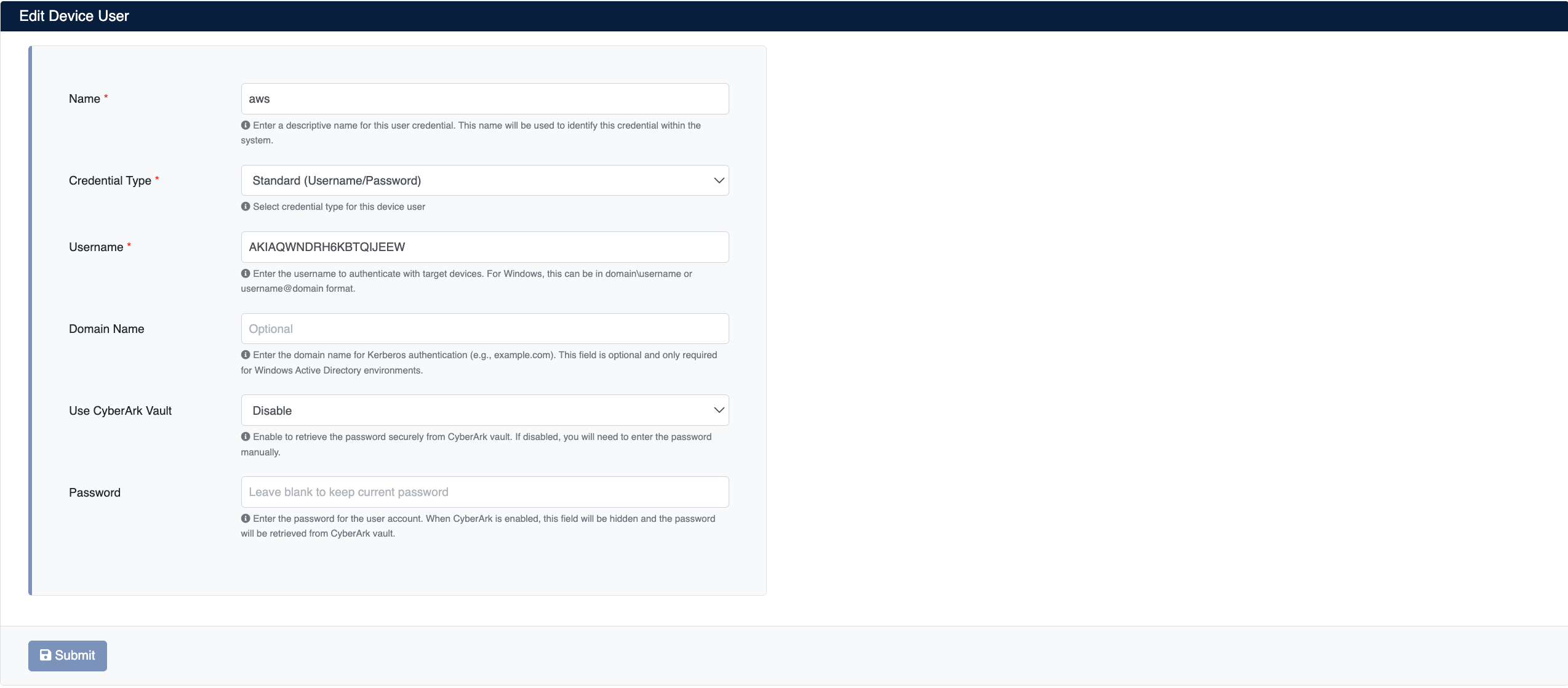
- Name: Enter a descriptive name for the user
- Credential Type: Select
Standard (Username/Password) - Username: Enter the Client ID value of the App Registration
- Password: Enter the Client Secret value of the App Registration
Click the Submit button to save the user.
3. Add the Azure Key Vault Device to SecTrail CM
Click the Automation > Devices > Add New Device button and enter the following information:
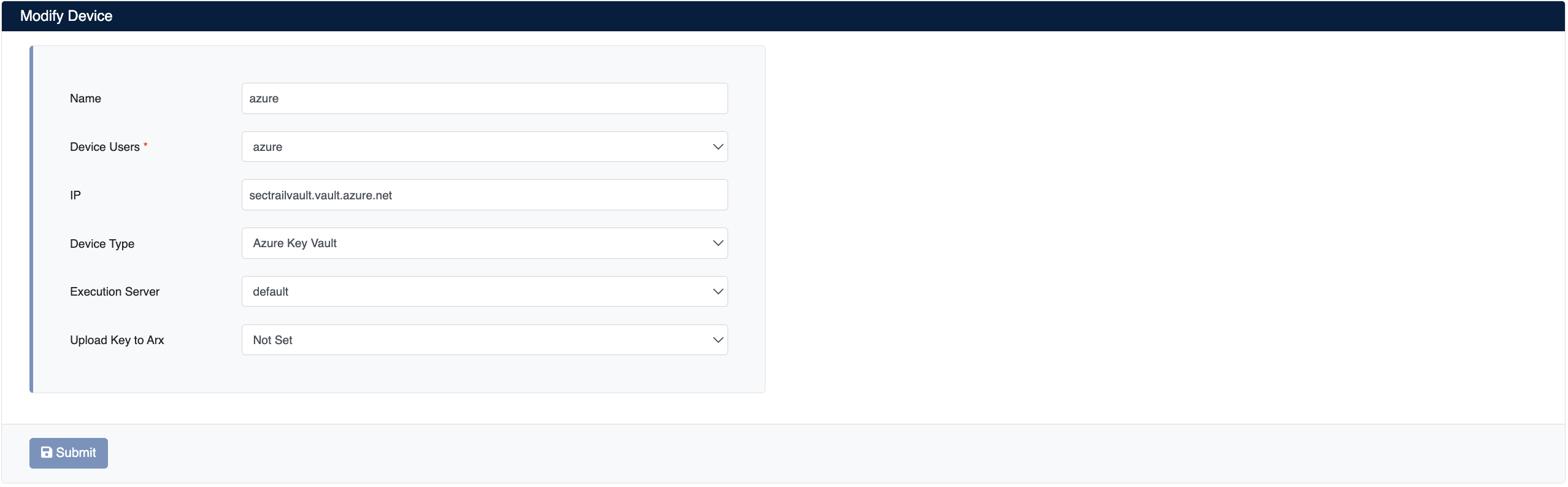
- Name: Enter a descriptive name for the device (e.g.
azure) - Device Users: Select the user you created in Step 2
- IP: Enter the Key Vault access address (e.g.
sectrailvault.vault.azure.net) - Device Type: Select
Azure Key Vaultfrom the dropdown menu - Execution Server: The server used to run deployment operations (e.g.
default)
Click the Submit button to save the device.
After the Azure Key Vault device is added to SecTrail CM, the certificates within the vault are automatically included in the discovery period and scanned regularly. Automatic alarms are generated for certificates that are about to expire or have issues.
4. View Device Information
After the device is added, it will be displayed in the Automation > Devices list. Click the row to view the device details:
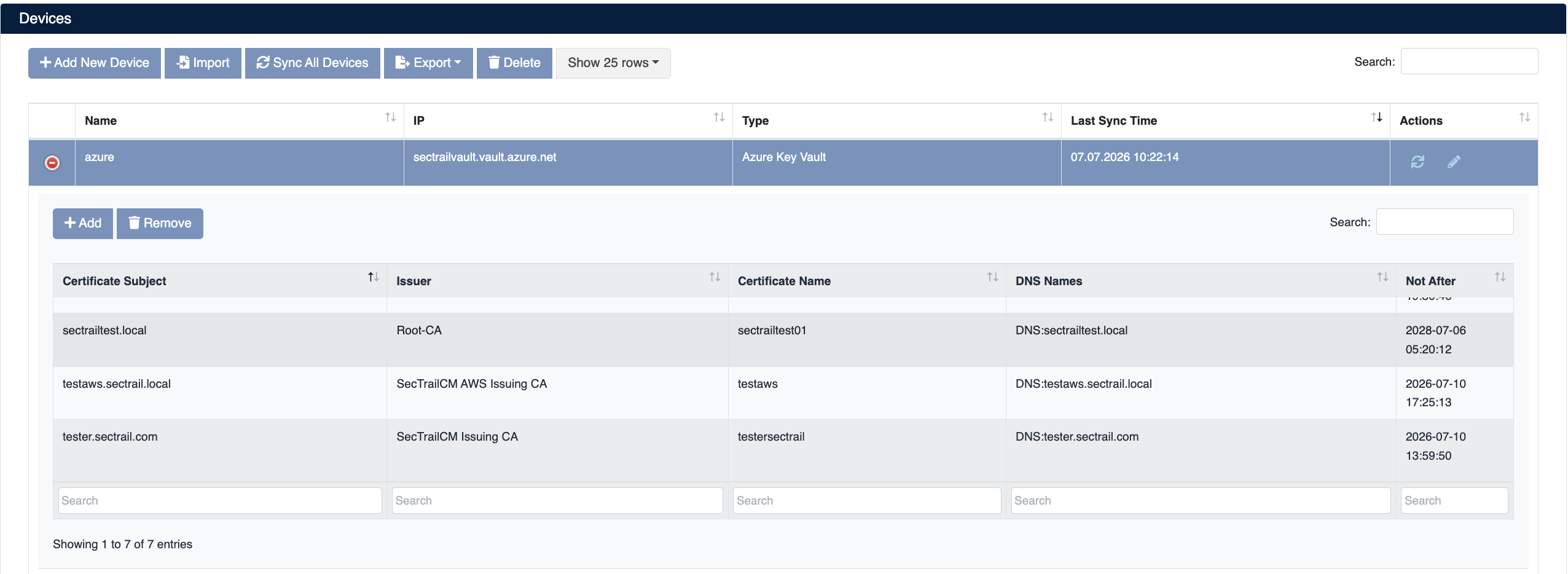
The device details display the following information:
- Certificate Subject: Certificate subject information
- Issuer: Information about the CA that issued the certificate
- Certificate Name: The name of the certificate within Key Vault
- DNS Names: DNS names defined in the certificate
- Not After: The certificate's expiration date
Certificate Deployment (Import)
Step 1: Certificate Selection
- Select your Azure Key Vault device from the Automation > Devices section
- Click the Add button in the device details
- Select the certificate you want to add in the dialog that opens
Step 2: Start the Deployment
Click the Submit button to start the certificate deployment.
Step 3: Process Tracking
The deployment can be tracked from the Automation > Processes section:
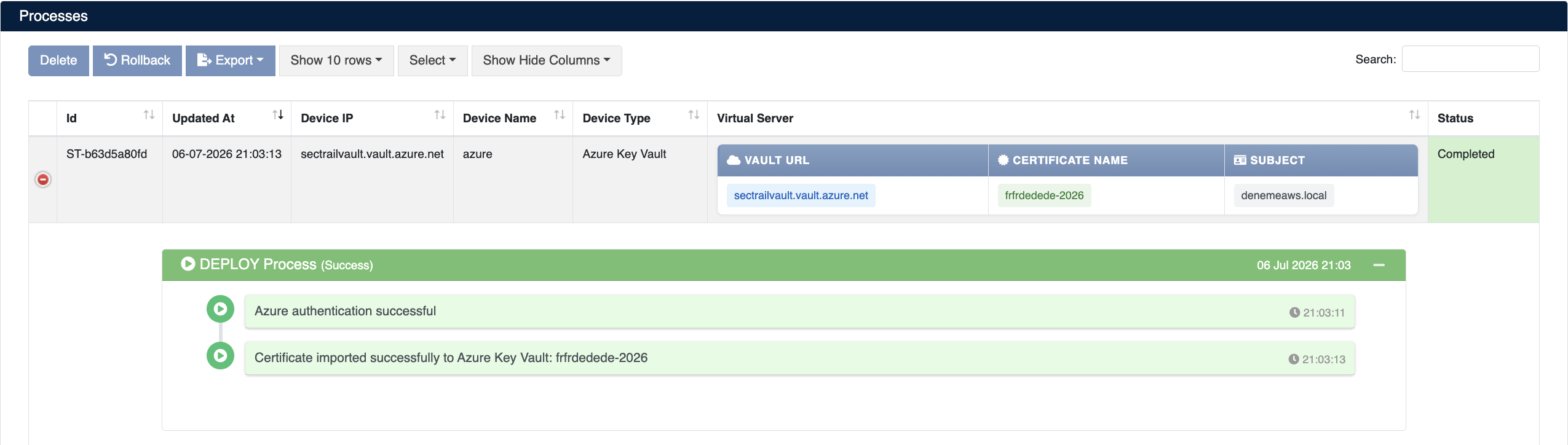
Process Details
The following steps are performed during deployment:
| Step | Operation Description |
|---|---|
| 1 | Azure authentication is performed (Azure authentication successful) |
| 2 | The certificate is successfully uploaded to Azure Key Vault (Certificate imported successfully to Azure Key Vault) |
Certificate Removal (Remove)
SecTrail CM supports removing certificates from Azure Key Vault.
Removal Steps
- Select your Azure Key Vault device from the Automation > Devices section
- Click the Remove button on the row of the certificate you want to delete
- Confirm to start the removal
Removal Task Details
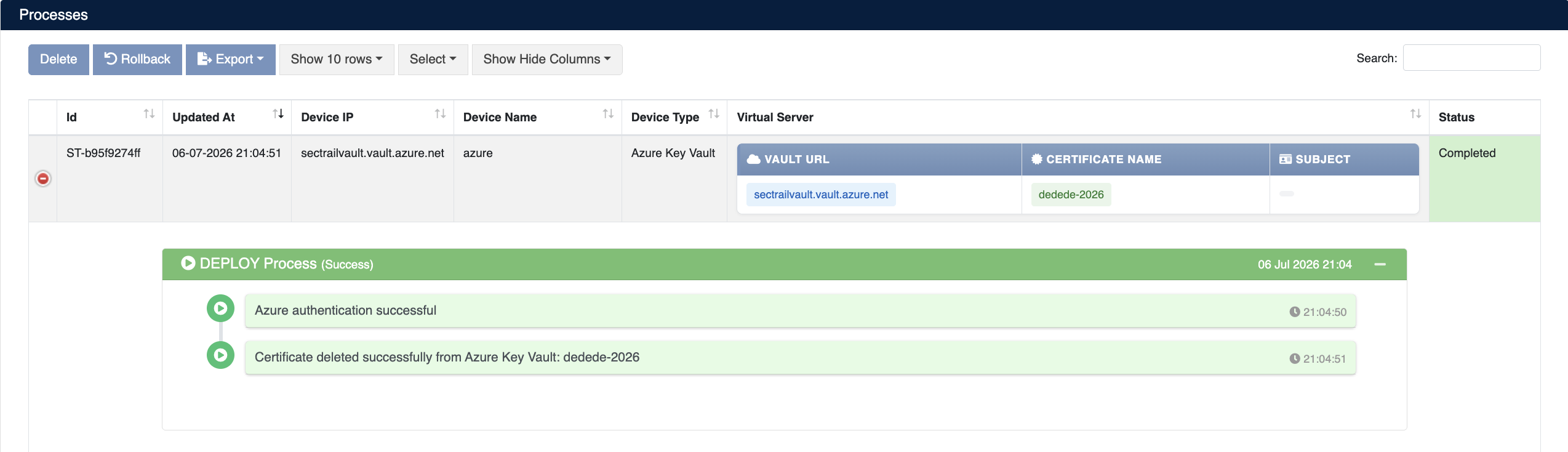
The removal can be tracked from the Automation > Processes section. The following steps are performed during the operation:
| Step | Operation Description |
|---|---|
| 1 | Azure authentication is performed (Azure authentication successful) |
| 2 | The specified certificate is deleted from Azure Key Vault (Certificate deleted successfully from Azure Key Vault) |