PaloAlto Panorama
SecTrail CM enables automatic deployment and renewal of SSL certificates to all managed firewall devices by establishing agentless connections to the Palo Alto Panorama central management platform.
Connection Requirements
| Requirement | Detail | Description |
|---|---|---|
| Protocol | XML API (HTTPS) | Panorama's native XML API is used |
| Port | 443 | Standard HTTPS port or custom management port |
| Authentication | Username and Password | Authentication via Username and Password |
| User Permission | Admin or Certificate Manager role | Certificate upload and configuration permission |
Automated Operations
SecTrail CM automatically performs the following operations on Palo Alto Panorama:
- Certificate and Key Upload: Secure transfer of SSL certificate and private key
- Certificate Import: Importing certificate and key to devices managed through Panorama
- SSL Profile Update: Updating SSL decryption profiles
- Configuration Commit: Committing and making configuration persistent
Configuration Steps
1. Creating Panorama User
Navigate to Automation > Device Users and create a user for Panorama.
2. Adding Panorama Device to SecTrail CM
Click Automation > Devices > Add New Device button and enter the following information:
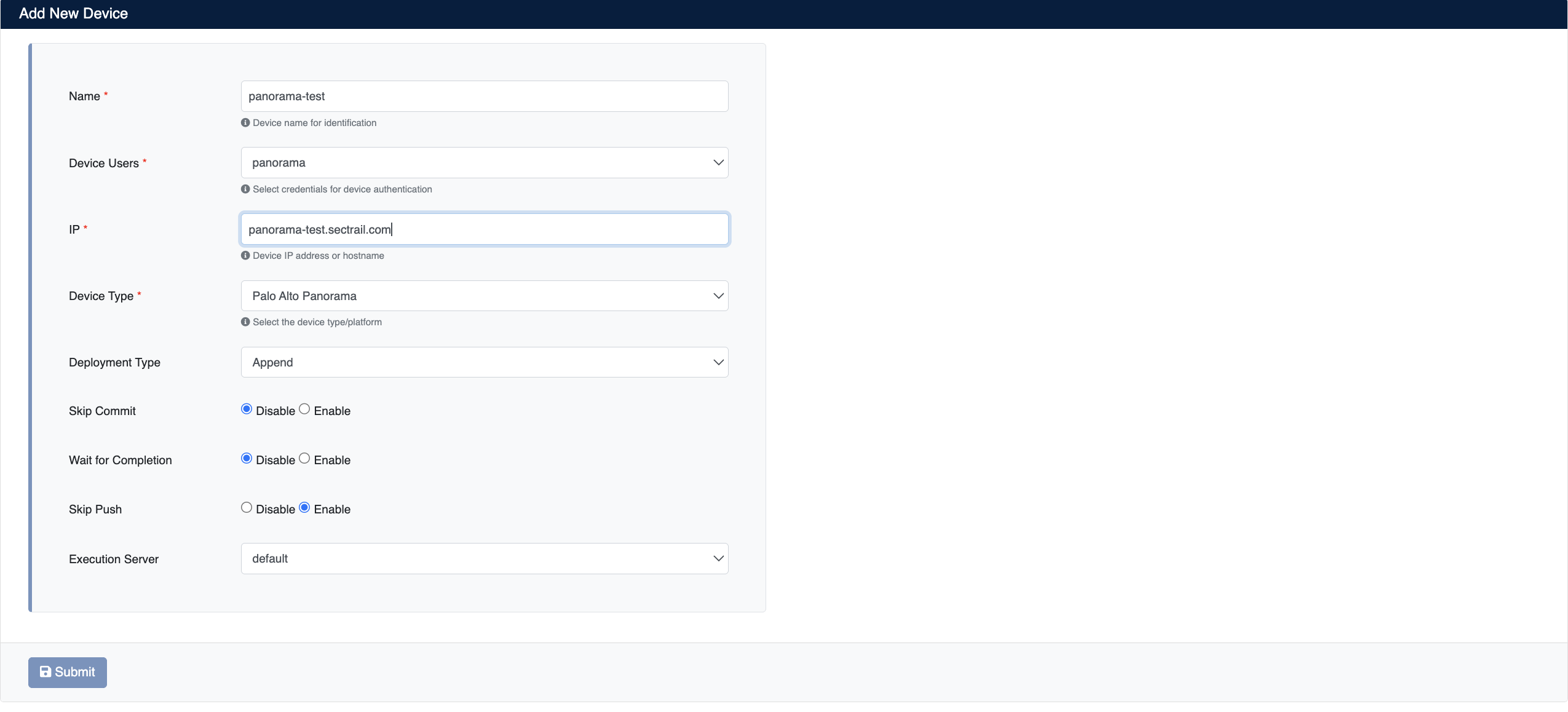
- Name: Provide a descriptive name for the device
- Device Users: Select the user created in Step 1
- IP: Enter the Panorama management IP address
- Device Type: Select
Panoramafrom the dropdown menu - Deployment Type: Select deployment type
- Append: Adds new certificate to existing decryption rule (existing certificates are preserved)
- Replace: Replaces existing certificate with new one (old certificate is deleted)
- Skip Commit: Should changes be committed? (Disabled/Enabled)
- Skip Push: Should the certificate be pushed to the target device? (Disabled/Enabled)
After the Panorama device is added to SecTrail CM, all certificates on devices managed by Panorama are automatically included in the discovery period and scanned regularly. Automatic alarms are created for certificates that are about to expire or have issues.
3. Viewing Device Information
After the device is added, it will be displayed in the Automation > Devices list. Click on the row to view device details:
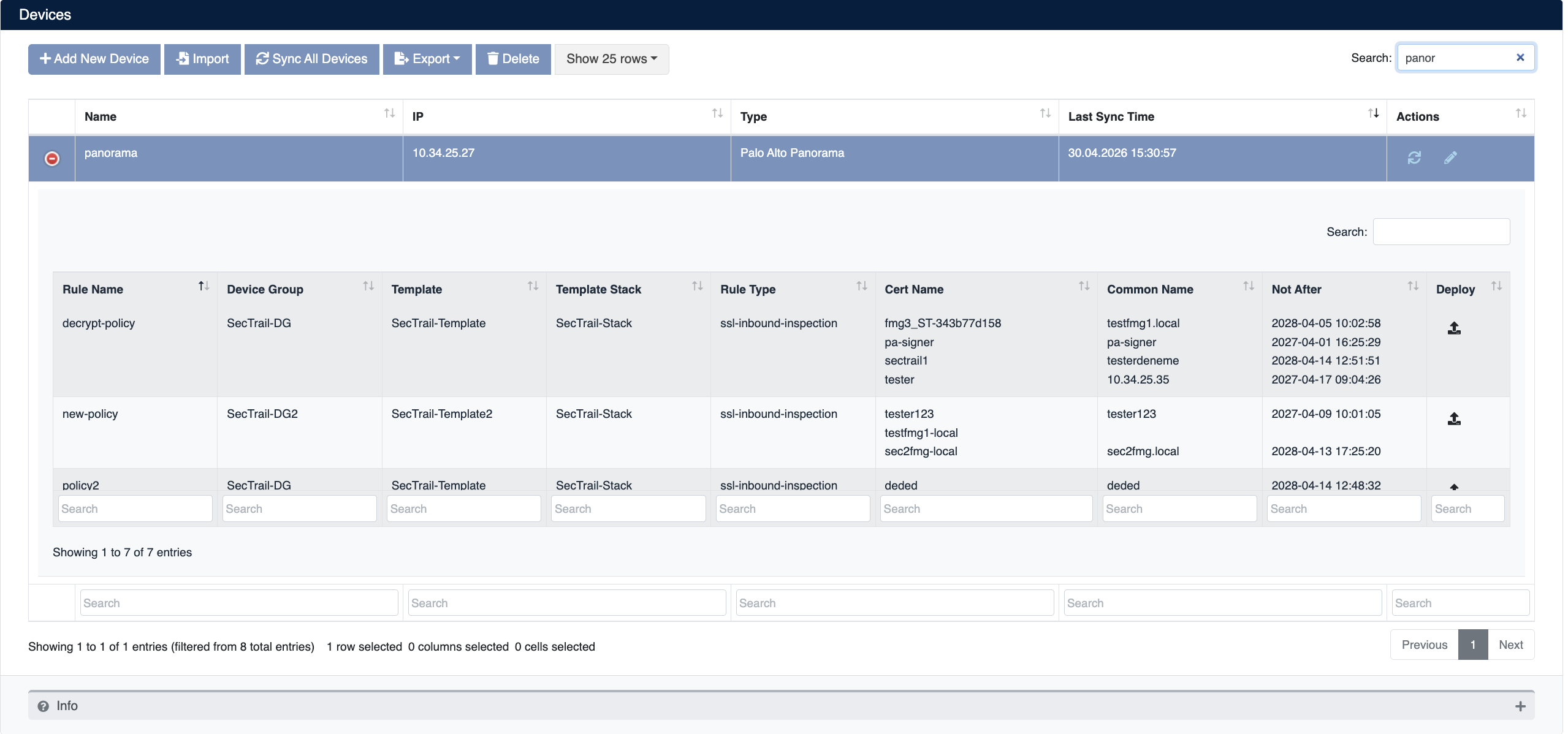
- Rule Name: Name of the rule defined on Panorama
- Device Group: Device group the certificate belongs to
- Template: Panorama template name the certificate is associated with
- Template Stack: Template stack name the certificate belongs to
- Rule Type: Type of the rule (e.g. decryption rule)
- Cert Name: Name of the certificate defined on the device
- Common Name: Common Name (CN) information of the certificate
- Not After: Certificate expiration date
- Deploy: For certificate deployment
Certificate Deployment
Step 1: Virtual Server and Certificate Selection
- Select your Panorama device from Automation > Devices
- In the device details, find the Virtual Server where you want to deploy the certificate
- Click the Deploy button on the relevant row
- In the Deploy Certificate window that opens:
- Virtual Servers: Target Virtual Server information is displayed (Name/Destination/Subject format)
- Certificate: Select the certificate you want to deploy from the dropdown menu
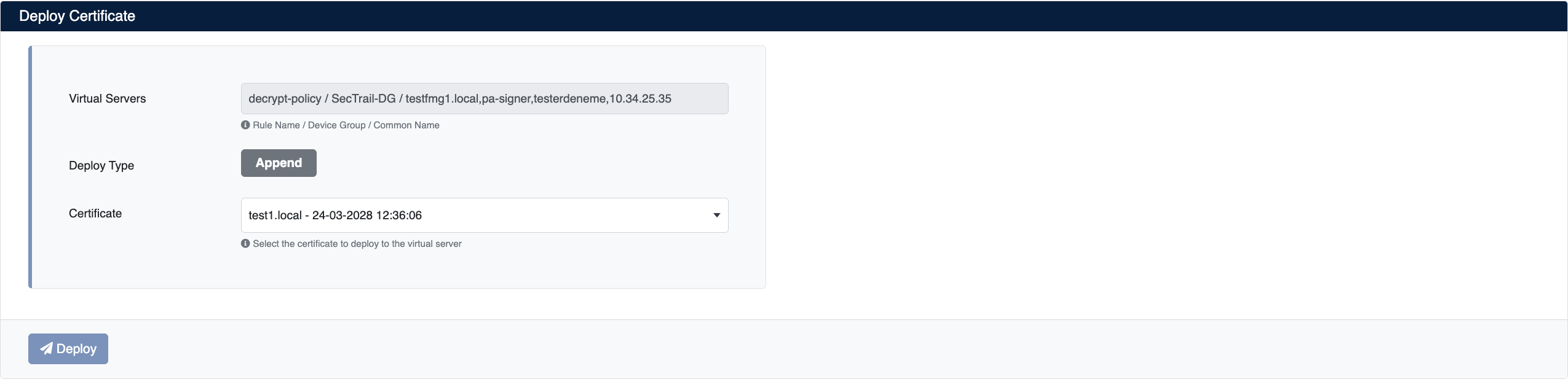
Step 2: Starting the Deployment Process
Click the Deploy button to start the certificate deployment process.
Step 3: Process Tracking
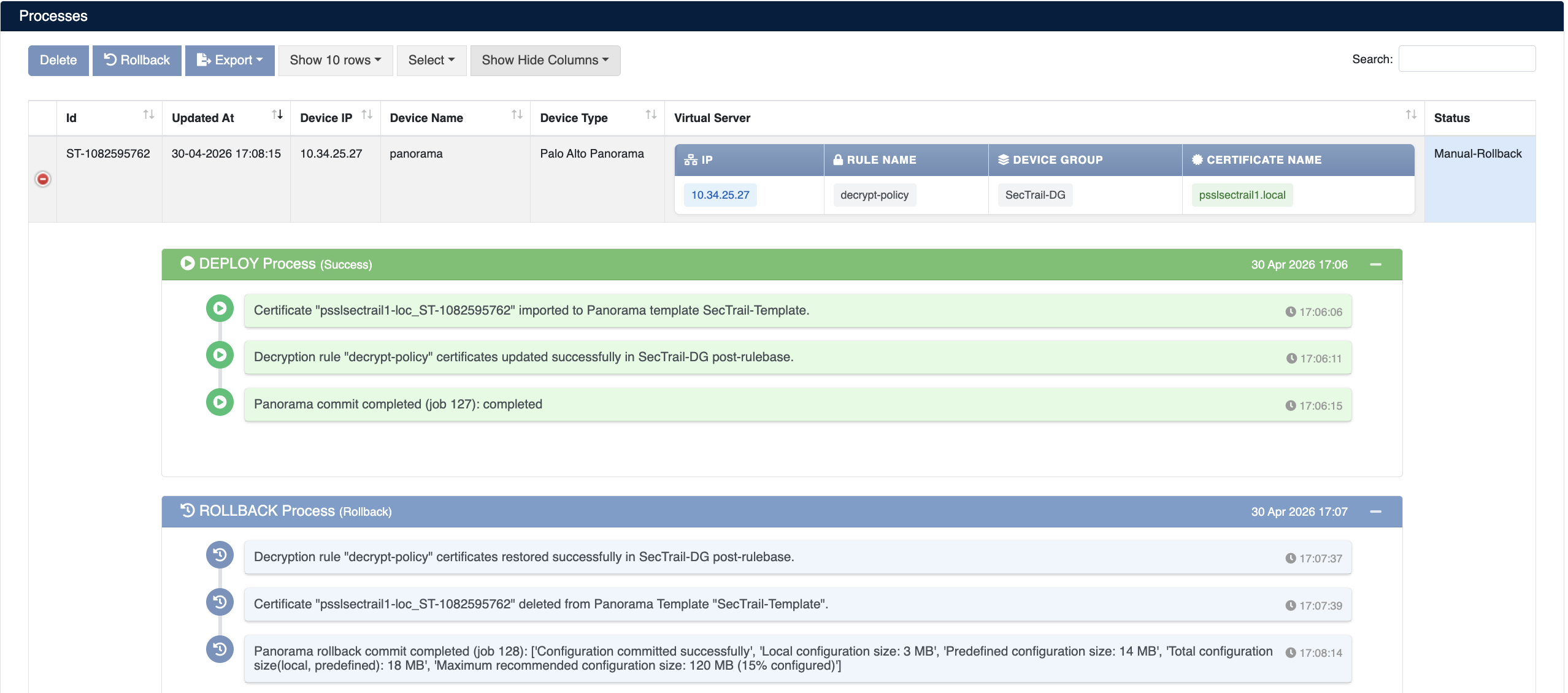
The deployment process can be tracked from Automation > Processes:
Operation Details
The following steps are performed during deployment:
| Step | Operation Description |
|---|---|
| 1 | Certificate is successfully updated |
| 2 | Decryption rules are configured |
| 3 | Configuration is committed |
| 4 | Configuration is successfully completed |
When Skip Commit is disabled, SecTrail CM commits the configuration changes after deployment and makes them persistent.
Rollback Operation
The Manual Rollback feature can be used in case of issues after certificate deployment.
If an error occurs at any step during the deployment process, the system automatically performs a rollback and all changes are reverted.
Rollback Steps
- Navigate to Automation > Processes
- Find the operation you want to rollback
- Use the Manual-Rollback option in the Status column
- Confirm
Operations During Rollback
| Step | Operation |
|---|---|
| 1 | Newly uploaded certificate is deleted |
| 2 | Previous configuration is restored |
| 3 | Decryption rules are reverted to their previous state |
| 4 | Rollback operation is successfully completed |