Quick Start
Welcome to SecTrail MFA! This guide contains the fundamental steps required to start using the platform.
1. Accessing the Platform
Navigate to your SecTrail MFA address in your web browser:
https://your-sectrailmfa-server
On the initial access, your browser may show a security warning due to the self-signed SSL certificate. It is recommended to use a corporate CA-signed certificate in a production environment.
2. Logging In
Default login credentials are used during the initial installation. For security, always change these credentials after the first login.
Enter your login credentials:
- Username:
admin - Password:
admin
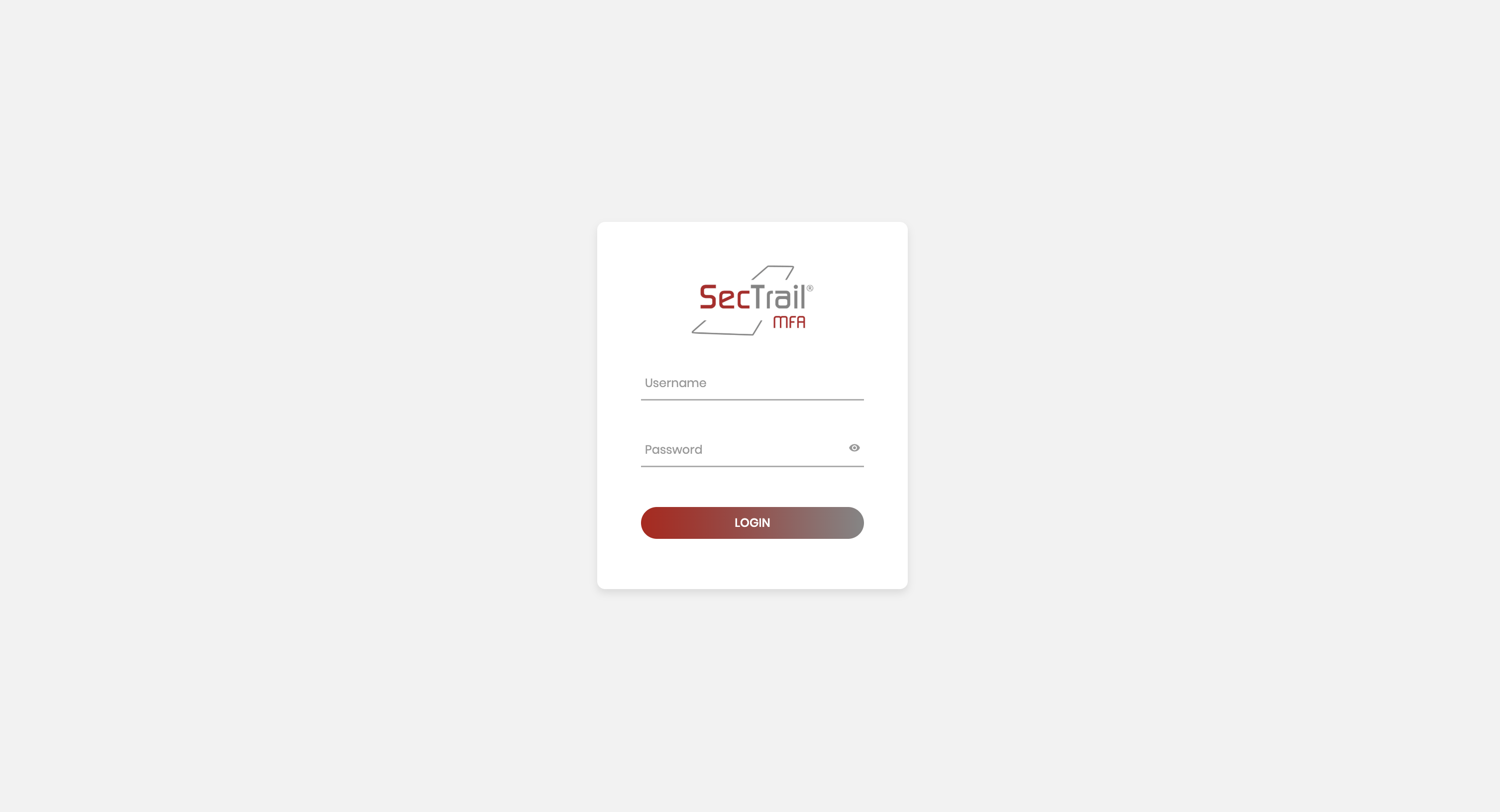
SecTrail MFA Login Screen
3. Initial Login - License Activation
When you log in for the first time, the License Activation screen will appear.
License Activation Steps
- Copy the App Key and Dossier information shown on the screen
- Share this information with the SecTrail MFA support team:
- Paste the License Key provided by the support team into the relevant field
- The license verification will occur automatically
Send your App Key and Dossier information to our support team to receive your license key. Your license key will be delivered to you by our team.
4. Main Dashboard
After logging in, you will see the main dashboard. This screen provides a comprehensive overview of your system.
📸 Screenshot: Main Dashboard - Overview
On the Dashboard, you can see:
- System Metrics: Uptime, current time, OS version, disk usage
- User Statistics: Total user, active user counts
- Authentication Graphs: Successful/failed authentication statistics (screenshot to be added)
- Left Menu: Access to all features of the platform
For a detailed explanation of all graphs and metrics on the Dashboard, please refer to the Dashboard User Guide page.
Left Menu - Main Navigation
You can access all platform features from the menu on the left:
Dashboard : Main screen and general system status
Configuration : System configuration settings and basic configurations
Authentication Methods : Management and configuration of authentication methods
Federation : SAML 2.0 SSO and federation management
Access Control : Access control policies and restrictions
Users : User and group management
Monitoring : System monitoring, logs, and reporting
System : System management and maintenance operations
Support : License management and support tools
Do You Need Help?
📞 24/7 Support:
- 📧 Email: destek@sectrail.com
- 📞 Phone: +90 850 222 0268