WebAuthn Authentication
WebAuthn (Web Authentication API) enables passwordless authentication using FIDO2 security keys and platform authenticators.
What Is WebAuthn?
WebAuthn is a web standard published by the W3C and FIDO Alliance for secure, passwordless authentication. It uses public key cryptography and provides strong resistance against phishing, man-in-the-middle attacks, and credential theft.
Platform Authenticators
- Windows Hello (fingerprint, face, PIN)
- Touch ID (macOS, iOS)
- Face ID (iOS)
- Android Biometric (fingerprint, face)
How It Works
- Registration: The user registers their WebAuthn device
- Challenge: The server sends a cryptographic challenge
- Signing: The device signs the challenge using the private key
- Verification: The server verifies the signature using the public key
- Access: Authentication is granted
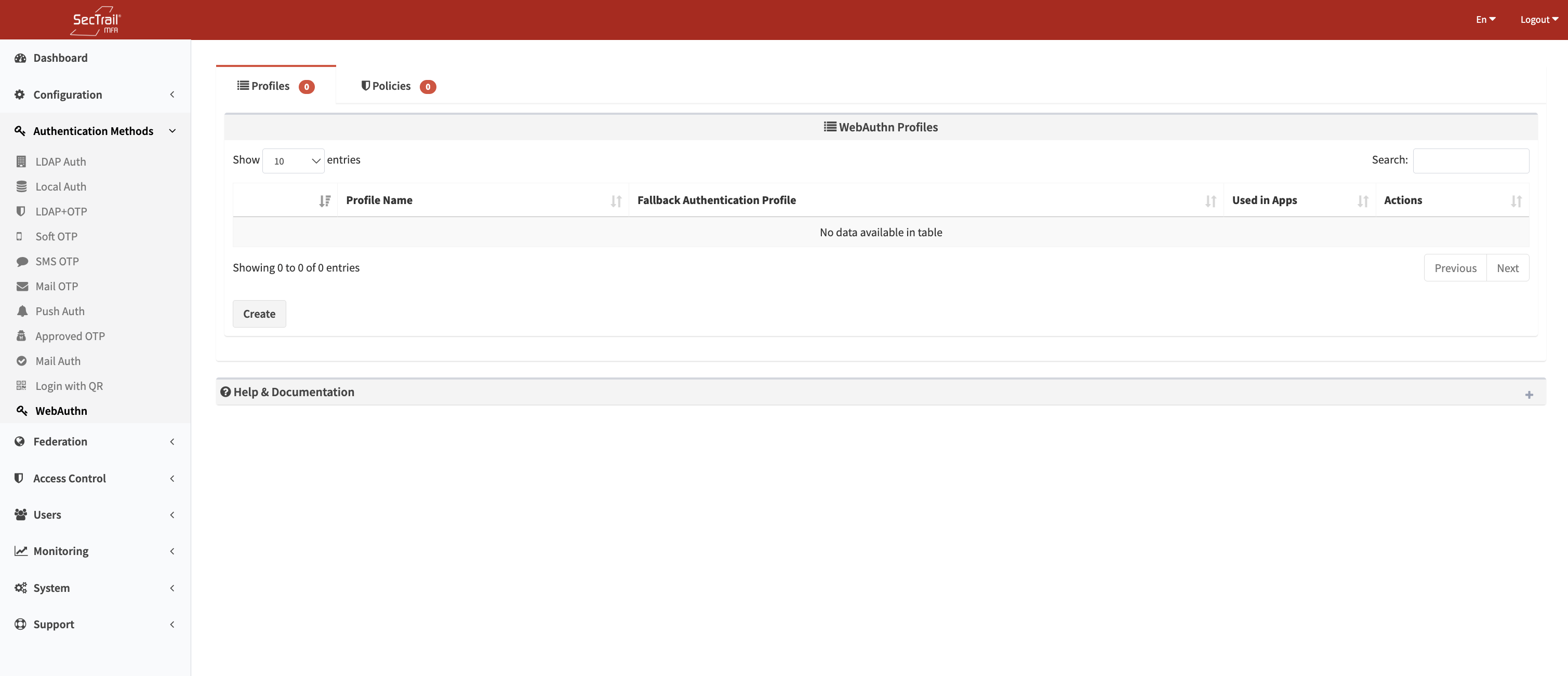
WebAuthn Authentication Method
Profiles
WebAuthn profiles define how users will be authenticated using platform authenticators.
Profile Configuration Fields
- Profile Name: A descriptive name for the profile
- Fallback Authentication Profiles: Profiles used for first-factor authentication (LDAP or Local)
- Multiple profiles can be selected
- Used to authenticate the user and retrieve their attributes
- User Verification: User verification requirement
- Required: User verification always required (PIN, biometric)
- Preferred: Use user verification if possible
- Discouraged: Do not require user verification
- Authenticator Type: Which authenticator types are accepted
- Platform: Built-in authenticators (Windows Hello, Touch ID)
- Cross-Platform: External authenticators
- Any: Either type
- Timeout: Maximum duration for WebAuthn operation (seconds)
WebAuthn profiles must have a fallback authentication profile. These profiles are used to authenticate the user and retrieve LDAP/Local attributes.
User Registration Process
Initial Setup (One-Time)
- Access Registration Panel: Log in to the Self-Service Portal
- Add WebAuthn: Click "Add New WebAuthn Device"
- Enter Device Name: Provide a descriptive name for the device (e.g., "Windows Hello - Work PC")
- Browser Registration: Browser initiates WebAuthn registration
- Perform Verification: Perform biometric verification based on your platform (Windows Hello, Touch ID, Face ID)
- Registration Complete: Device is successfully registered
Post-Registration
✅ User can now authenticate using their registered platform authenticator.
Users can view, name, and delete registered WebAuthn devices through the self-service portal.
Policies
WebAuthn policies determine which users will be authenticated using which profile.
Policy Configuration Fields
- WebAuthn Profile: The WebAuthn profile to use
- Authentication Profile: LDAP/Local profile used to fetch user attributes
- This profile must be one of the WebAuthn profile's fallback authentication profiles
- Used to read LDAP or Local user attributes
- Determines whether the user is in LDAP or Local
- Attribute: User attribute
- LDAP Attributes:
memberOf,department,title,mail, etc. - Local Attributes:
username,group_name,email,mobile, etc. - Common attributes are listed in dropdown
- Custom attributes can be entered manually
- LDAP Attributes:
- Attribute Values: Value(s) to match
- Predefined values can be selected from dropdown
- Custom values can be entered manually
- Wildcard (*) and regex patterns are supported
Policy Behavior
- If No Policy Exists: All users are directed to the default profile
- If Policies Exist: Only users matching a policy rule can authenticate with this profile
- Priority Order: Policies are evaluated top to bottom; the first match is used
Advantages
- ✅ Phishing Protection: Cannot be stolen or intercepted through phishing
- ✅ No Shared Secrets: Private keys never leave the device
- ✅ Strong Cryptography: Based on public key cryptography
- ✅ User-Friendly: Simple touch or biometric confirmation
- ✅ Offline Capable: Works without an internet connection
Setup Requirements
- SecTrail MFA server with HTTPS enabled
- Modern web browser (Chrome, Firefox, Edge, Safari)
- WebAuthn-compatible device
- User registration through the self-service portal
Use Cases
- High-security environments
- Privileged access management
- Passwordless authentication
- Compliance requirements (PCI-DSS, HIPAA)