Registration Panel
Through the Registration Panel, users can register to the SecTrail Authenticator mobile application, register WebAuthn keys, view SSO sessions, and reset their passwords.
Registration Panel Features
The Registration Panel provides the following core functionalities:
🔐 Authentication Method Registration
SecTrail Authenticator Mobile App Registration
- Soft OTP (Time-Based One-Time Password) registration
- Push Notification activation
- QR Login feature registration
- Multiple device registration support
WebAuthn (FIDO2) Device Registration
- Windows Hello registration
- Touch ID / Face ID registration
- Security key registration
- Platform authenticator management
🔄 SSO Integration Features
SSO Authentication
- User authentication in SAML 2.0 SSO integrations
- Redirect to registration panel in SSO flow
- Multi-factor authentication support
SSO Session Management
- View active SSO sessions
- Session details (IP, location, device info)
- Terminate suspicious sessions
- Close all sessions with one click
🔑 Additional Features
- Password Management
- Self-service password reset
- Strong password policy enforcement
To use the registration panel:
- ✅ A domain must be configured (e.g., register.company.com)
- ✅ Necessary DNS records must be created
- ✅ SSL/TLS certificate must be installed
- ✅ Registration type application profile must be created in admin panel
Registration through the registration panel is mandatory to use the following features of the SecTrail Authenticator mobile app:
- ✅ Soft OTP (Time-based one-time password)
- ✅ Push Notification
- ✅ QR Login
These features cannot be used without registration!
Creating Registration Type Application Profile
To enable the registration panel, you must create a "Registration" type application profile in the admin panel. Without this profile, access to the registration panel cannot be provided!
Why is Registration Profile Required?
The registration profile determines which authentication methods users will use to authenticate before accessing the registration panel.
Registration Profile Creation Steps
Step 1: Admin Panel Login
- Log in to SecTrail MFA admin panel as admin
- Navigate to Configuration → Applications from left menu
- Create New Application
Step 2: Define Authentication Factors
Select authentication methods to be used for registration panel login:
Available Authentication Factors:
Only authentication methods that the user already has can be used in registration profiles. Methods not yet registered cannot be used!
How Users Register Mobile Devices
The user's mobile device registration process consists of 7 steps:
Step 1: Install the Mobile Application
The user downloads and installs the SecTrail Authenticator application on their mobile device.
Download Links:
- iOS: App Store → Search for "SecTrail Authenticator"
- Android: Google Play Store → Search for "SecTrail Authenticator"
Step 2: Access the Registration Panel
The user navigates to the configured registration URL via web browser.
Mobile Application Registration Steps
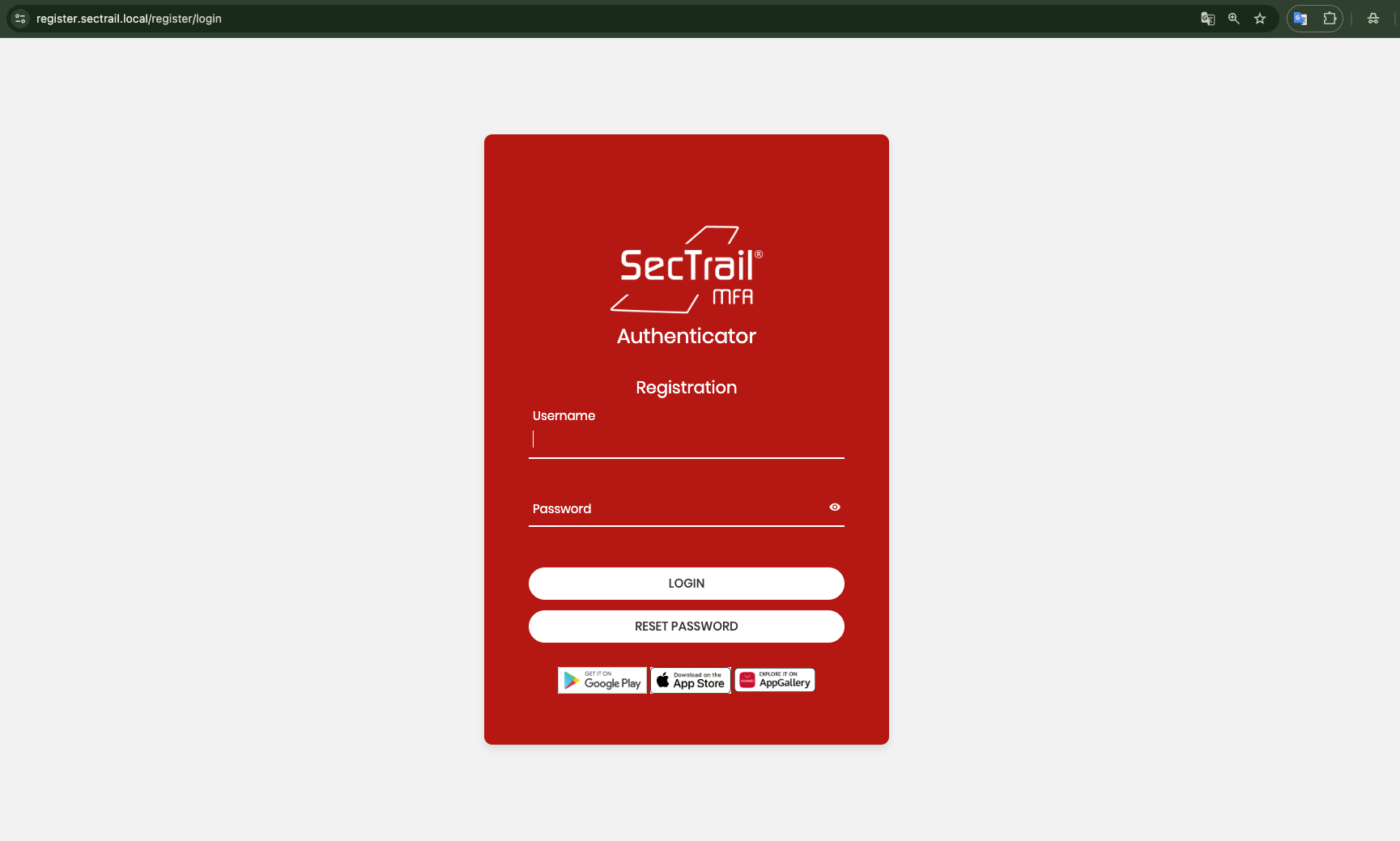
Step 1: Registration panel login page - User enters username and password to log in

Step 2: Token code entry screen for multi-factor authentication (SMS/Email OTP)
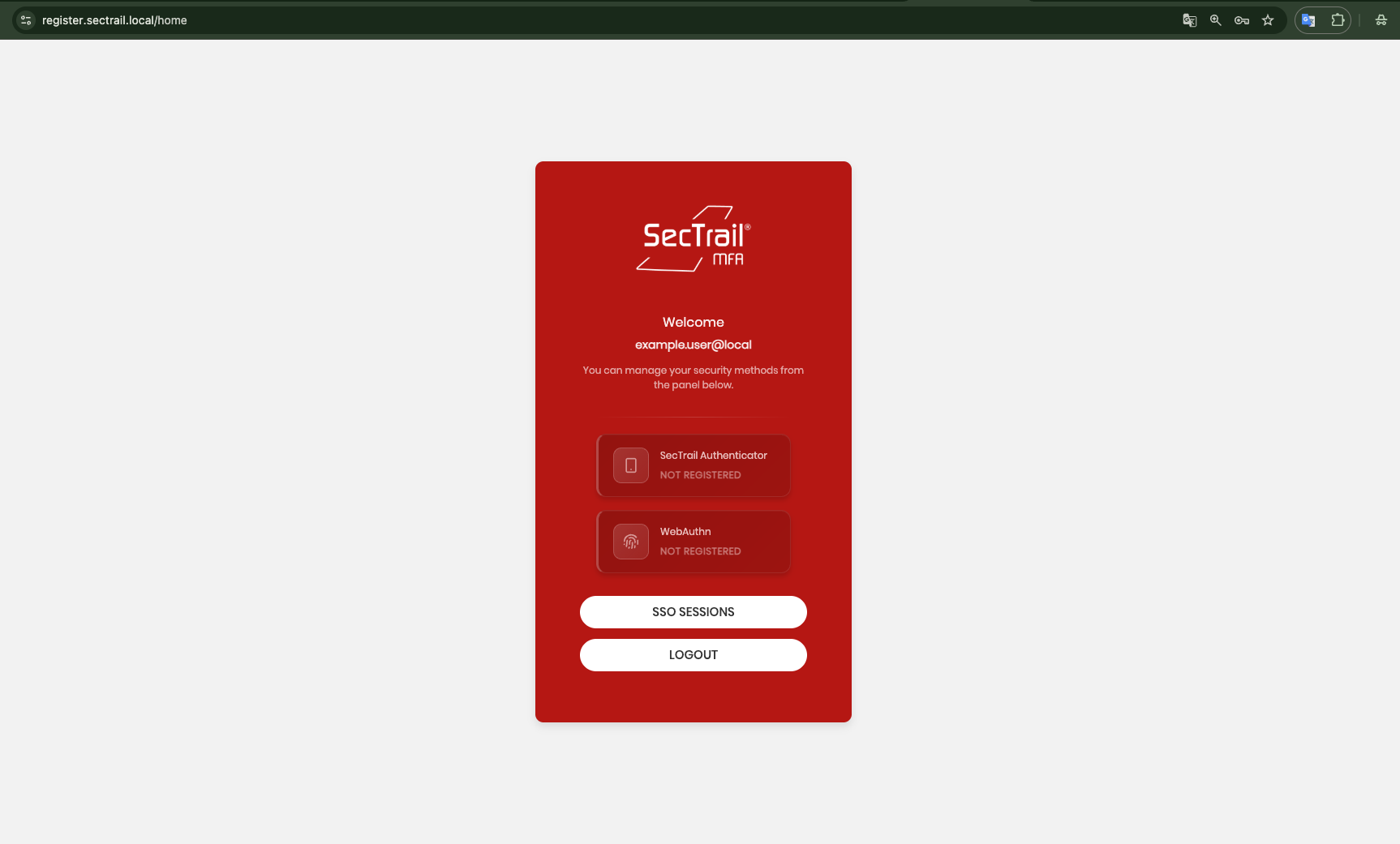
Step 3: Home page after successful login - SecTrail Authenticator and WebAuthn registration options are displayed

Step 4: QR code screen - QR code to scan with mobile app and OTP code verification field
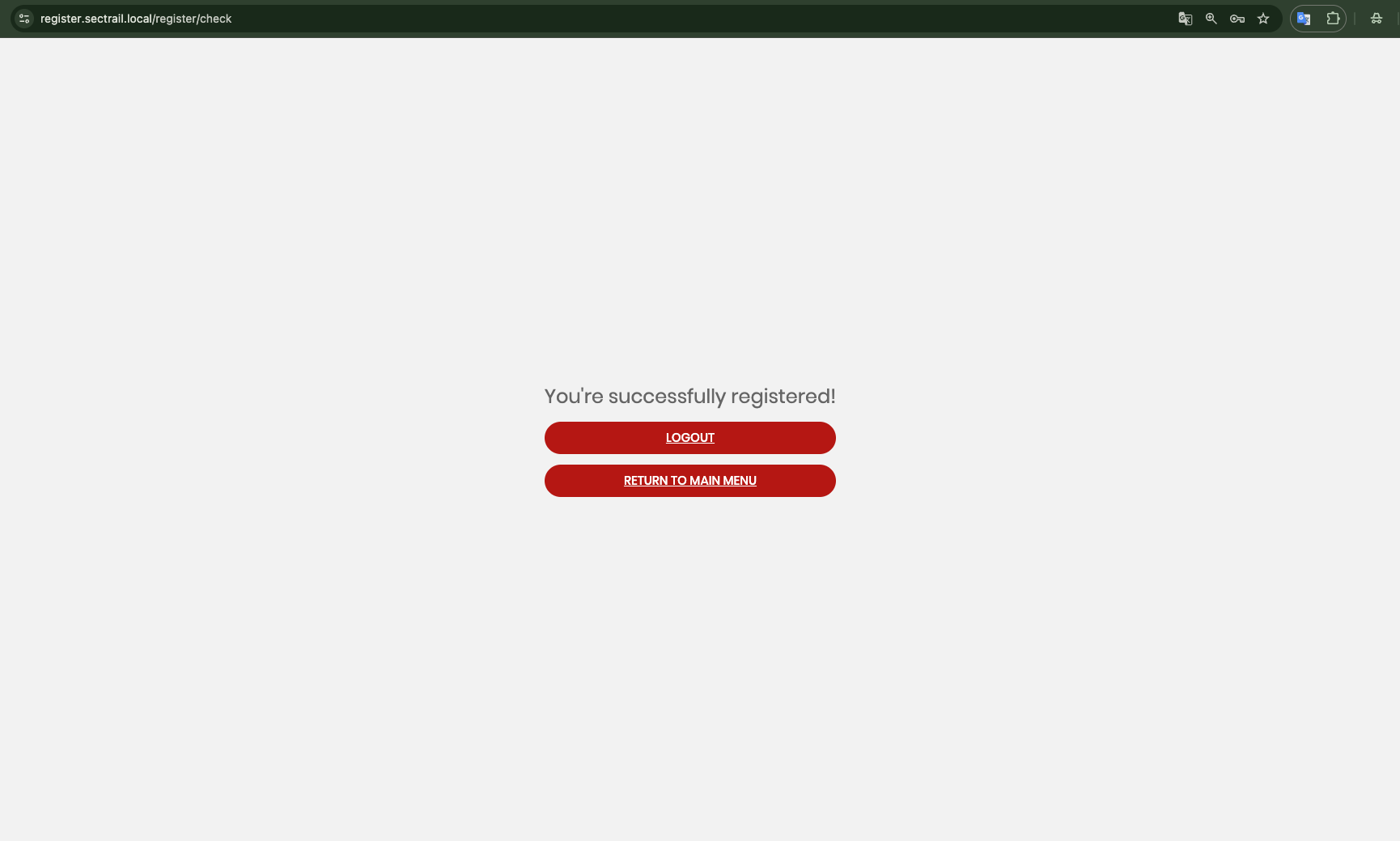
Step 5: Registration completed - Mobile device successfully registered message with registration details
Manual Entry Option:
If QR code cannot be scanned (camera not working), manual entry can be used:
1. Select "Manual Entry"
2. Enter information:
   - Account Name: john@example.com
   - Secret Key: JBSWY3DPEHPK3PXP (shown below QR code)
   - Time-Based: Yes
3. Tap Add
4. OTP code is generated
Troubleshooting
Problem: OTP Code Not Accepted
Symptoms:
- "OTP code incorrect" message
- Every attempt fails

Solutions:
1. Check if mobile device clock is set to automatic
2. Use current code (changes every 30 seconds)
3. Verify time zone is correct
4. Rescan the QR code
🔑 WebAuthn Registration Panel
Used to register WebAuthn (FIDO2) compatible platforms (Windows Hello, Touch ID, etc.).
Features:
- Platform Authenticator Registration: Register Windows Hello, Touch ID, etc.
- Multiple Key Management: Add multiple WebAuthn devices
- Key Naming: Give custom names to registered devices (e.g., "Windows Hello - Work PC", "Touch ID - Laptop")
- Key Deletion: Remove unused or lost devices
Usage Scenario: User logs into the self-service portal, clicks "Add WebAuthn Device" button, and registers platform authenticator following browser prompts.
WebAuthn Registration Process
WebAuthn Device Registration Steps
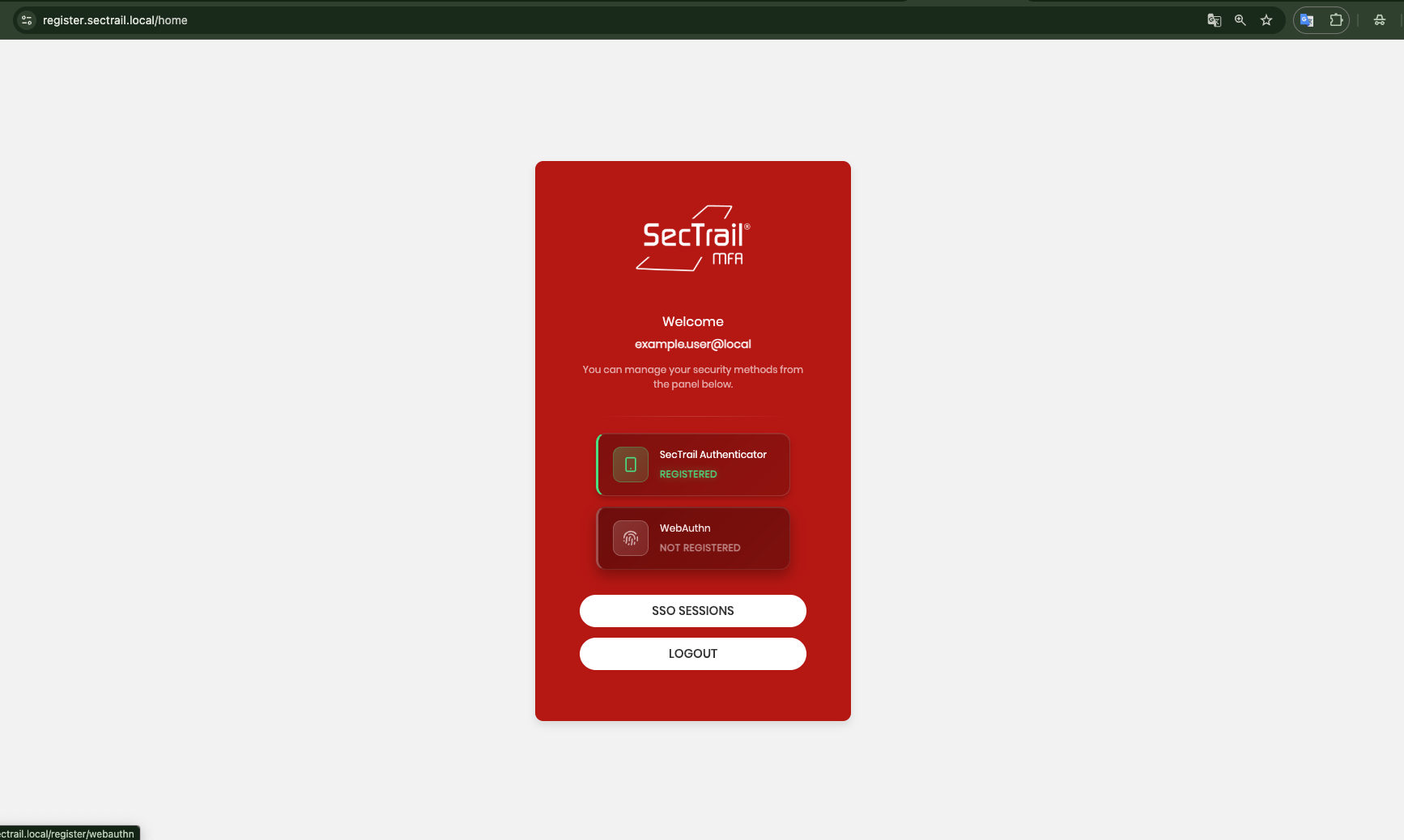
Step 1: Click WebAuthn button on home page

Step 2: Continue with the Register Security Key option.
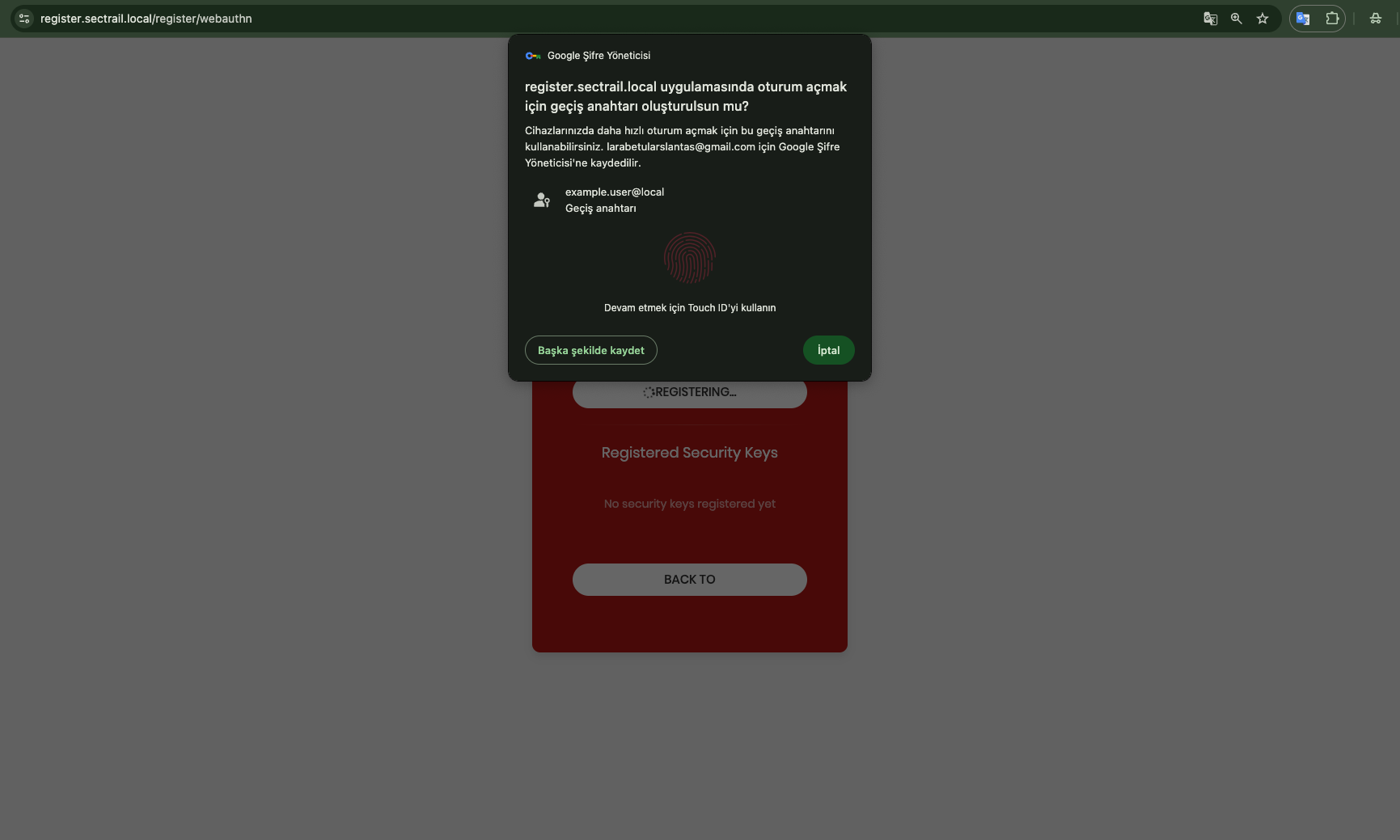
Step 3: Browser authentication prompt - Authenticate with Windows Hello, Touch ID, or security key
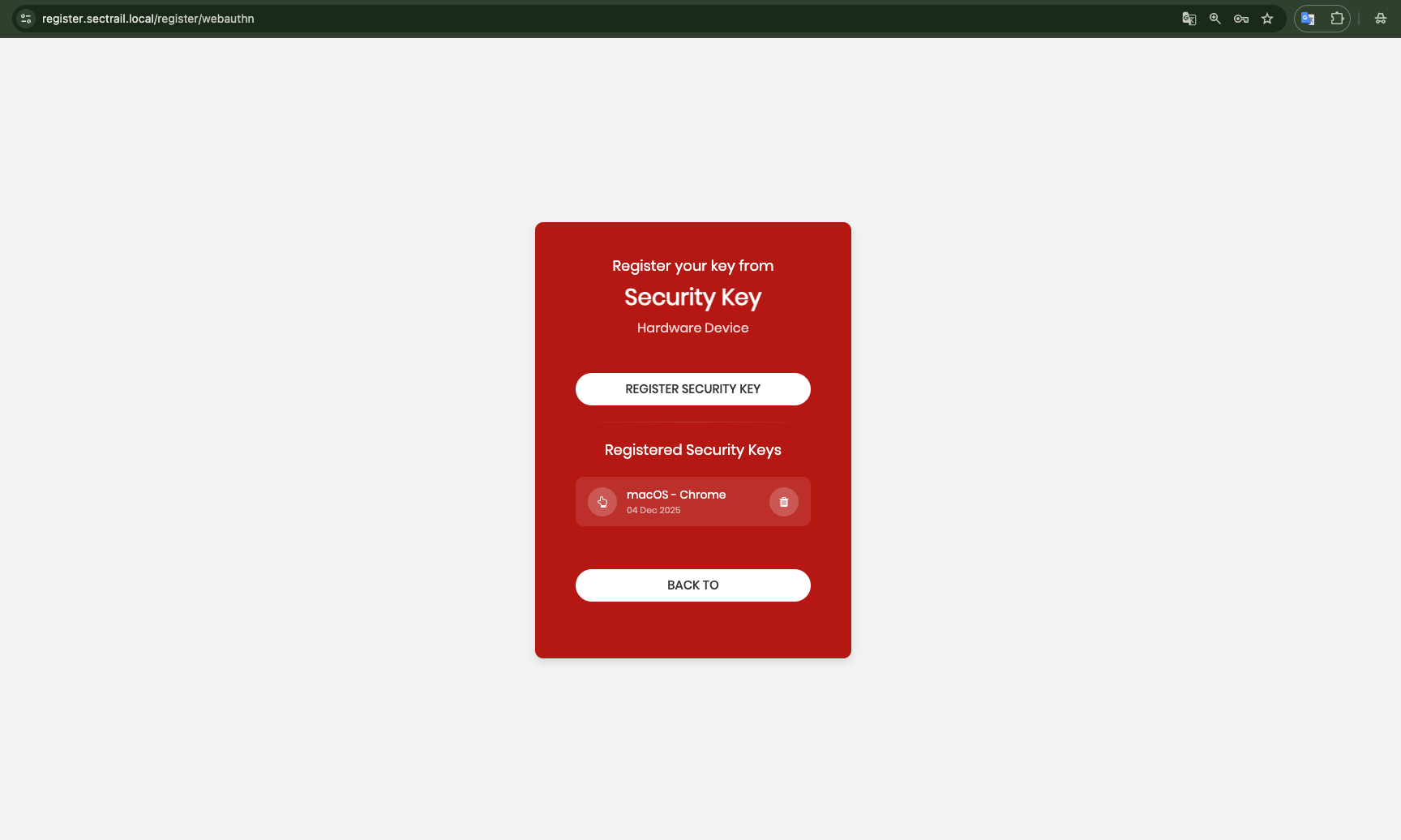
Step 4: Registration completed - Added WebAuthn device is displayed in the list
If you lose your WebAuthn device:
- Immediately log in to self-service portal
- Delete the lost device from the list
🔄 SSO Integration and Authentication
Role of Registration Panel in SSO Authentication
In SAML 2.0 SSO integrations, the registration panel plays a critical role in the authentication process. In the SSO flow, users are redirected to the registration panel when accessing enterprise applications, where MFA verification is completed.
Requirements for SSO Integration
For the registration panel to work in SSO integration:
Identity Provider (IdP): SecTrail MFA
Service Provider (SP): Enterprise App (Office 365, Salesforce, etc.)

SAML Endpoints:
  SSO URL: https://sectrail.company.com/saml/sso
  SLO URL: https://sectrail.company.com/saml/logout
  Entity ID: https://sectrail.company.com/saml/metadata
The registration panel serves as the authentication layer in SSO integrations. When users access enterprise applications, they are redirected to the registration panel in the background, MFA verification is performed, and then automatic login to the application is provided.
🔐 SSO Session Management
SecTrail MFA allows SSO sessions to be managed from two different locations:
1️⃣ By User - Through Registration Panel
Users can view and manage their own active SSO (Single Sign-On) sessions by logging into the registration panel.
Access:
1. Log in to the registration panel: https://register.company.com
2. Click "SSO SESSIONS" button on the home page
3. View your active sessions
Features:
- List Own Sessions: Show which devices/browsers have active sessions
- Session Details: IP address, login time, last activity information
- Terminate Session: Close unwanted or suspicious sessions
Usage Scenario: User notices a suspicious login from another device, logs into the registration panel, clicks "SSO Sessions" button, checks active sessions, and terminates the unknown session.
User SSO Session Viewing:
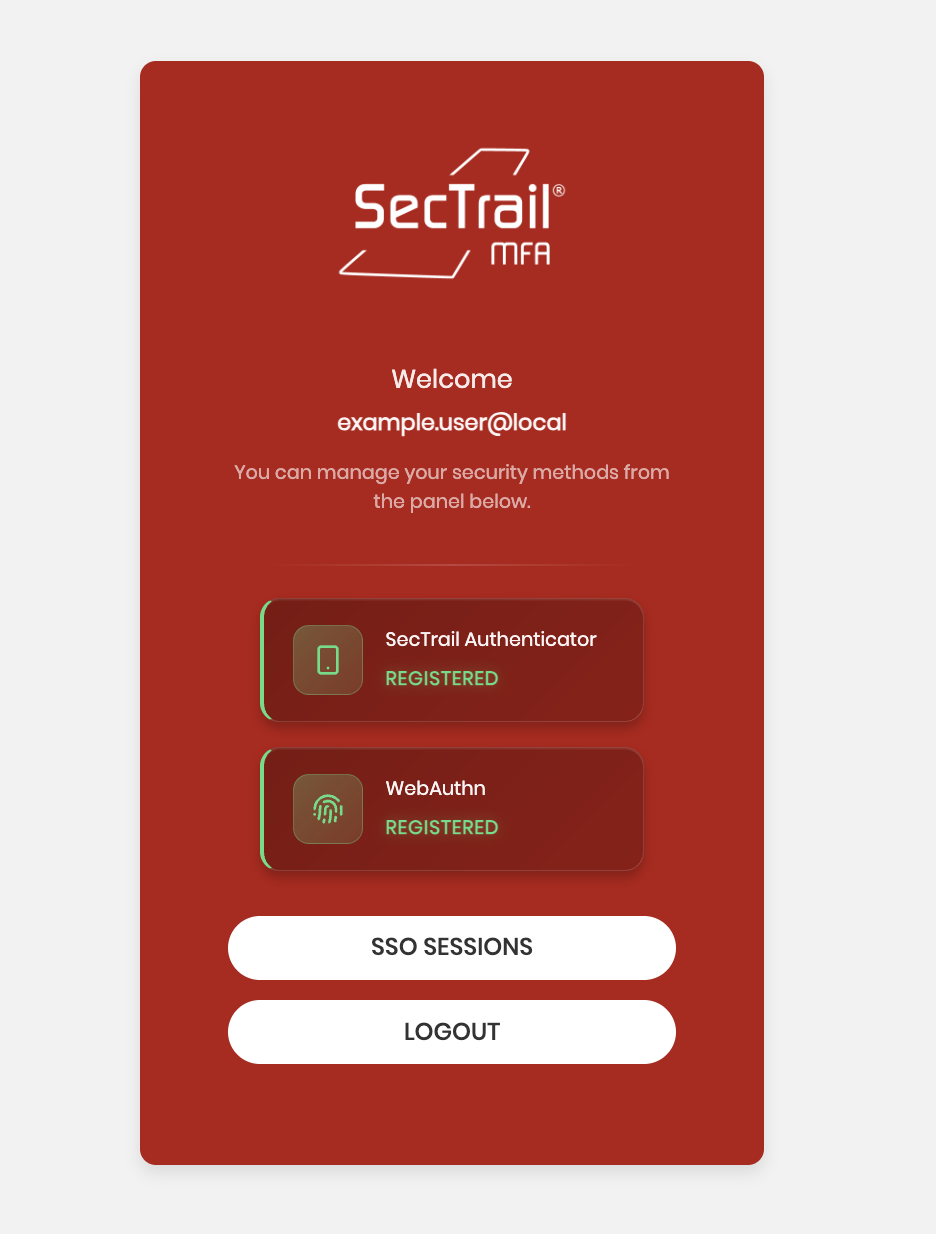
Step 1: Click "SSO SESSIONS" button on registration panel home page
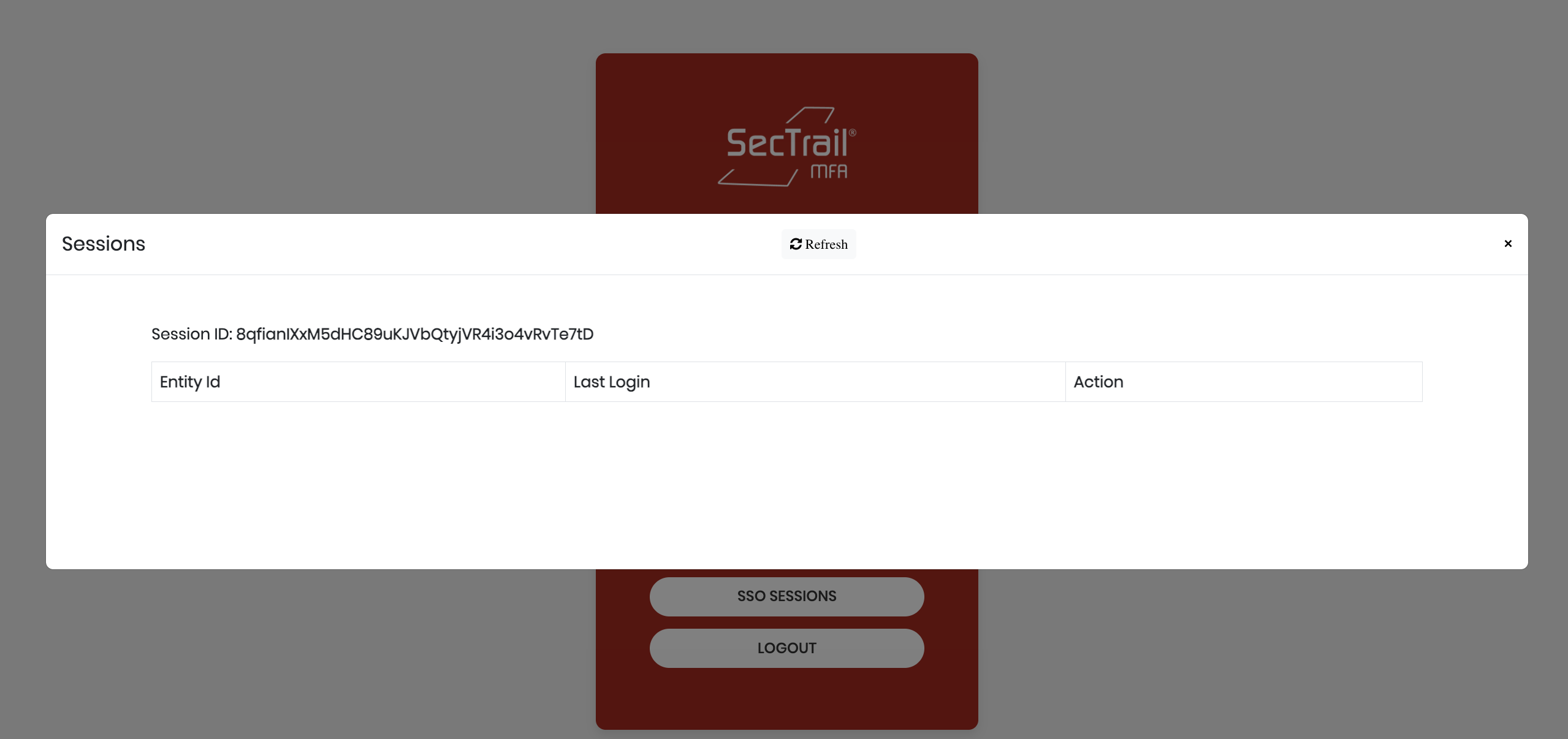
Step 2: View and manage your own active SSO sessions
SSO Session Security Best Practices
For Users:
- ✅ Regularly check your active sessions
- ✅ Immediately terminate sessions from unknown devices/locations
- ✅ Don't forget to "Logout" on shared computers
- ✅ Clean up old/unused sessions
- ✅ Location information may appear different when using VPN (normal)
For Administrators:
- ✅ Regularly monitor suspicious sessions
- ✅ Check sessions from abnormal IP addresses or locations
- ✅ Log session activities with Syslog
- ✅ Restrict access with geolocation policies
- ✅ Set session timeout durations according to your security policy
🔄 Password Reset Panel
Users can reset their own passwords without administrator intervention.
The Registration Panel is designed with a user-friendly interface:
- Simple and Intuitive: Users can perform operations without technical knowledge
- Responsive Design: Compatible with mobile, tablet, and desktop devices
- Multi-Language Support: Turkish, English, and other language options
- Help and Documentation: Help texts and guides at every step
Benefits
With the Registration Panel:
- ✅ Reduced Administrator Workload: Users perform their own operations
- ✅ Increased User Satisfaction: Ability to perform operations quickly and independently
- ✅ Enhanced Security: Users directly manage their devices
- ✅ Operational Efficiency: Faster response time to problems
- ✅ Cost Savings: Reduced support requests
The Registration Panel can be offered to users via a URL independent of SecTrail MFA's web interface.
Related Pages
- Soft OTP: Mobile OTP configuration
- Push Notification: Instant notification setup
- Configuration: Creating application profiles
- Users: Viewing SoftOTP users
- Monitoring: Monitoring registration logs
- WebAuthn Authentication: WebAuthn detailed documentation