Registration
After the application is installed, account registration must be completed for it to become usable. This page explains all the paths of the registration process and what happens in the background.
The following features cannot be used before registration is completed:
- ✅ Soft OTP (time-based one-time password)
- ✅ Push Notification
- ✅ Number Matching
- ✅ QR Code Login
Registration Methods
There are two ways to add an account to the application:
| Method | When Is It Used? | Account Type |
|---|---|---|
| Registration with QR Code | The standard method — through the Registration Panel | SecTrailMFA or Custom |
| Manual Registration | If the camera does not work or the QR cannot be scanned | Selected by the user |
Prerequisites
Before the user starts registration, the following must be completed by the administrator:
- ✅ A domain has been configured for the Registration Panel (e.g.,
register.domain.com) - ✅ An application profile of the Registration type has been created in the management panel
Outbound access to cs.sectrail.com:443 is required only if the following features will be used:
- Push Notification — so that notifications reach the device and the approval returns to the server
- Number Matching — so that the notification arrives and the entered number is transmitted to the server
- QR Login — so that the session verification request can be processed
If only Soft OTP will be used, this access is not required. Soft OTP codes are generated entirely on the device and verification is performed on the server side; the mobile device does not need an internet connection.
In the Registration profile, the verification methods the user already has can be used. Since the user is not yet registered to the mobile application, Soft OTP, Push or Number Matching cannot be used when signing in to the registration panel.
For this reason, SMS OTP or Email OTP is usually preferred for the first registration.
For detailed configuration: Registration Panel documentation
Method 1: Registration with QR Code
This is the standard and recommended registration method.
User Steps
Step 1 — Sign In to the Registration Panel
The user goes to the organization's registration panel address from a web browser and signs in with their username/password.
Step 2 — Authentication
If there is a second factor defined in the Registration profile (usually SMS or Email OTP), the user verifies their identity with it.
Step 3 — Displaying the QR Code
On the registration panel home page, the SecTrail Authenticator registration option is selected and a QR code is displayed on the screen.
Step 4 — Scanning the QR Code in the Application
The user opens the mobile application and scans the QR code:
- Taps the 📷 QR scan icon at the top right of the home screen
- The camera opens and the QR code on the screen is scanned
You do not need to choose "which type of QR am I scanning?" in the application. There is a single scan button; the content of the QR code determines which operation it is (registration or QR login) and the application automatically routes you to the correct flow.
Step 5 — Entering the Verification Code
When scanning succeeds, the account is created in the application and starts generating a 6-digit code. The application restarts so that the changes take effect. The user enters this code into the field below the QR code on the registration panel.
Step 6 — Registration Completed
When the code is verified, registration is completed.
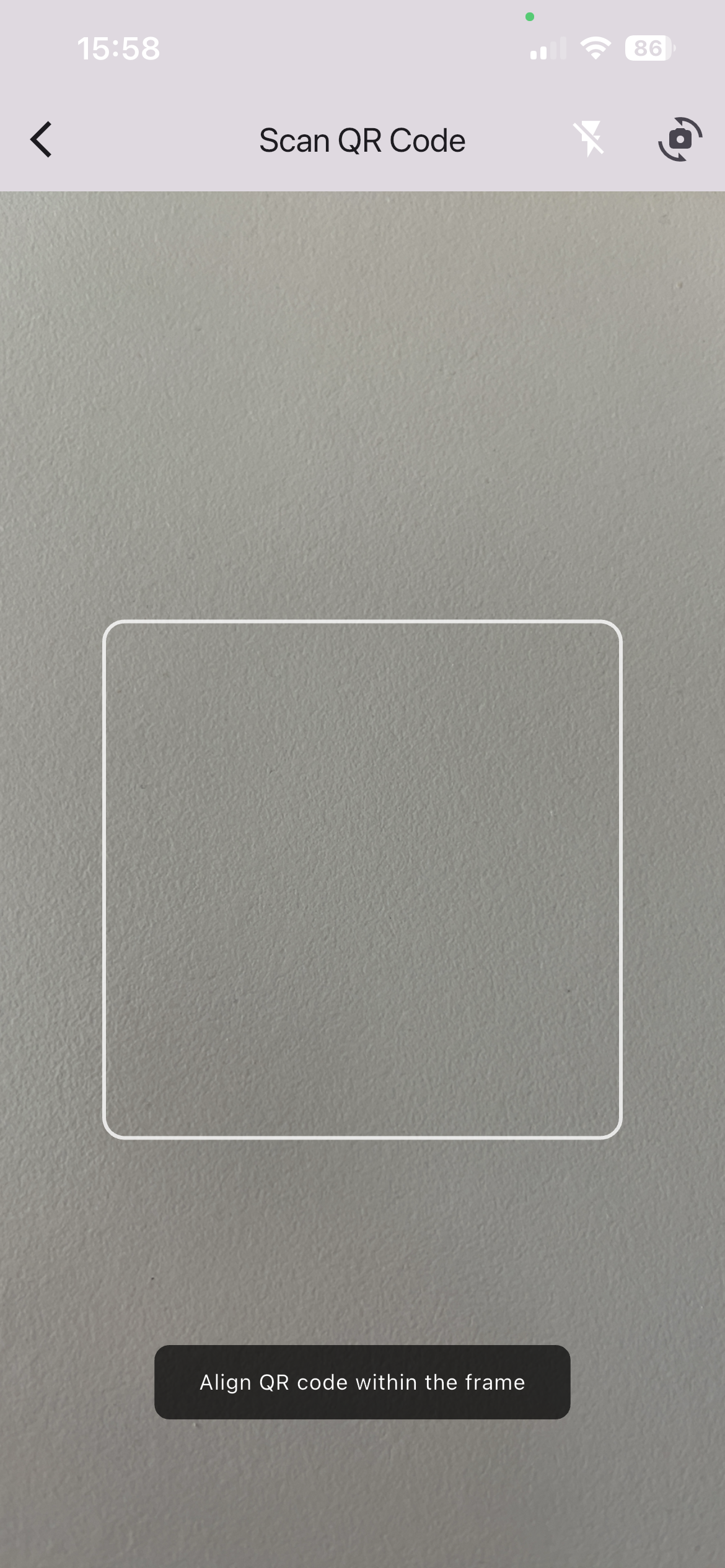
Scanning the QR code on the registration panel
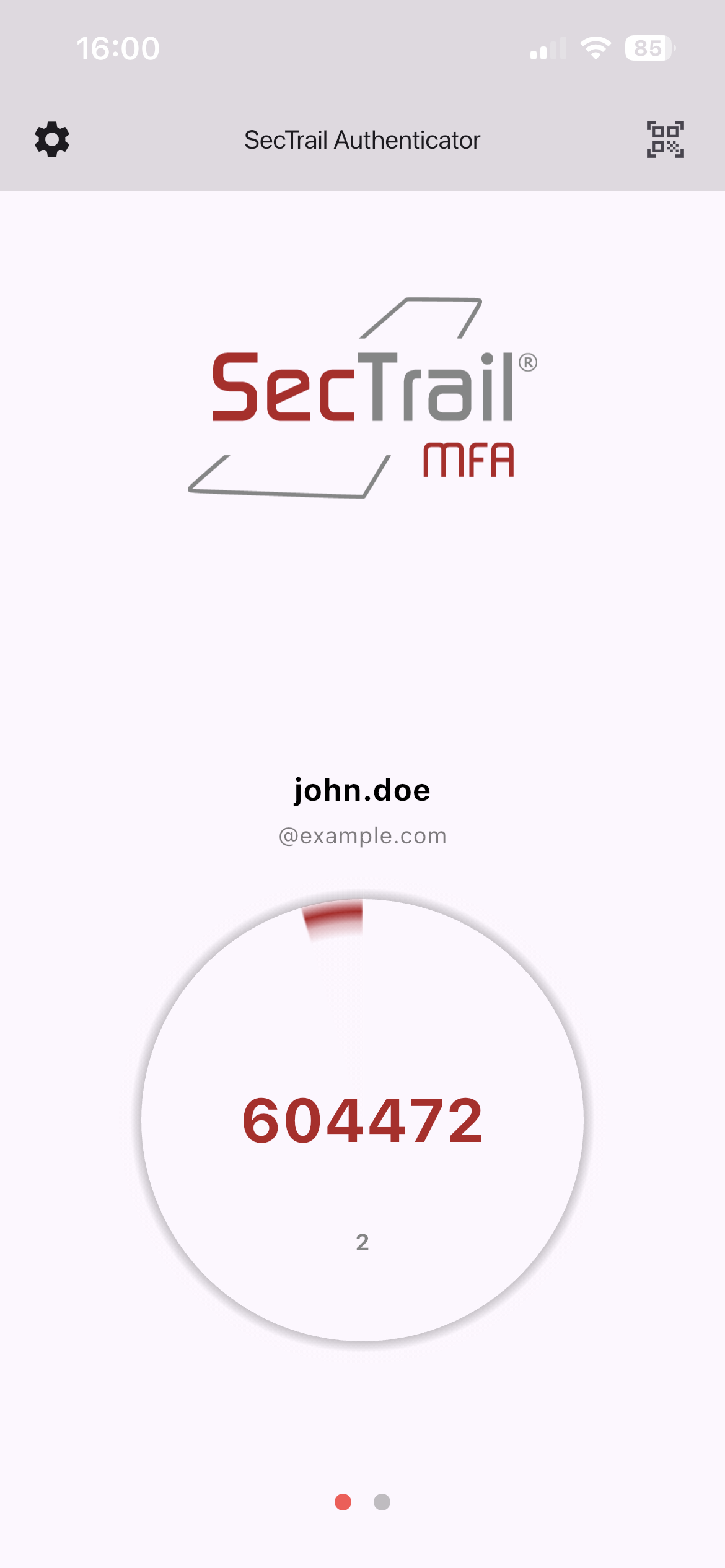
The account was added and code generation started
For screenshots of the web side of the registration panel, see the Registration Panel documentation.
Method 2: Manual Registration
If the camera does not work or the QR code cannot be scanned, account details can be entered manually.
Access Path
⚙️ icon at the top left → How to Use It → "Register with Manual Informations" → Add Account
Information to Enter
| Field | Description | Example |
|---|---|---|
| Account Name | Username | john.doe |
| Company Name | Organization name | Company |
| Account Type | Account type (SecTrailMFA / Custom) | SecTrailMFA |
| Secret Key | Secret key (shown below the QR code) | JBSWY3DPEHPK3PXP |
The Secret Key is the information that provides the entire security of the account. Do not store this value as a screenshot and do not share it by email or message. Close the screen after manual registration is completed.
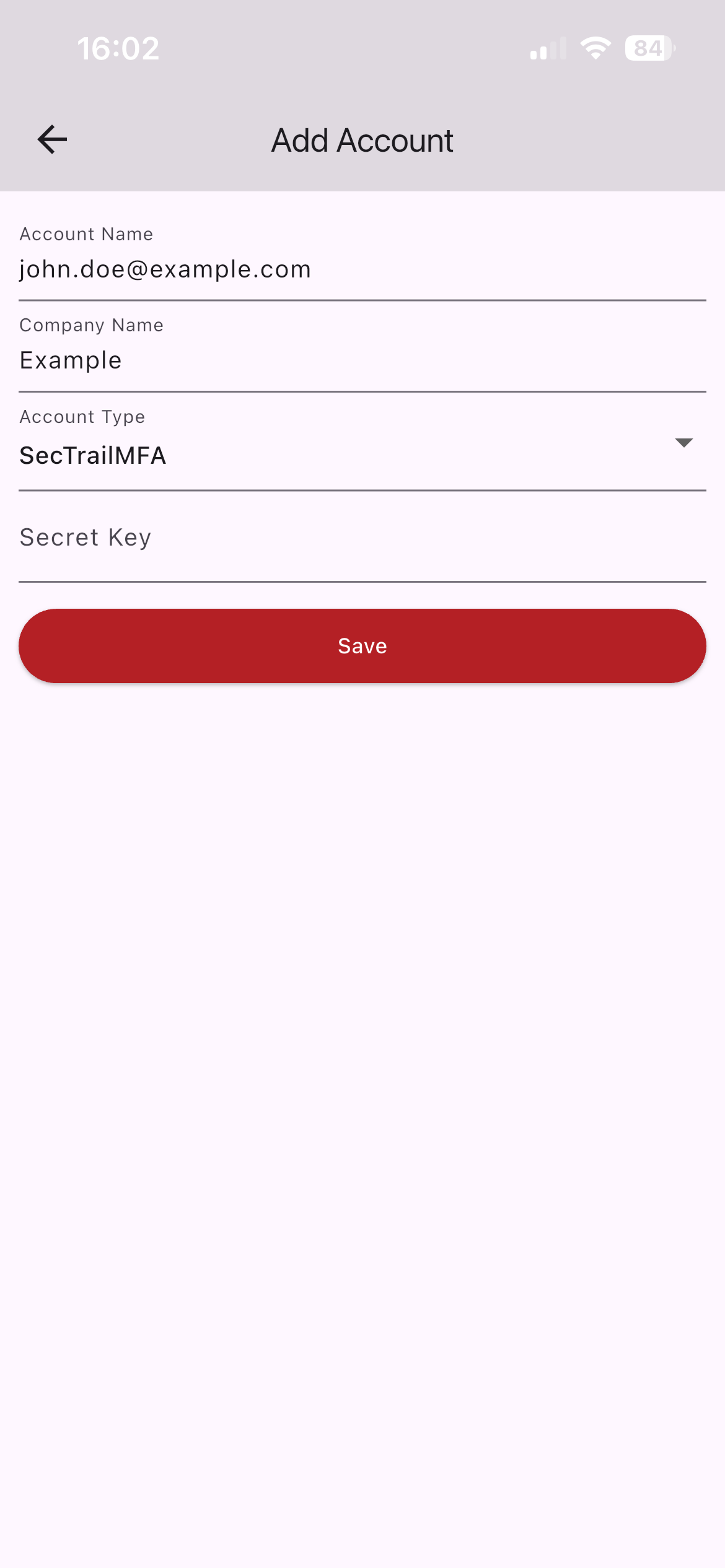
The account creation form where the details are entered manually
Account Type Selection
In manual registration the account type is selected by the user. In QR registration, it is determined automatically based on the format of the QR code.
SecTrailMFA
Used for corporate SecTrail MFA accounts.
- The device is registered to the SecTrail server
- Soft OTP + Push Notification + Number Matching + QR Login are supported
Custom
Used for third-party TOTP services (Google, Amazon, GitHub, etc.).
- No registration is performed on the server
- Only Soft OTP is supported
If you are registering to your organization's SecTrail MFA system choose SecTrailMFA; if you are adding the two-factor authentication of another service (Google, GitHub, etc.) choose Custom.
What Happens in the Background During Registration?
For accounts of the SecTrailMFA type, in addition to the local record, the application also performs a device registration on the server. This registration is required for the push notification, number matching and QR login features to work.
The device registration request is sent approximately 30 seconds after the account is created. Do not close the application during this period — otherwise push notifications may not work and the registration may need to be repeated.
Note: This step is required only for push notification, number matching and QR login. Soft OTP works even if the device registration is not completed.
Registering More Than One Account
The application can hold multiple organization and user accounts at the same time. The registration process is repeated separately for each account.
Re-registering the Same Account
If the same username + organization combination is registered again, the application does not create a new record — it updates the existing one. This behavior prevents duplicate accounts from being created in device replacement or re-registration scenarios.
QR Login and Account Order
During QR login, the first (topmost) account in the application is used automatically. If you have more than one account, make sure the account you want to sign in with is at the top.
To change the account order:
- Open the ⚙️ menu → Accounts page
- Drag the account you want to move and drop it at the top
- The change takes effect immediately
For details: QR Login — Account Priority
Post-Registration Verification
You can verify that the registration was successful as follows:
On the User Side
- After the QR code was scanned, you correctly entered the 6-digit code from the mobile application into the registration panel and were redirected to the success page
On the Administrator Side
The user's registration state can be checked from the management panel:
- The user's Soft OTP registration is visible on the Users page
- Registration logs can be reviewed from the Monitoring page
Related pages: Users · Monitoring
Replacing the Device
When a user replaces their phone, there are two options:
Option 1: Restoring from Backup
If a Google Drive backup has been taken, accounts can be moved by restoring the backup on the new device.
Passkeys are bound to the device and cannot be backed up. Passkeys must be re-registered on the new device.
Option 2: Re-registration
If there is no backup, the user registers their new device by signing in to the registration panel again.
When a device is lost, the administrator must immediately delete the user's registration from the management panel. Otherwise push notifications are still sent to the device and an unauthorized person can approve sign-ins.
Next Step
After registration is completed, you can configure the other features of the application.
Related Pages
- Installation: Application installation and permissions
- Application Features: Security, backup, notification history
- Troubleshooting: Registration problems and solutions
- Registration Panel: Web panel configuration
- Soft OTP: TOTP profile configuration