Installation
This page explains how to download the SecTrail Authenticator mobile application, grant the required permissions and complete the first launch steps.
Step 1: Download the Application
The application can be downloaded free of charge from three official application stores.
🍎 iOS
App Store → search for SecTrail Authenticator.
Minimum version: iOS 15.0
🤖 Android
Google Play Store → search for SecTrail Authenticator.
Minimum version: Android 5.0
📱 Huawei
Huawei AppGallery → search for SecTrail Authenticator.
Minimum version: Android 5.0
Step 2: Grant the Required Permissions
The application requests some permissions on first launch. The table below shows which permission is required for which feature.
| Permission | What Is It Required For? | Mandatory? |
|---|---|---|
| Camera | QR code scanning (registration and QR login) | Yes |
| Notifications | Authentication with push notification and number matching | Yes, if these methods will be used |
| Biometric | App lock with fingerprint / face recognition | No (optional) |
If notification permission is not granted, authentication with push notification and number matching will not work. The user cannot see the sign-in request and the verification times out.
The permission can be granted later from the device settings:
- iOS: Settings → SecTrail Authenticator → Notifications → Allow
- Android / Huawei: Settings → Apps → SecTrail Authenticator → Notifications → Allow
Step 3: Review the Introduction Screens
When the application is opened for the first time, the "How to Use It" introduction screens are shown. These screens consist of four steps:
| # | Screen | Description |
|---|---|---|
| 1 | Register with QR | Registering by scanning a QR code — the Barcode Scan button opens the camera |
| 2 | Register with Manual Informations | Registering by entering the information manually — the Add Account button goes to the form |
| 3 | Security | Locking the application with PIN and biometric authentication |
| 4 | Passkeys | Using the application as a passkey provider |
The introduction screens can be passed with Skip and are completed with Done.
You can return to these screens at any time:
⚙️ icon at the top left → How to Use It
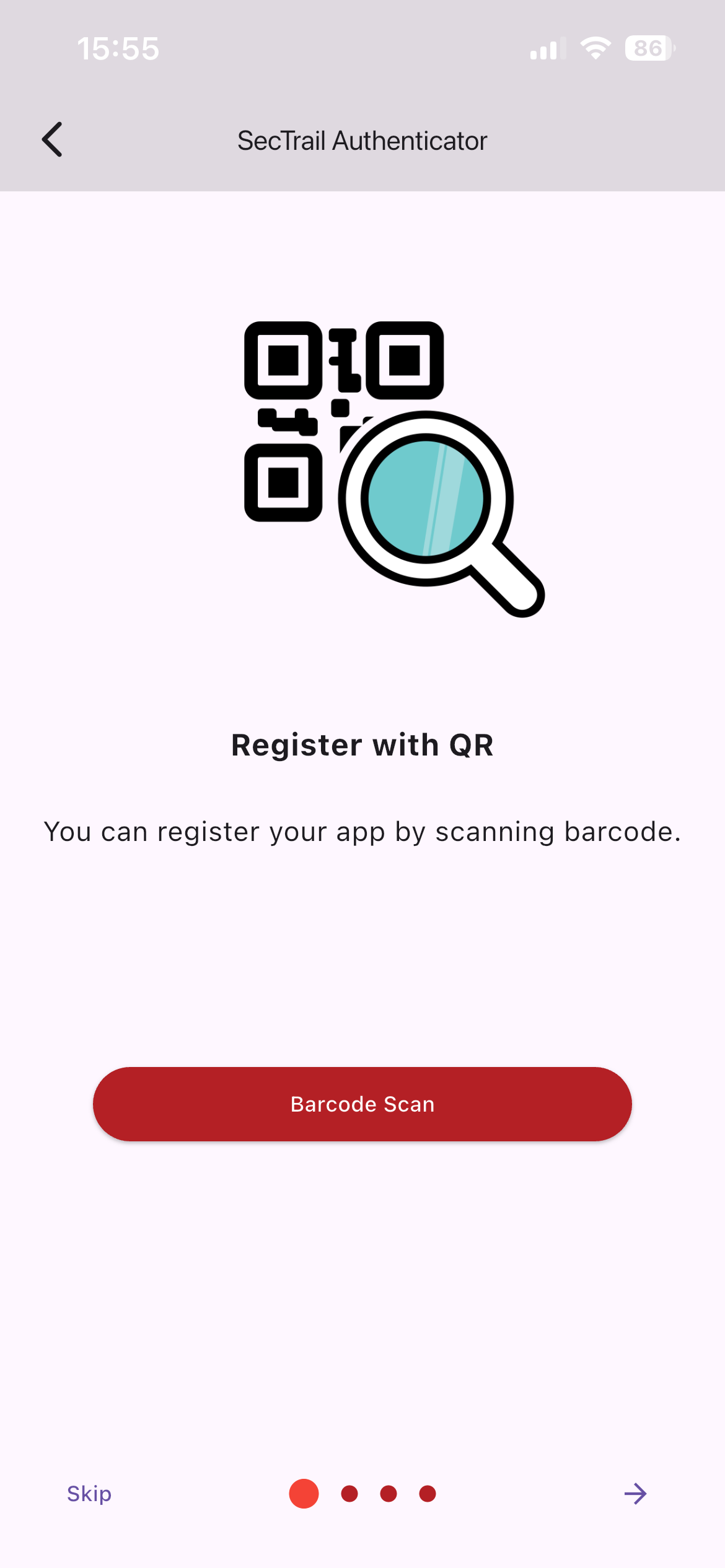
1. Register with QR — the Barcode Scan button opens the camera
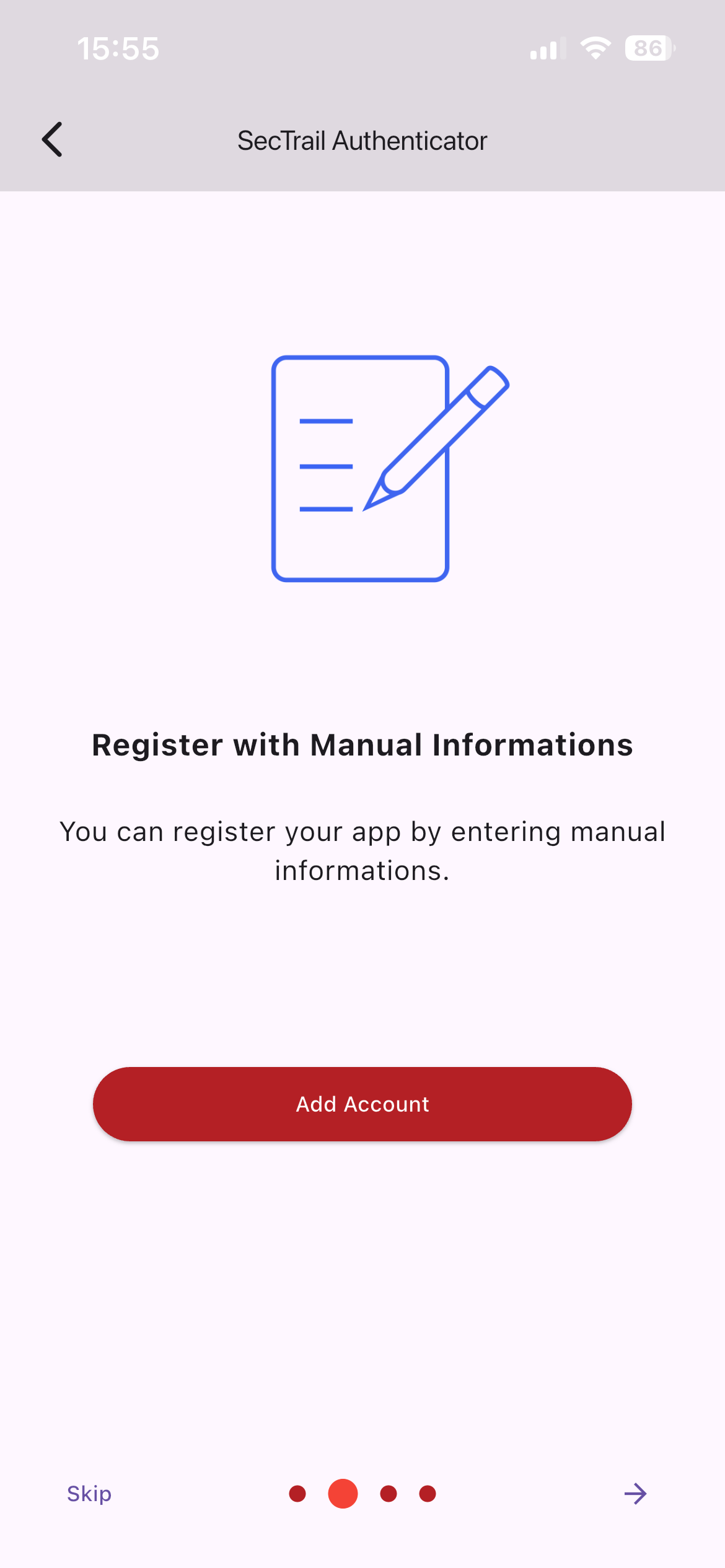
2. Register with Manual Informations — the Add Account button goes to the form
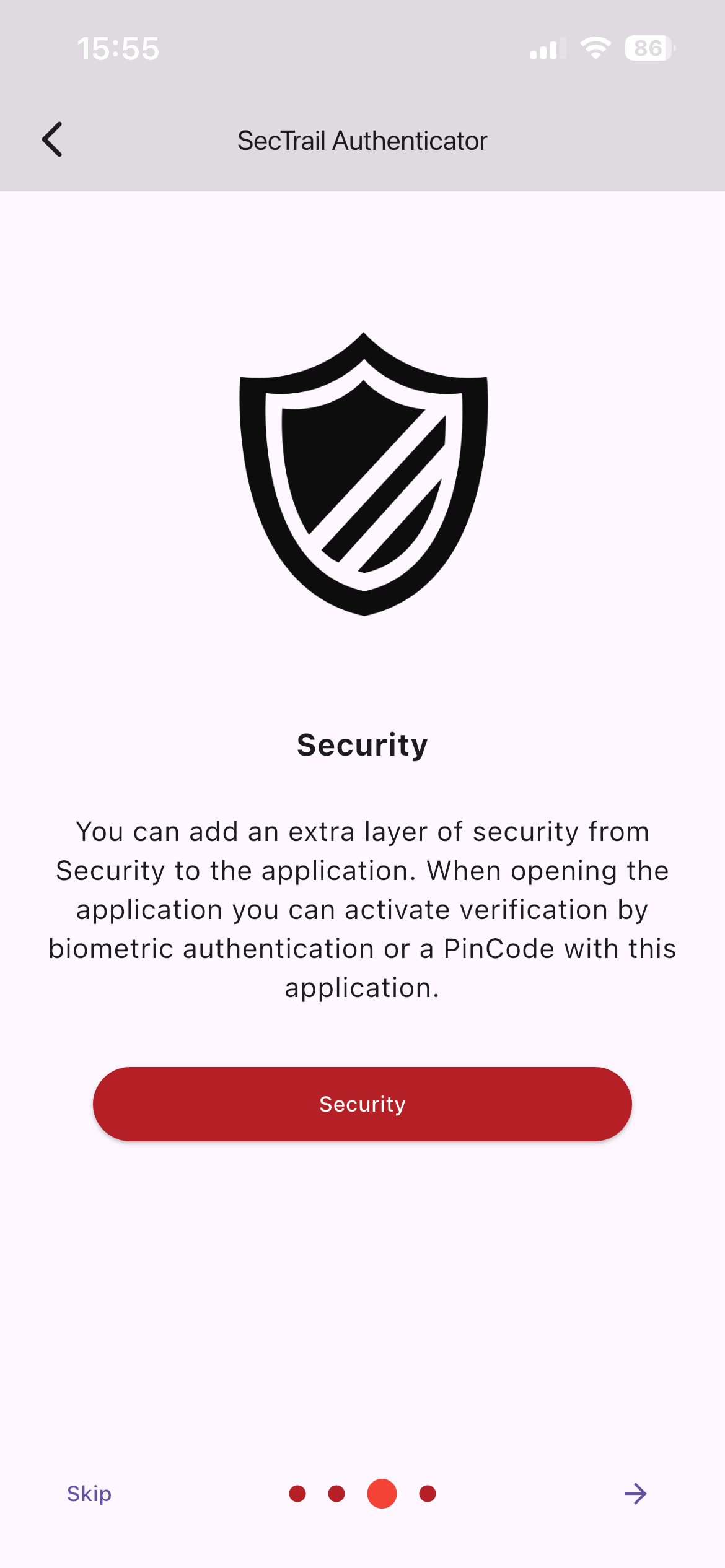
3. Security — locking the application with PIN and biometric authentication
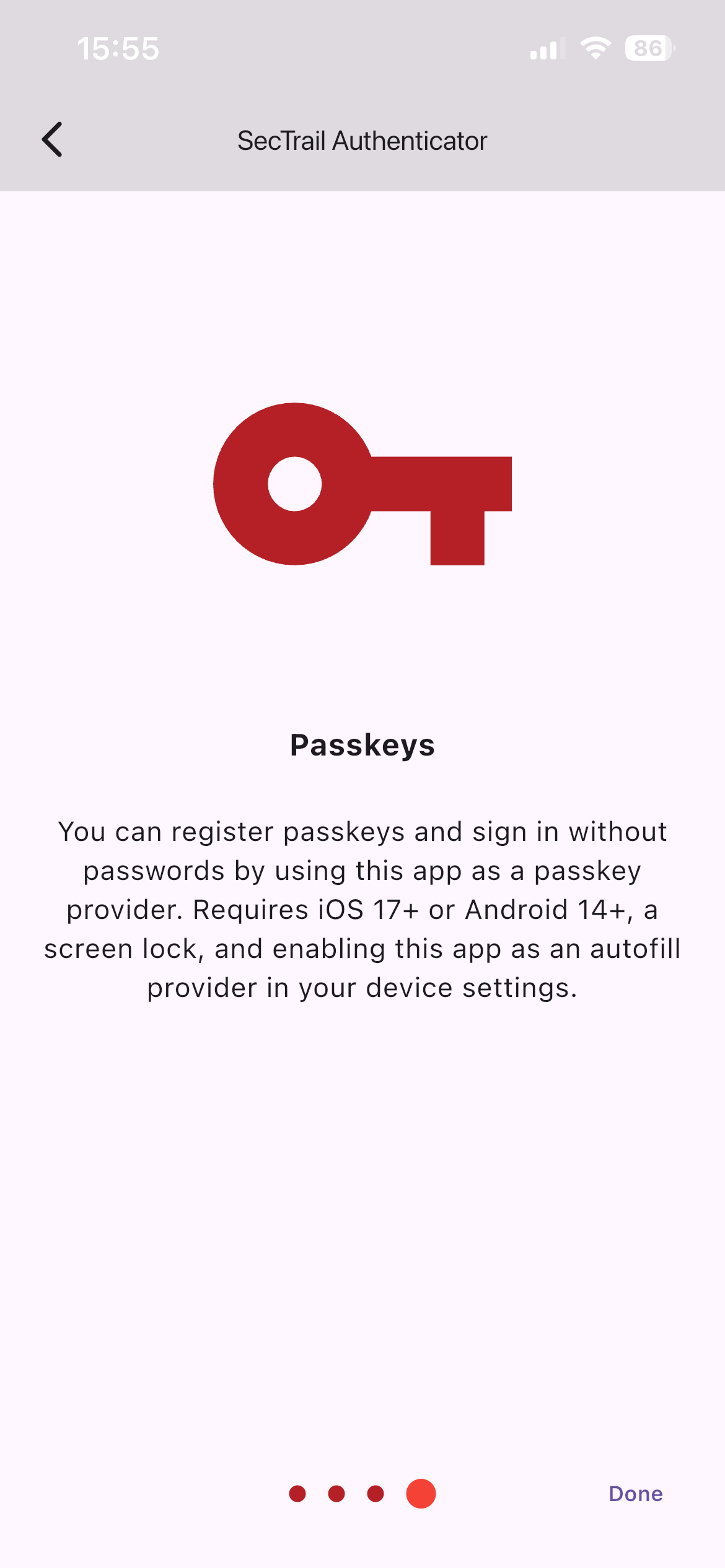
4. Passkeys — using the application as a passkey provider
Step 4: Verify Network Access
Network access is required only if push notification, number matching, QR login or cross-device passkey will be used. If you will only use Soft OTP, you can skip this step — codes are generated on the device, offline.
Push notification, number matching and QR login require the mobile device to be able to reach the SecTrail cloud service.
Corporate Network Requirements
The following access must be opened by the corporate network administrator:
Target:     cs.sectrail.com
Port:       443 (HTTPS)
Direction:  Outbound
In addition, mobile devices must be able to reach notification services (Firebase Cloud Messaging).
Some corporate Wi-Fi networks or MDM (Mobile Device Management) profiles may block notification traffic. If notifications are not arriving:
- Test the device over mobile data (4G/5G)
- If it works over mobile data but not over Wi-Fi, the problem is in the network configuration
- Ask your network administrator to open access to notification services and
cs.sectrail.com
Bluetooth for Passkey
When signing in with a passkey to a browser on another device (for example, to a site on a computer using your phone), a secure connection is established between the phone and that device over Bluetooth.
In this scenario, Bluetooth must be turned on on both devices.
This connection is managed by the operating system, not by the application. For this reason the application does not ask you for Bluetooth permission — it is enough for the device's Bluetooth to simply be turned on.
Bluetooth is not required when signing in from the phone's own browser (the same device).
Soft OTP codes are generated entirely on the device. A device without an internet connection can also generate valid codes — therefore, when push notification or number matching does not work because of a network problem, Soft OTP can be used as a fallback method.
Device Security Check
The application checks the security state of the device on every launch.
SecTrail Authenticator does not work on jailbroken (iOS) or rooted (Android) devices. If the application detects this state at launch, it automatically shuts itself down.
This behavior is a deliberate security choice: on a compromised device, the protection of authentication secrets cannot be guaranteed. The check cannot be disabled.
Installation Checklist
Verify the following before moving on to the registration step:
- The application was downloaded from the official store
- Camera permission was granted
- Notification permission was granted (if push notification or number matching will be used)
- The device's system time is set automatically
- Access to
cs.sectrail.com:443is open (only if push, number matching or QR login will be used) - Bluetooth is turned on (only if signing in from another device with a passkey)
- The device is not jailbroken/rooted
- The Registration Panel URL has been communicated to the user
Soft OTP codes are generated based on time. If the device clock drifts from the server clock, the generated codes become invalid.
Make sure the device clock is set automatically:
- iOS: Settings → General → Date & Time → Set Automatically ✅
- Android / Huawei: Settings → System → Date & time → Automatic date & time ✅
Next Step
After the application is installed, account registration must be completed for it to become usable.
Related Pages
- Overview: Application capabilities and system requirements
- Registration: The account registration process
- Troubleshooting: Installation and connection problems