Application Features
This page explains all the features of the SecTrail Authenticator application in daily use.
Interface Structure
The application's home screen shows the registered accounts and the codes they generate.
| Position | Element | Function |
|---|---|---|
| Top left | ⚙️ Icon | Opens the settings menu |
| Top right | 📷 Icon | Opens the QR code scanner |
| Center | Account cards | Accounts and 6-digit codes |
Settings Menu
The menu that opens when the ⚙️ icon at the top left is tapped contains five sections:
| Menu | Function |
|---|---|
| Accounts | Listing, ordering, editing and deleting accounts |
| Security | PIN and biometric lock settings |
| How to Use It | Introduction screens and manual account creation |
| Backup | Google Drive backup and restore |
| Notification History | History of incoming authentication requests |
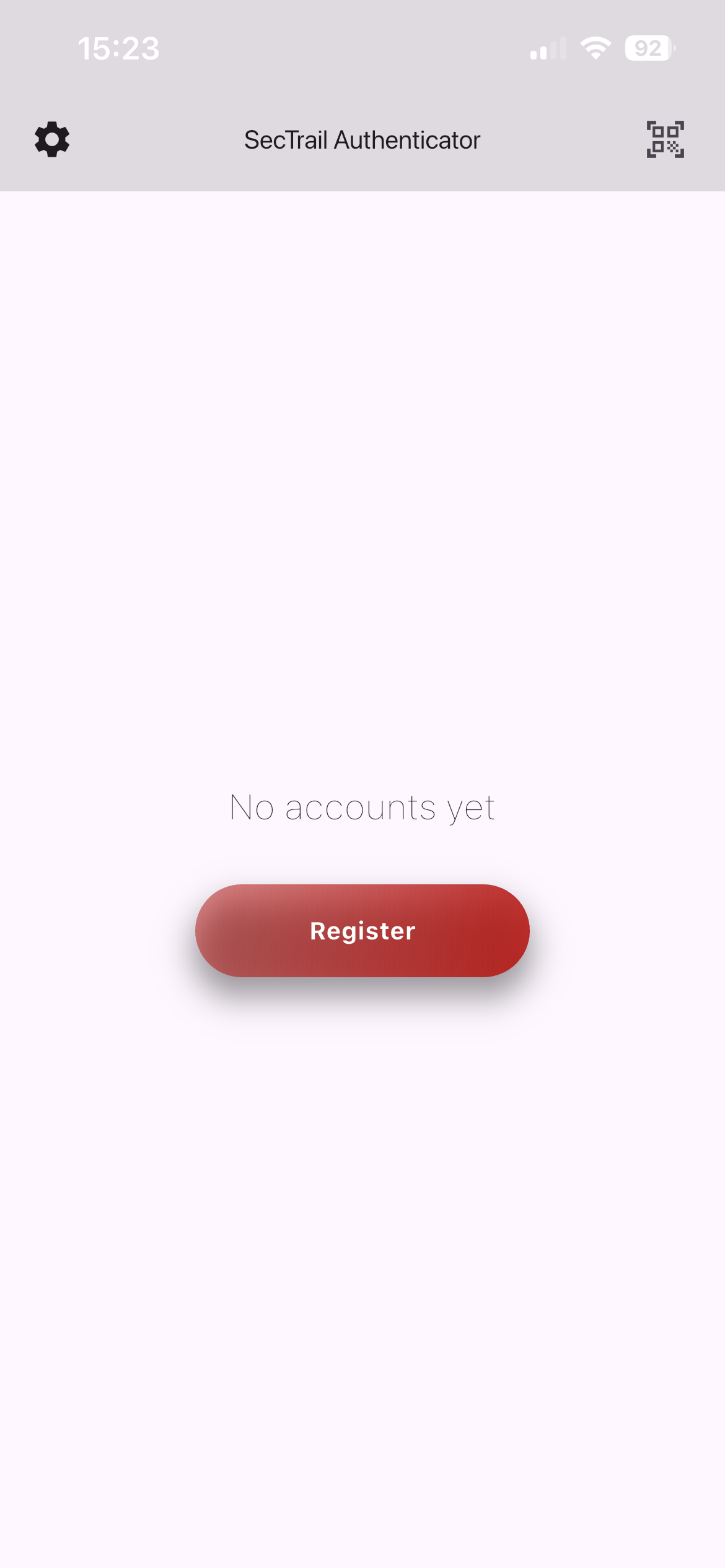
Home screen — accounts and generated codes
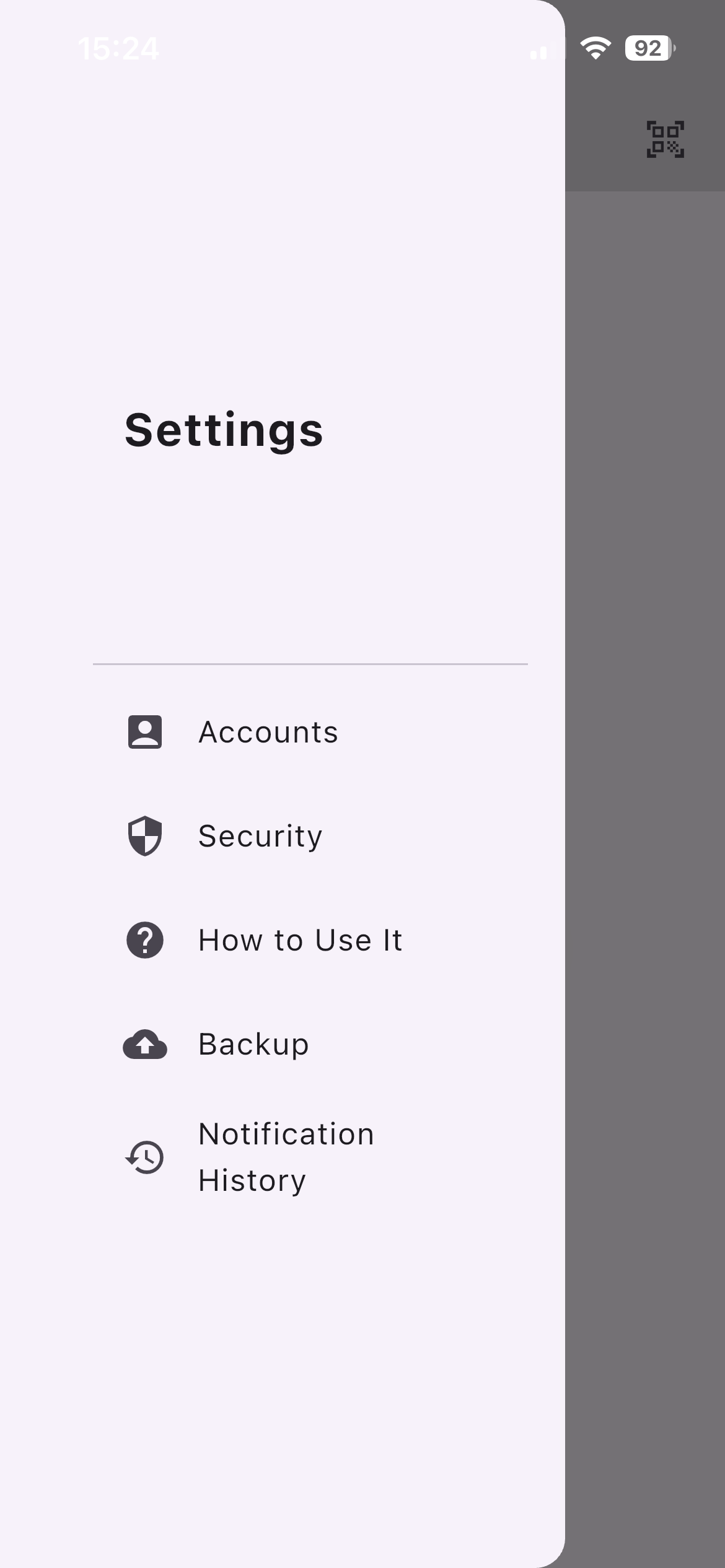
The settings menu opened with the ⚙️ icon at the top left
Soft OTP (One-Time Code)
A 6-digit code is generated for each account on the home screen.
How Does It Work?
- It refreshes every 30 seconds
- The remaining time is shown with the counter next to the code
- Generation is performed entirely on the device — no internet required
Usage
- When an OTP code is requested by the application you are signing in to, open SecTrail Authenticator
- Read/copy the code of the relevant account
- Enter/paste the code into the relevant field
Since Soft OTP is time-based, it is critical that the device clock is correct. If codes are constantly rejected, the first thing to check is the device clock.
Details: Troubleshooting
Approval with Push Notification
When a user signs in to an application, a notification is sent to the device.
Notification Content
The details of the sign-in request are shown in the notification:
- Username — which account the request came for
- Device — information about the device the sign-in was made from
- IP address — the address the sign-in came from
Approving and Rejecting
There are two actions on the notification:
- Approve — accepts the sign-in request, authentication is completed
- Reject — rejects the sign-in request, authentication fails
If a notification arrives although you did not sign in, this means someone has obtained your password. Reject the notification, change your password immediately and inform your IT team.
Timeout
Each authentication request has a limited validity period. When the time expires:
- The notification is automatically removed from the device
- The request is recorded in the history as a timeout
- The user must restart the sign-in process
If there is a request that arrived while the application was closed and is still valid, it is shown to the user. Expired requests, on the other hand, are written to the history as a timeout.
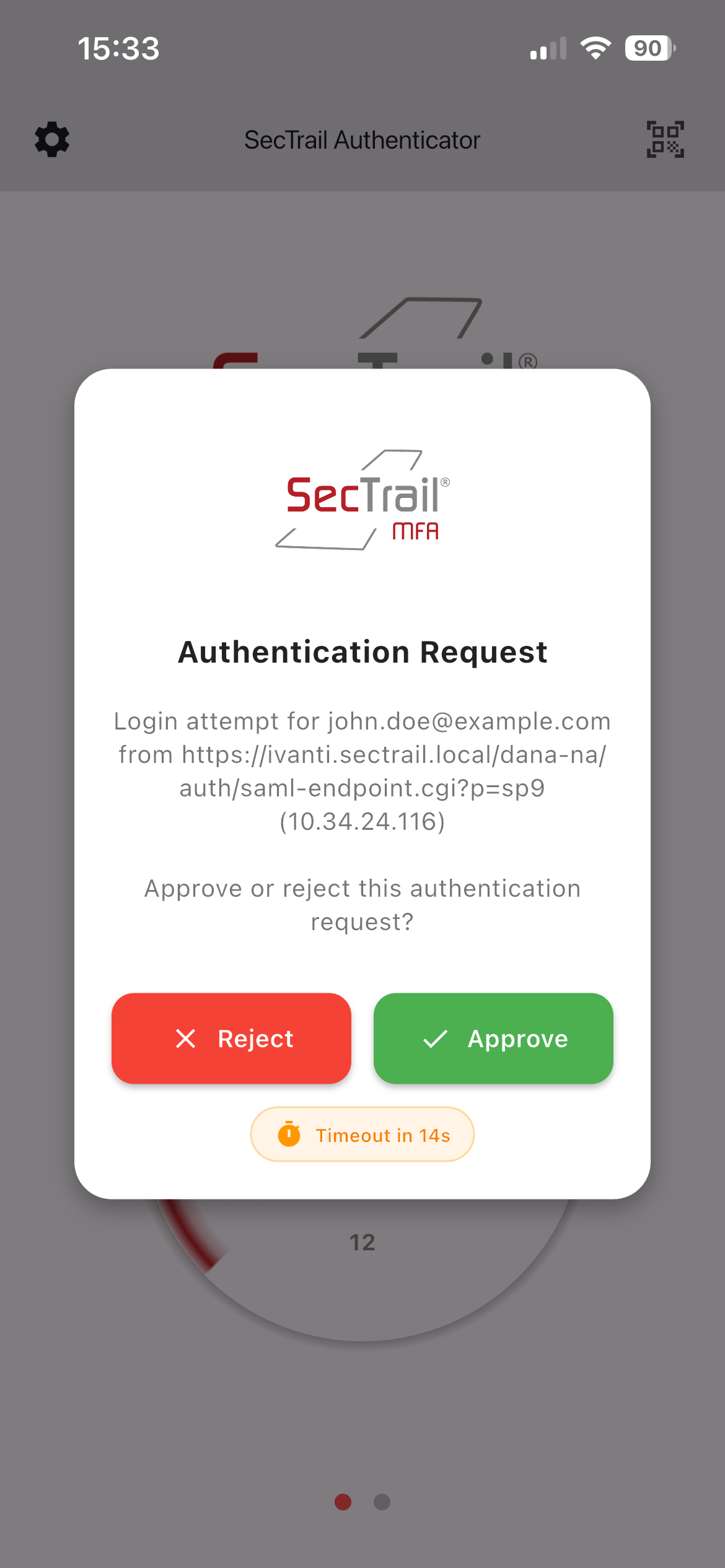
Incoming sign-in request — approve and reject screen
Number Matching
This feature requires SecTrail MFA v2.1 and above server versions.
Number matching is a more secure variant of the push notification. Instead of the user approving with a single tap, the user is asked to enter the number shown on the sign-in screen into the application.
Why Is It Used?
With standard push notification, an attacker who has obtained the password can send dozens of notifications to the user one after another. If the user approves one out of fatigue or by mistake, the attacker gets in. This attack is called MFA fatigue.
Number matching neutralizes this attack: since the attacker does not see the sign-in screen, they cannot know the correct number. As the user cannot enter a number they do not know, the possibility of accidental approval disappears.
User Experience
When number matching is enabled and the notification is tapped, a number entry screen opens instead of the approve/reject buttons:
- A number is displayed on the screen being signed in to (browser, application)
- The "Enter the number shown on your sign-in screen" message and an input field appear in the mobile application
- The user enters the number they see on the screen
- Approves with the
Yes, approvebutton
The input field accepts only digits and works with 2–6 digit numbers.
Rejecting
The request can be rejected with the No, reject button without entering the number. This is what should be done when a sign-in request you do not recognize arrives.
If you are not looking at the sign-in screen, you did not initiate that request. Instead of trying to guess the number, reject it with No, reject and inform your IT team.
If the Wrong Number Is Entered
A request with a wrong number entered is not approved and is considered rejected. The sign-in process must be started over.
Timeout
As with standard push notification, number matching requests also have a limited validity period. When the time expires the request times out and is recorded in the history as such.
Appearance in the Notification History
Number matching requests appear in the notification history with the Number Entry label. Standard push notification requests, on the other hand, carry the Push Notification label. This way, which sign-in was verified with which method can be tracked later.
Whether number matching comes into play depends on the configuration on the server side. The user cannot make this choice from the application — which screen opens when a notification arrives is determined automatically based on the request coming from the server.
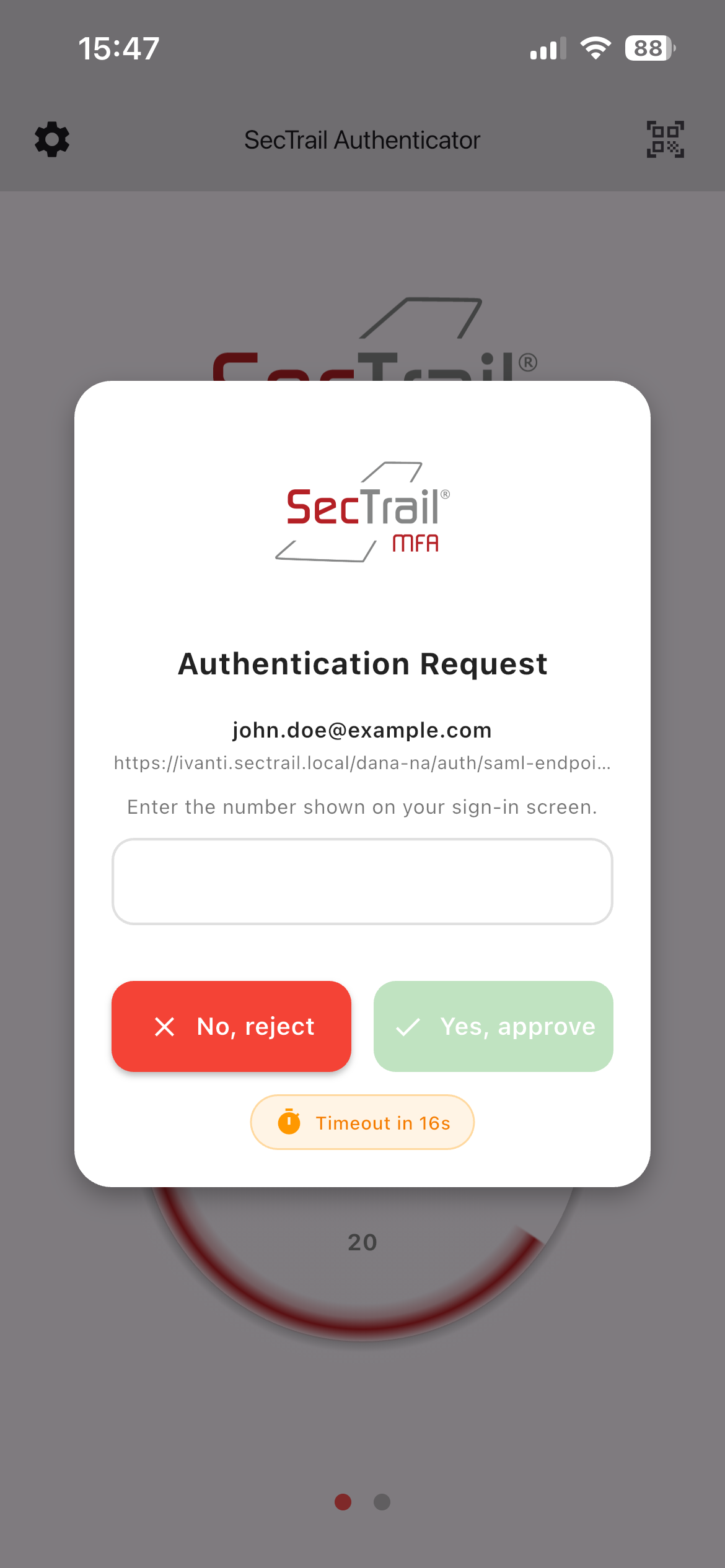
The number entry screen in the mobile application
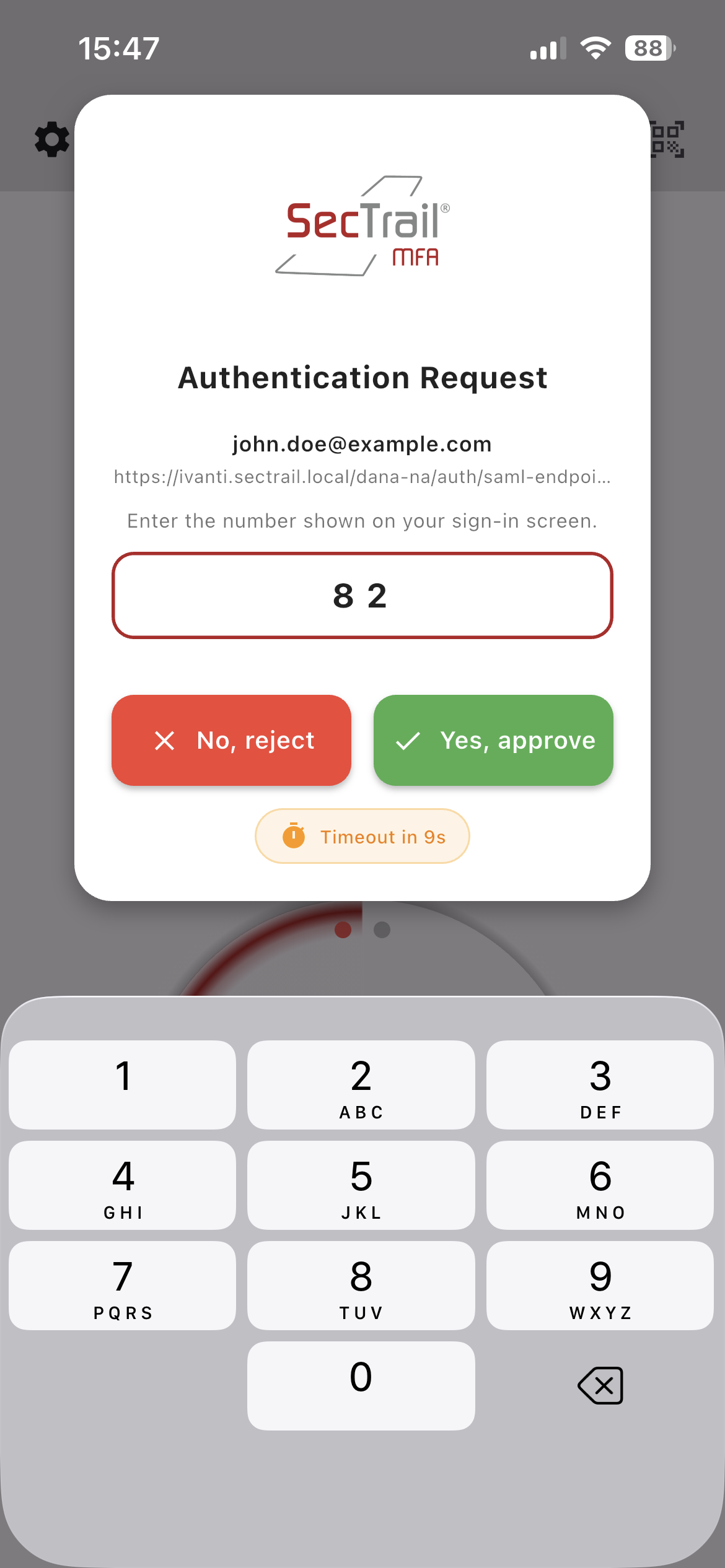
Number entry
QR Login
Used for passwordless sign-in to SSO portals.
Usage Steps
- Open the QR code displayed on the screen you will sign in to
- Tap the 📷 icon at the top right in the application
- Scan the QR code
- The application processes the request
- When successful, the sign-in is completed automatically on the desktop/web side
During QR login, the first (topmost) account in the application is used automatically. If you have more than one account, move the correct account to the top from the Accounts page.
Security: App Lock
An extra layer of protection can be added to the application via ⚙️ menu → Security.
PIN Code
Makes the application ask for a PIN code every time it is opened.
- To turn it on, enable the
PINswitch and set a PIN - To turn it off, disable the switch and enter the current PIN
Biometric Authentication
Provides access to the application with fingerprint or face recognition.
- Enable the
Biometric Authenticationswitch - Confirm with the device's biometric authentication
- After the setting is saved, the application restarts
If there is no fingerprint/face recognition registered on the device or the hardware does not support it, the switch does not turn on and automatically returns to the off position. First register biometrics from the device settings.
Remote Configuration
Administrators can enforce PIN and biometric authentication centrally.
In this case the relevant setting appears as "Remote Configured" with a ☁️ cloud icon on the Security page and cannot be changed by the user.
| Appearance | Meaning |
|---|---|
PIN / Biometric Authentication | The user can make their own choice |
☁️ Remote Configured PIN | Enforced by the administrator, cannot be changed |
☁️ Remote Configured Biometric | Enforced by the administrator, cannot be changed |
Remote configuration ensures that the organization's security policy is applied on all devices. When the setting is sent from the server, it takes effect on the device immediately.
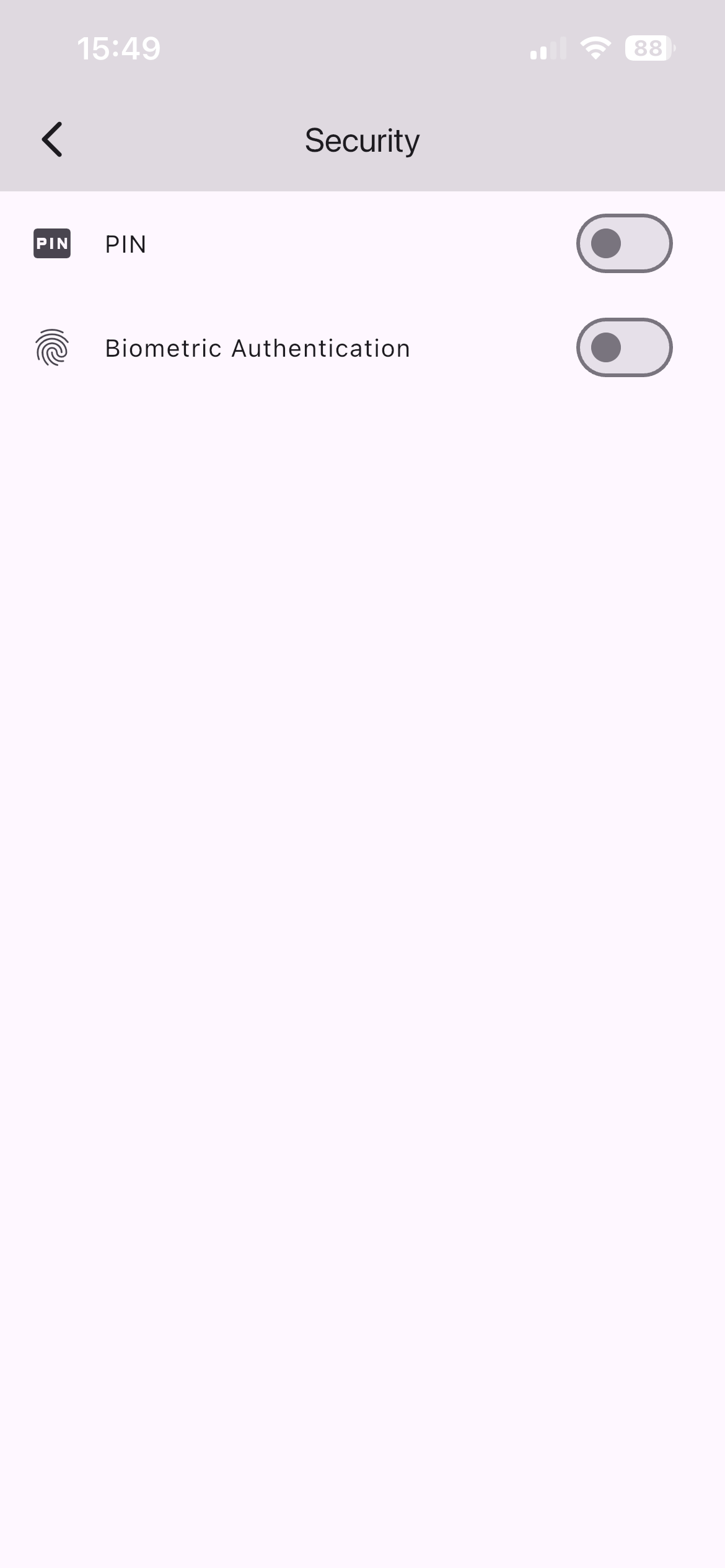
PIN and biometric authentication settings
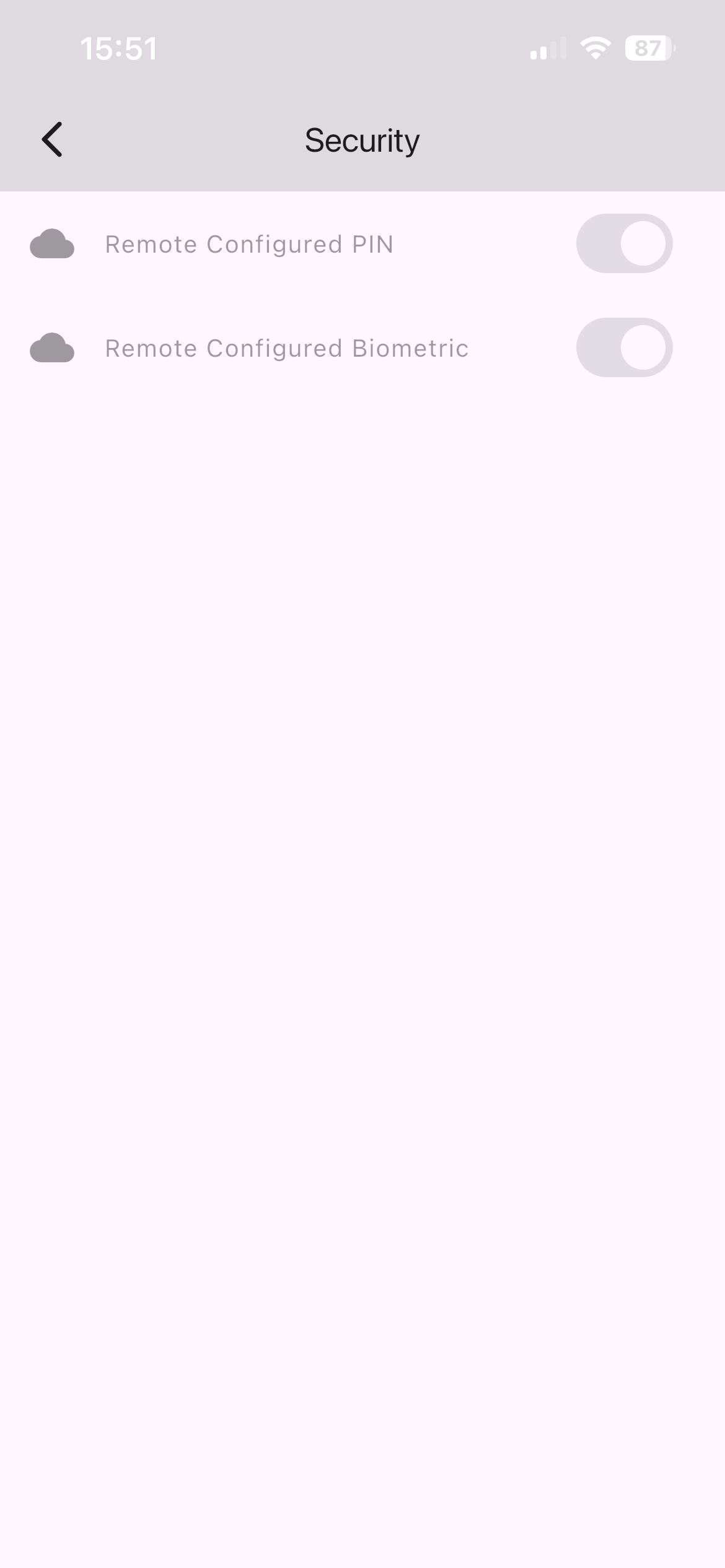
Settings enforced by the administrator — marked with the ☁️ icon, cannot be changed
Backup and Restore
Accounts can be backed up to Google Drive via ⚙️ menu → Backup. When you change devices, you do not have to register your accounts again.
Taking a Backup
- Open the Backup page
- Sign in to your Google account with
Sign In - Tap the
Backupbutton - The backup is created and uploaded to Google Drive
Restoring
- Open the Backup page on the new device
- Sign in with the same Google account
- Use the restore option
- The backup is downloaded and the application restarts
During restore, the integrity of the backup is checked automatically. If the backup file is corrupted, no operation is performed and an informational message is shown.
Deleting the Backup
The backup on Google Drive can be removed from the Backup page.
The Google Drive backup covers accounts and settings. The following are not backed up:
- ❌ Passkeys — they are bound to the device and must be re-registered on the new device
- ❌ Notification history — it is kept on the device only
Your backup is tied to your Google account. The security of your Google account is the security of your backup as well — always use two-factor authentication on your Google account.
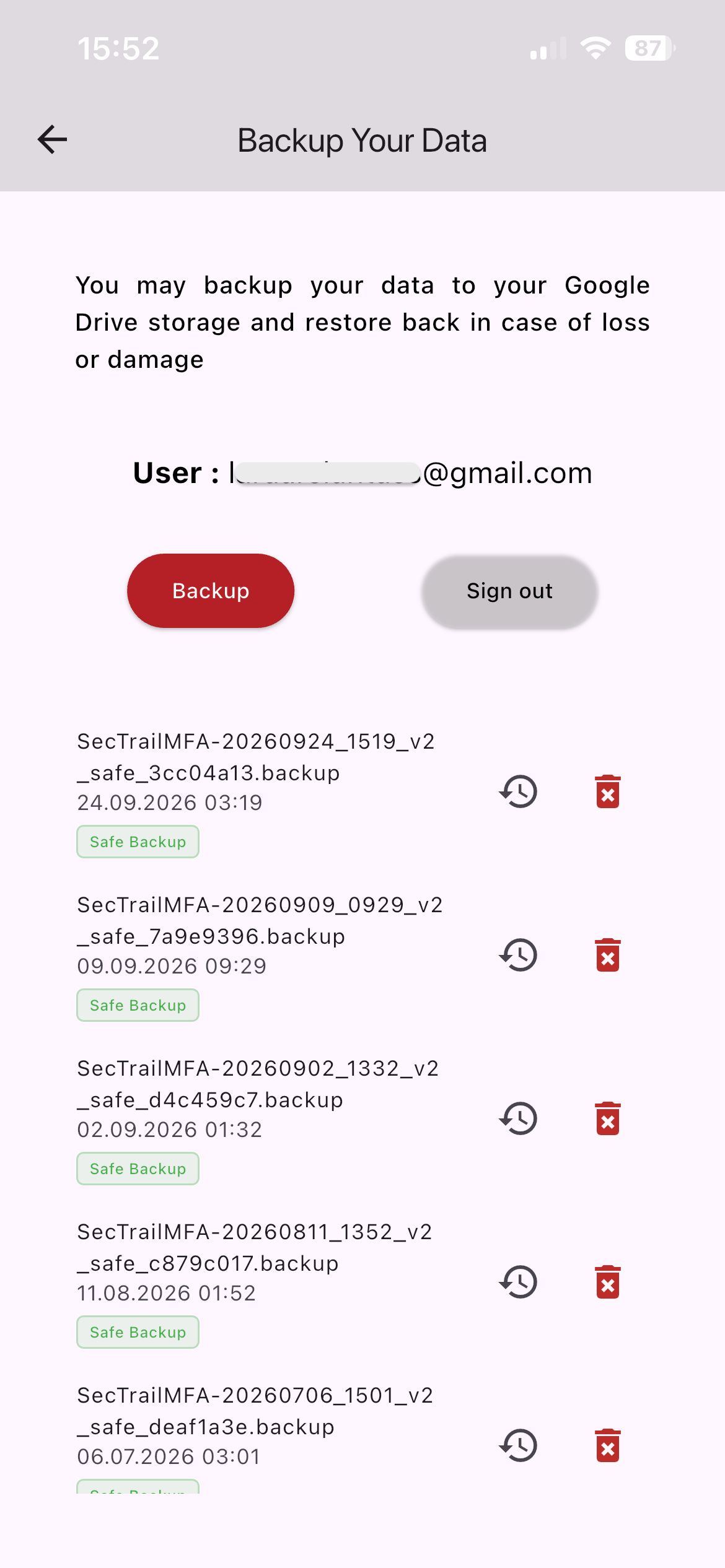
Google Drive backup and restore
Notification History
Via ⚙️ menu → Notification History, the record of all authentication requests that reached the device is displayed.
Recorded States
| State | Meaning |
|---|---|
| Received | The request reached the device |
| Approved | The user approved the request |
| Rejected | The user rejected the request |
| Timeout | The request expired without being answered |
Each record contains the username, device, IP address and time information.
Request Type Labels
Each record contains a label showing which method the request came with:
| Label | Meaning |
|---|---|
| Push Notification | Standard push notification (approval with a single tap) |
| Number Entry | Number matching (approval by entering a number) |
Clearing the History
All records can be deleted with the Clear button in the history list. The operation asks for confirmation and cannot be undone.
Check the notification history regularly. If you see a sign-in attempt you did not make — especially records that timed out or were rejected — your password may have been compromised. Report it to your IT team.
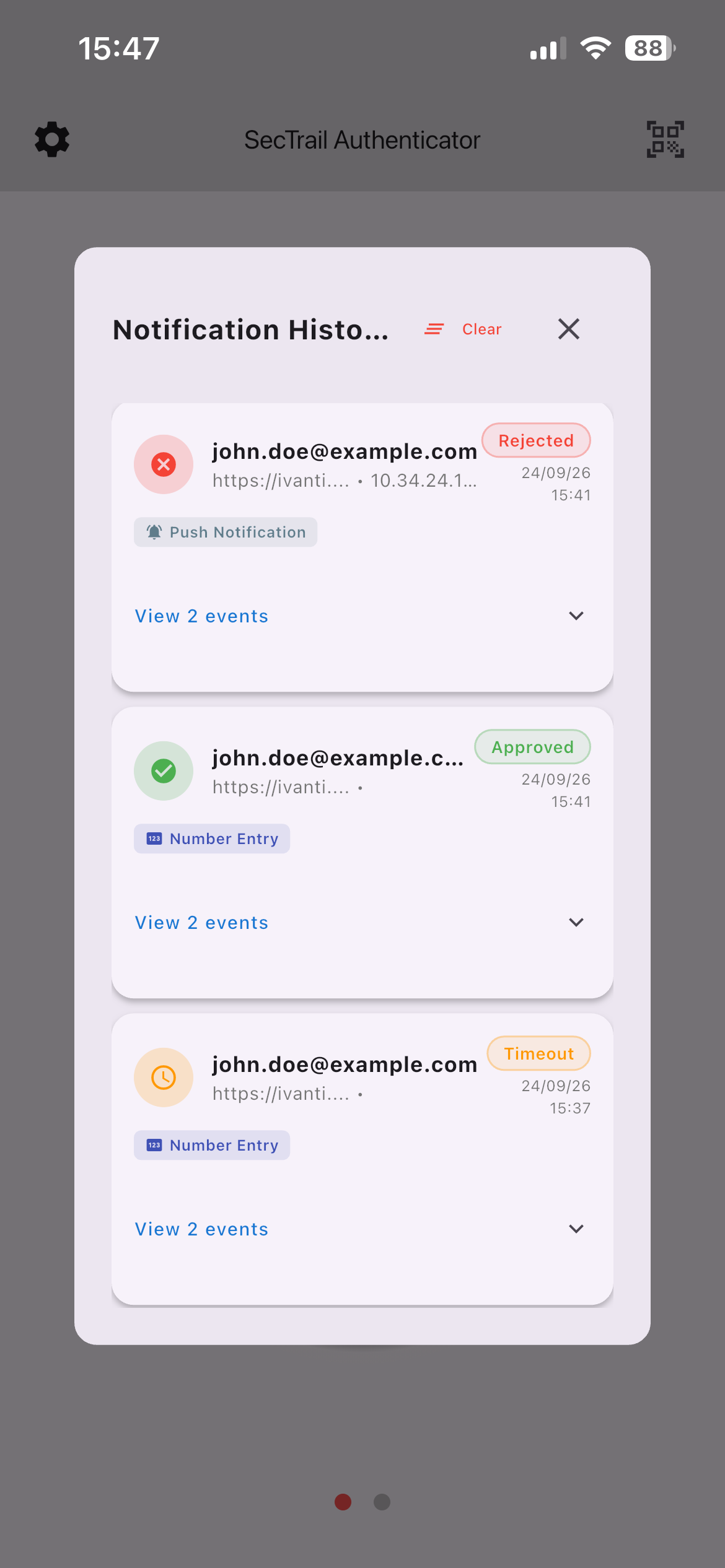
The record of incoming authentication requests
Account Management
Registered accounts are managed via ⚙️ menu → Accounts.
Available Operations
- Ordering — reordering accounts by dragging
- Editing — updating account information
- Deleting — removing the account (confirmation is requested)
When an account is deleted, the secret key belonging to that account is permanently removed from the device. If there is no backup, the account must be re-registered.
Make sure you have taken a backup before deleting.
The account order is not merely a visual preference: QR login uses the topmost account. Move the account you use frequently to the top.
Passkey (FIDO2) Management
The application can work as a passkey provider for your device. This lets you sign in without a password to supported sites and applications.
Platform Requirements
| Platform | Minimum Version |
|---|---|
| iOS | iOS 17.0+ |
| Android | Android 14 (API 34)+ |
If your device is below the version threshold above, the passkey feature is not visible at all in the application. This is the expected behavior.
Enabling
The following must be done from the device settings in order to use passkeys:
- A screen lock (PIN, pattern, biometric) must be defined on the device
- SecTrail Authenticator must be enabled as an autofill provider from the device settings
- iOS: Settings → General → AutoFill & Passwords → SecTrail Authenticator
- Android: Settings → Passwords & accounts → SecTrail Authenticator
If you will sign in with the passkey on your phone to a browser on another device (for example, to a site on a computer), Bluetooth must be turned on on both devices. The connection is established by the operating system; the application does not ask you for Bluetooth permission.
Bluetooth is not required when signing in from the phone's own browser.
How Is a Passkey Created?
Passkeys are not created from within the application; they are created while a WebAuthn key is being registered through the Registration Panel:
- Sign in to the Registration Panel
- Use the WebAuthn option
- The browser asks which provider to register with — select Use a phone or tablet
- Scan the QR code with your device's camera or QR code reader
- Make sure it saves to SecTrail Authenticator
- Confirm with your device's screen lock (biometric or PIN)
- The passkey is created and appears in the application's passkey list
In this flow the application is in the passkey provider role: it generates the key and stores it in the device's hardware vault. The side that initiates the registration is the Registration Panel.
For this reason there is no button such as "create a new passkey" in the application — the list is only for viewing and deleting existing passkeys.
For the steps on the Registration Panel side: Registration Panel — WebAuthn Registration
Passkey List
Registered passkeys are listed within the application. When a passkey is tapped, the detail panel opens:
| Field | Description |
|---|---|
| User | The username the passkey belongs to |
| Server | The server the passkey is valid for |
| Created | The creation date and time |
Deleting a Passkey
The passkey is deleted with the 🗑️ icon in the detail panel. The operation asks for confirmation.
A deleted passkey cannot be recovered. The passkey must be re-registered in order to sign in to the relevant service.
Security Model
The private keys of passkeys are stored in the device's hardware security vault. These keys never leave the device. Therefore:
- ❌ They cannot be backed up
- ❌ They cannot be transferred to another device
- ✅ Re-registration is required on a new device
Passkeys are not paired with the Soft OTP accounts in the application. Each passkey is an independent credential that works on its own; that is why you do not see a passkey badge on account cards — they are all collected in a single list.
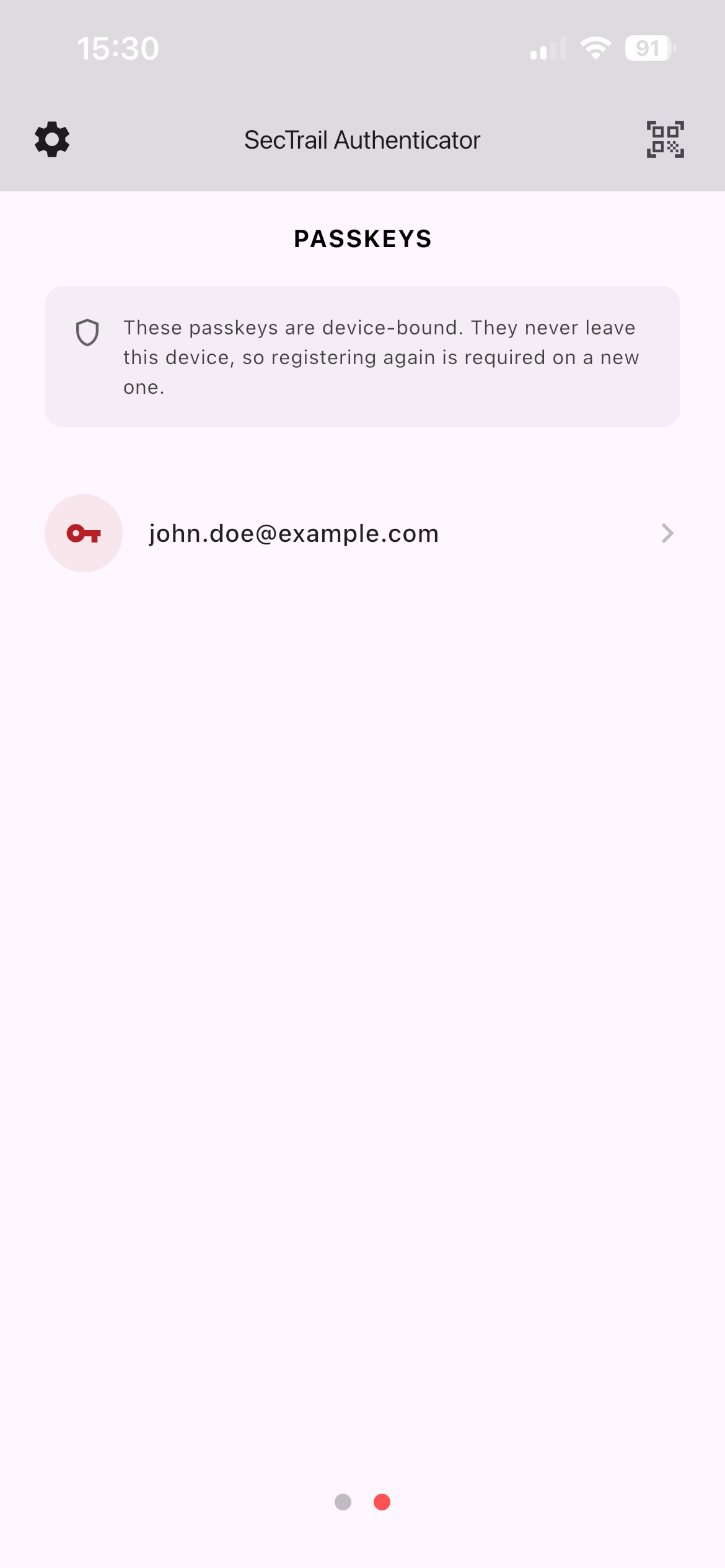
The passkeys registered on the device
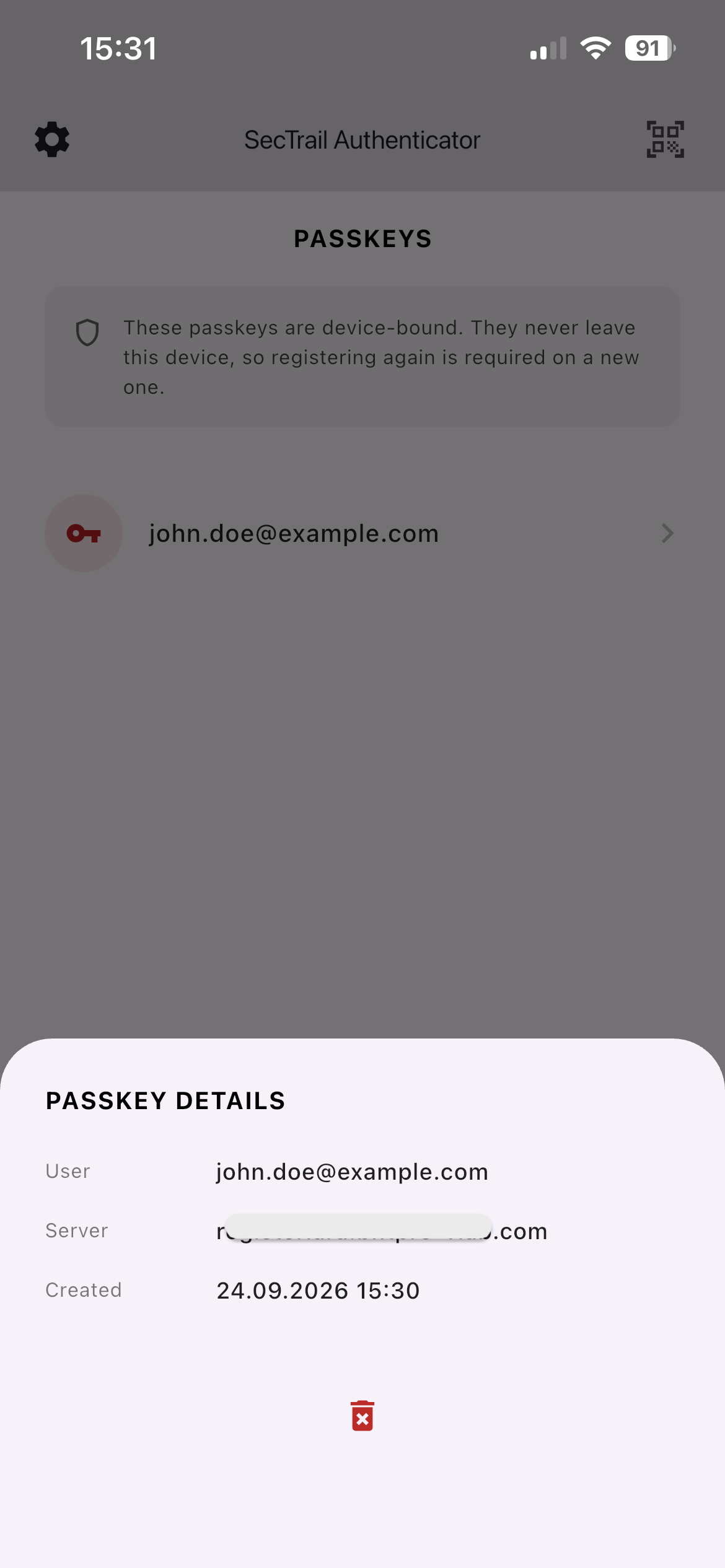
Passkey detail panel — user, server, creation date and deletion
Third-Party TOTP Accounts
The application works with all services that use standard TOTP. Two-factor authentication accounts of services such as Google, Amazon, GitHub, Microsoft and similar can be kept in the same application.
How Is It Added?
Scan the QR code shown in the two-factor authentication settings of the relevant service with the 📷 scan icon in the application.
Standard QR codes are recognized and the information read (account name, organization, secret key) is brought into the account creation form pre-filled. When you check the information and save it with Save, the account is created with the Custom type.
When a SecTrail registration QR is scanned, the account is added directly. With third-party QRs, a confirmation step comes in between — you can see and edit the information before saving it.
Custom accounts only generate Soft OTP codes. Since push notification and QR login require the device to be registered to the SecTrail server, they do not work with these accounts.
Related Pages
- Overview: Application capabilities
- Installation: Installation and permissions
- Registration: The account registration process
- Troubleshooting: Frequently encountered problems
- Push Notification: Server-side configuration
- WebAuthn: FIDO2 server configuration