Backup & Restore
The Backup & Restore module allows you to automatically back up system data at regular intervals and restore to a previous state when needed. Backup settings can be configured and existing backups managed from System > Backup & Restore.
Backup Settings
Configure automatic backup scheduling and notification preferences from the Backup Settings section.
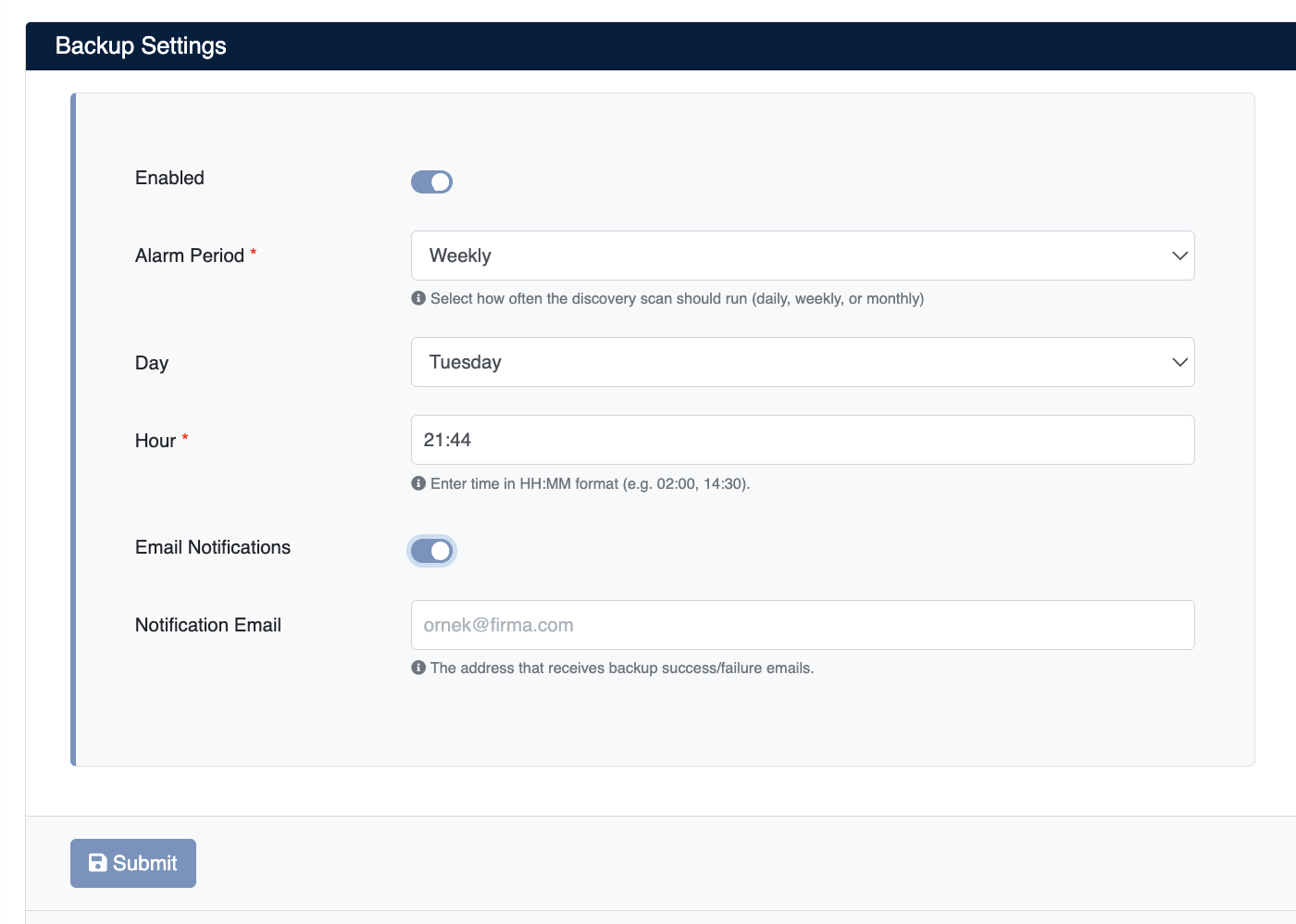
| Field | Description |
|---|---|
| Enabled | Enables or disables automatic backups. |
| Alarm Period | Sets the backup frequency: Daily, Weekly, or Monthly. |
| Day | Specifies which day of the week to run the backup (for weekly schedules). |
| Hour | Sets the time for the backup in HH:MM format (e.g. 02:00, 14:30). |
| Email Notifications | Enables sending notifications when a backup completes or fails. |
| Notification Email | The email address that receives backup success/failure notifications. |
Backup List
All backups are listed in the Backup List table. Each entry displays the file name, size, and creation date.

Use the Search field in the top right corner of the table to search through backup files.
Taking a Manual Backup
To take an immediate backup without waiting for the schedule, click the backup button. Once the operation is complete, the new entry will appear in the table.
Downloading and Deleting Backups
Each backup entry has two buttons in the Actions column:
- Download – Downloads the backup file to your local computer.
- Delete – Permanently deletes the backup from the system.
Restoring the Database
Click on a backup row in the list to select it; the selected row will be highlighted and the restore button will become visible.
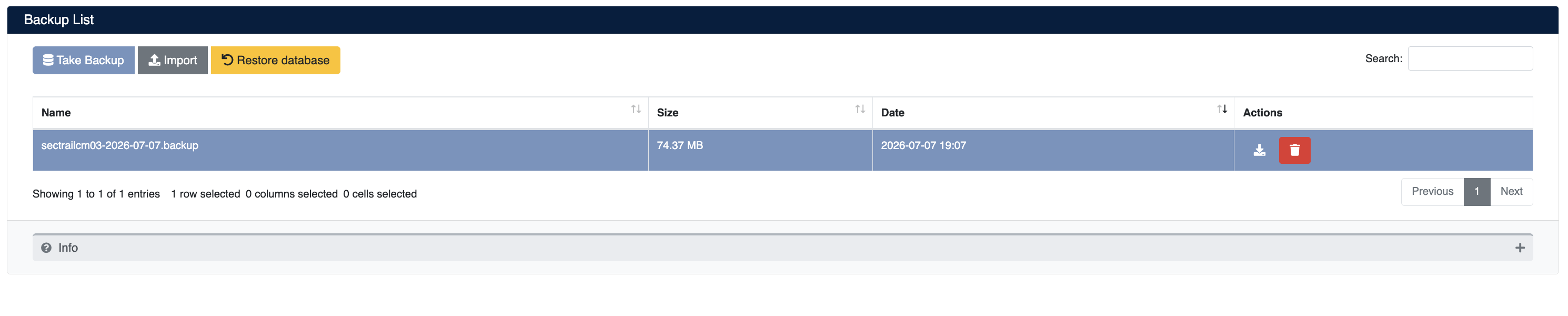
Click the restore button to restore the selected backup to the system.
The restore operation overwrites existing data. This action cannot be undone; it is recommended to take a current backup before proceeding.
Uploading an External Backup
To restore from a .backup file downloaded from another system or previously saved, use the upload button.
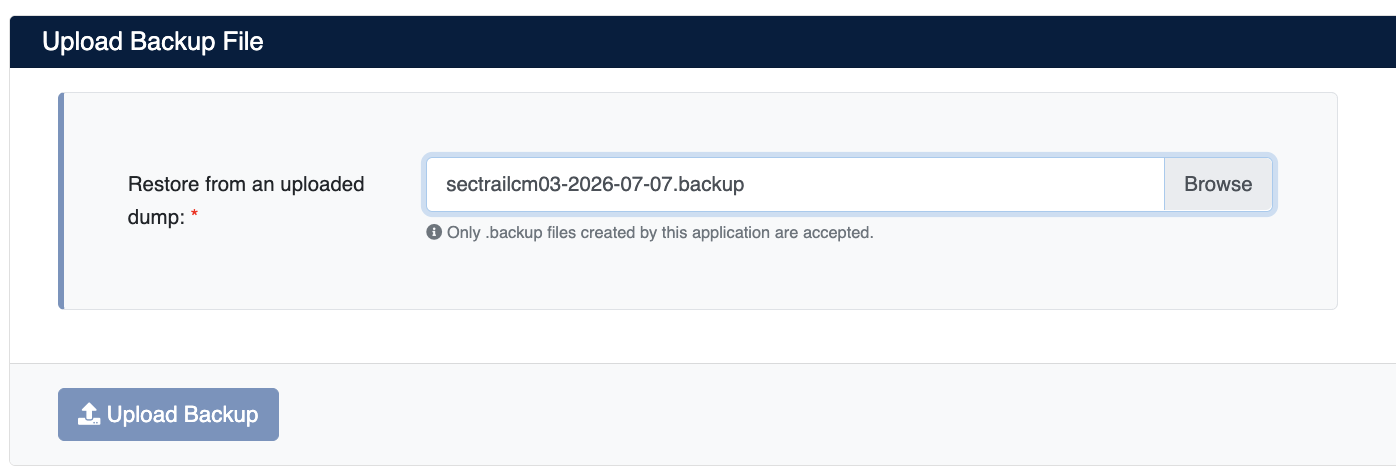
- Click the upload button.
- In the form that opens, click Browse to select a
.backupfile. - Click the upload button to upload the file to the system.
Only .backup files created by this application are accepted.