Risk Policies
Risk Policies define the scoring thresholds and automated response actions for the Risk Engine. Each policy specifies at what score a login is considered Low, Moderate, or High risk, and what happens when High risk is detected (IP block, user block, or both).
Multiple policies can exist. Each application can be assigned its own policy. Risk analysis is only active for an application when a policy is explicitly assigned to it.
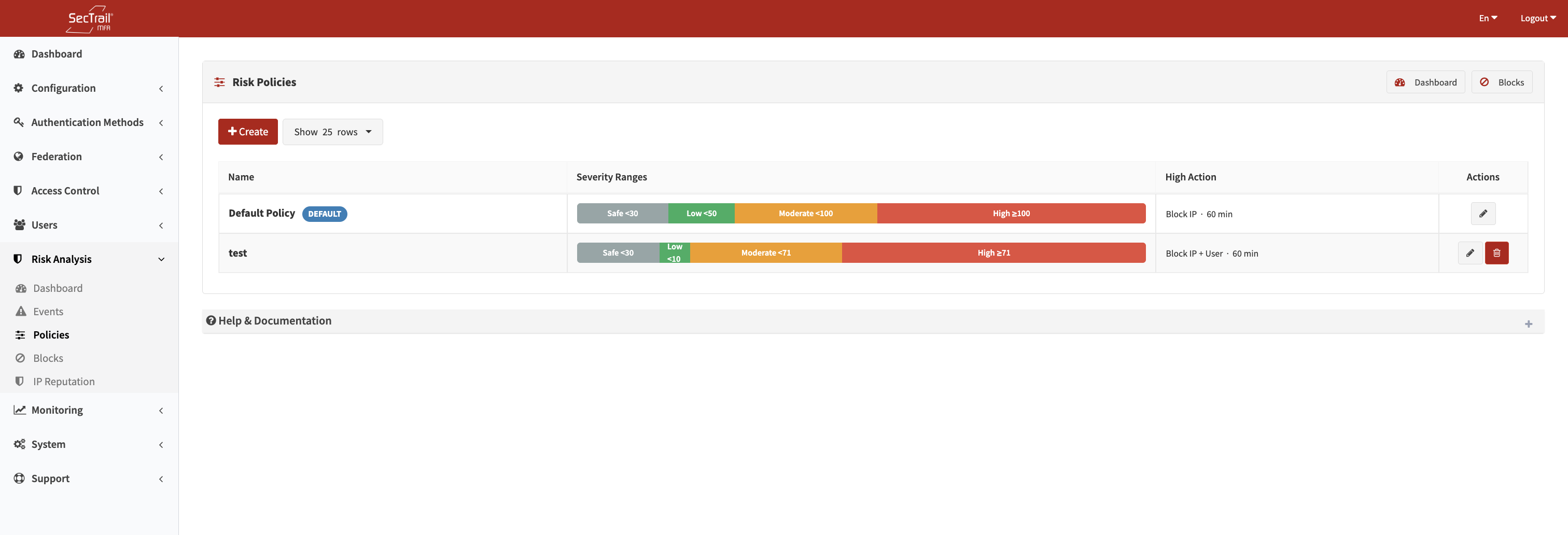
Risk Policies — Severity thresholds and block action configuration
Severity Thresholds
A policy divides the risk score space into four severity bands using three configurable thresholds:
| Band | Condition | Default |
|---|---|---|
| Safe | Score < Low Threshold | < 30 |
| Low | Low Threshold ≤ Score < Moderate Threshold | 30 – 49 |
| Moderate | Moderate Threshold ≤ Score < High Threshold | 50 – 99 |
| High | Score ≥ High Threshold | ≥ 100 |
Thresholds must be strictly increasing: Low < Moderate < High. Valid range: 1–997 (Low), 2–998 (Moderate), 3–999 (High).
Safe events proceed without any additional action. For Low and Moderate events, any application factor with Risk Analysis enabled is injected as an additional MFA challenge. High-severity events trigger an access block instead.
Policy Fields
Name
A descriptive label for the policy (max 100 characters). Used to identify the policy in the application assignment dropdown and the policies list.
IP Header
The HTTP header SecTrail MFA reads to determine the client's real IP address. Leave blank to use the direct connection IP (REMOTE_ADDR).
This setting is important when SecTrail MFA is deployed behind a reverse proxy or load balancer:
| Header | Common Use |
|---|---|
X-Real-IP | Nginx reverse proxy |
X-Forwarded-For | Most load balancers and CDNs |
CF-Connecting-IP | Cloudflare |
CF-Connecting-IP, X-Real-IP | Comma-separated priority list — first valid public IP is used |
When a comma-separated list is provided, the engine tries each header in order and uses the leftmost valid, non-private IP it finds.
Low Threshold
Integer between 1 and 997. Logins scoring at or above this value are classified as Low severity.
Default: 30
Moderate Threshold
Integer between 2 and 998, and must be greater than Low Threshold. Logins scoring at or above this value are classified as Moderate severity.
Default: 50
High Threshold
Integer between 3 and 999, and must be greater than Moderate Threshold. Logins scoring at or above this value are classified as High severity and trigger block actions.
Default: 100
Block IP (High Severity Action)
When enabled, the source IP address is automatically blocked when a High-severity event occurs.
Default: Enabled
Block User (High Severity Action)
When enabled, the username is automatically blocked when a High-severity event occurs.
Default: Disabled
Block Duration (Minutes)
How long an automatic block remains active. Set to 0 for a permanent block (requires manual removal from the Blocks page).
Default: 60 minutes
Default Policy
SecTrail MFA comes with a pre-configured Default Policy using the standard thresholds (30 / 50 / 100). It can be assigned to applications just like any other policy. You can edit its thresholds and block settings to match your environment, or create additional policies as needed.
Assigning a Policy to an Application
Risk policies are assigned per application in the Configuration → Applications section. Each application has a Risk Policy dropdown. Risk analysis is only active when a policy is explicitly selected — applications without an assigned policy are not subject to risk scoring.
This allows different security postures per application — for example, a critical financial application can use tighter thresholds (Low: 20, Moderate: 40, High: 70) while a less sensitive internal tool uses the standard defaults.
Risk-Enabled Factors
In addition to thresholds and blocks, the risk engine interacts with application factors. Each factor has a Risk Analysis toggle:
- When enabled, that factor is injected as an additional MFA challenge for Low and Moderate risk events.
- High risk events are blocked regardless of factor configuration.
- Safe events do not trigger any additional factors.
To configure which factors are risk-enabled, go to Configuration → Applications → [Application] → Factors and toggle the Risk Analysis option per factor.
Policy List View
The Policies list shows all configured policies with:
- Name
- Severity Range Bar — A visual proportional bar showing the four severity zones based on the configured thresholds
- High Risk Action — Which block targets are active and the block duration
- Default badge — Shown only on the fallback policy
Setup Steps
- Go to Risk Analysis → Policies
- Click Create Policy
- Enter a name and configure IP header if behind a proxy
- Set Low, Moderate, and High thresholds (use the live preview bar to visualize the zones)
- Configure block actions (IP block, user block, duration)
- Save the policy
- Go to Configuration → Applications and assign the policy to the relevant applications
- Enable the Risk Analysis toggle on the desired factors for Low/Moderate response