Risk Blocks
The Risk Blocks page displays all IP addresses and usernames that have been blocked by the Risk Engine — either automatically when a High-severity event was detected, or manually by an administrator. Admins can lift individual blocks, clear all active blocks at once, or create new manual blocks.
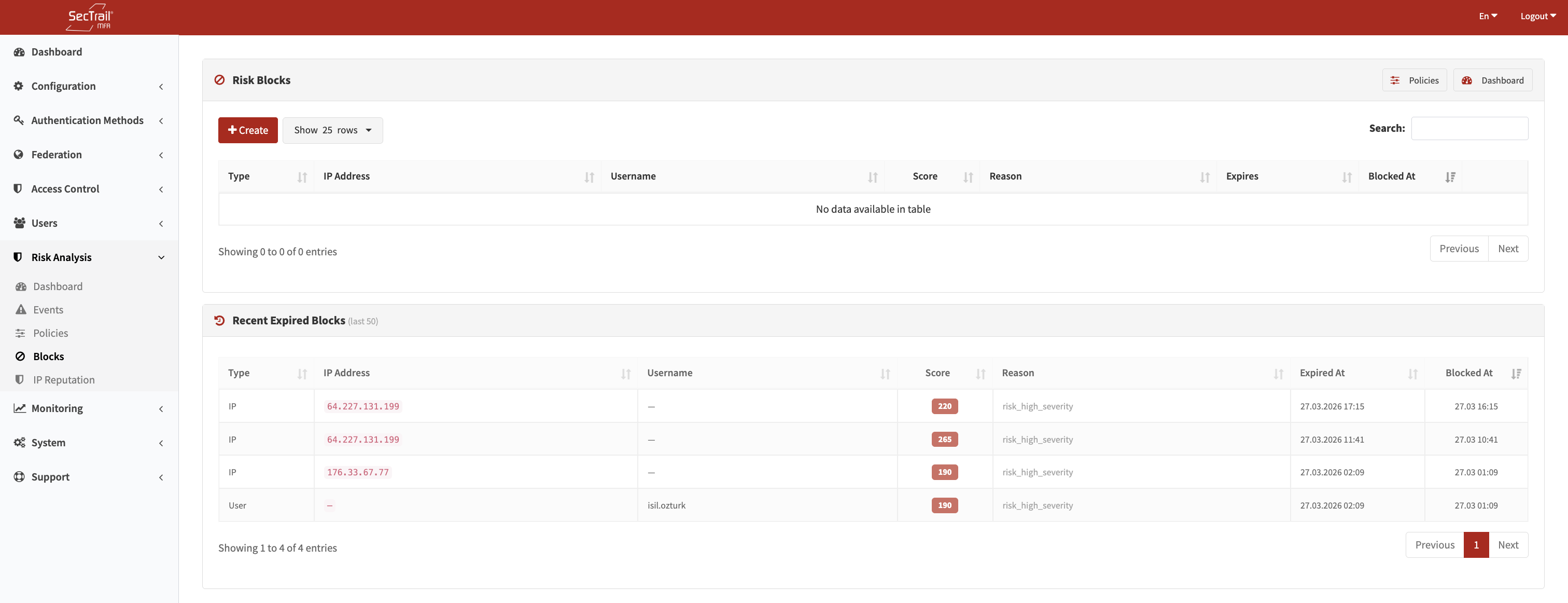
Risk Blocks — Active IP and user block list
Active Blocks
The Active Blocks table shows all blocks that are currently in effect (not yet expired). Blocks appear here within seconds of a High-severity event triggering.
Block Types
| Badge | Type | Description |
|---|---|---|
| IP Block (amber) | IP address block | The source IP is blocked from authenticating |
| User Block (red) | Username block | The user account is blocked system-wide |
| Permanent (teal) | No expiry | Block does not expire; must be lifted manually |
Table Columns
| Column | Description |
|---|---|
| IP / Username | The blocked entity |
| Reason | risk_score_threshold (automatic) or manual_dashboard (manually created) |
| Risk Score | The score that triggered the block (0 for manually created blocks) |
| Block Type | IP block, user block, or permanent |
| Expires | Expiry timestamp, or "Permanent" |
| Action | Lift button to remove the block immediately |
Lift All
The Lift All button removes all currently active blocks in a single action. Use with caution — this clears automatic blocks created by the Risk Engine as well as manual ones.
Expired Blocks
The Expired Blocks section shows the last 50 blocks that have expired naturally (their blocked_until time has passed). These are read-only and cannot be lifted (they are no longer active). This history is useful for auditing past block events.
Creating a Manual Block
Admins can create blocks directly from the dashboard without waiting for an automated event. This is useful for proactively blocking a known malicious IP or temporarily suspending a user account.
To create a manual block:
- Click Create Block
- Enter either an IP address or a username (at least one is required)
- Set the Duration in minutes — enter
0for a permanent block - Click Save
Manual blocks appear in the Active Blocks table with the reason manual_dashboard and a risk score of 0.
How Automatic Blocks Are Created
When the Risk Engine evaluates a login and the score meets or exceeds the High threshold defined in the active Risk Policy:
- If Block IP is enabled in the policy, the source IP is blocked for the configured duration
- If Block User is enabled in the policy, the username is blocked for the configured duration
- A block record is written to the
risk_blockstable with the reasonrisk_score_threshold - The login is denied immediately — no MFA factors are presented
Interaction with Other Block Systems
Risk blocks are separate from the IP Blocking and User Blocking systems in the Access Control section. Lifting a risk block does not affect access control blocks, and vice versa.
Important Considerations
- Lifting a block is immediate — the affected IP or user can authenticate again on their next attempt
- Permanent blocks (duration = 0) remain until explicitly lifted
- If both IP and User blocking are enabled in the policy, both blocks are created simultaneously for a single High-severity event
- The Active Blocks table refreshes on page load; use the browser refresh to see the latest state
- Expired blocks are kept for audit purposes only — they have no effect on authentication