SCEP Server
SecTrail CM includes a built-in SCEP Server (Simple Certificate Enrollment Protocol - RFC 8894). SCEP is a well-established certificate enrollment protocol widely supported by routers, switches, firewalls, VPN clients, MDM-managed mobile devices, and Windows/Intune clients.
Devices with SCEP support can obtain and renew certificates directly from SecTrail CM, without requiring any additional agent to be installed on them. Certificates are issued by the CAs managed by SecTrail CM (Local CA, Microsoft ADCS, DigiCert, etc.) according to the template rules you define.
- SCEP Server: The protocol with the broadest device support. Device identity is verified with the challenge password in the CSR. Because requests and responses are encrypted and signed with PKCS#7, it can also run over plain HTTP.
- EST Server: The modern successor to SCEP. It runs over HTTPS and authenticates with HTTP Basic or mTLS.
- CMP Server: Common in industrial and telecom devices. It authenticates with a shared secret (PBM) or a certificate signature.
Benefits
- Broad device support: Works with network devices such as Cisco, Juniper, Fortinet, and Palo Alto, with MDM solutions, and with Windows/Intune (NDES-compatible URL format)
- RFC 8894 compliance: Supports the
GetCACert,GetCACaps,PKCSReq,RenewalReq, andGetCertInitialoperations - End-to-end encrypted requests: The CSR is encrypted to the RA/CA certificate, and the response is encrypted to the client's certificate
- Manual approval support: Optionally, enrollment requests are held until an authorized person approves them; this integrates with the approval workflow and email notifications
- Full visibility: All enrollment operations and issued certificates are recorded and added to the inventory
How It Works
The core components of the SCEP Server are:
| Component | Description |
|---|---|
| Profile | Defines a SCEP endpoint. It determines which template certificates will be issued with, the challenge password, the RA certificate, and the approval settings. |
| Transaction | The record of each enrollment, renewal, and poll operation performed by devices. |
The flow proceeds as follows:
- The administrator creates a SCEP Profile, binds it to a certificate template, and sets a challenge password.
- The device fetches the CA/RA certificate with
GetCACertand the server's capabilities withGetCACaps. - The device encrypts its CSR, which contains the challenge password, to the CA/RA certificate and sends it in a
PKCSReqmessage. - If the challenge password is correct, the certificate is issued according to the template rules, added to the inventory, and returned to the device encrypted.
- If manual approval is enabled on the profile, the request is held as pending; the device polls periodically with
GetCertInitialand receives its certificate once it is approved. - Before its certificate expires, the device renews it with a
RenewalReqmessage signed with its current certificate.
A SCEP profile can issue certificates only against the template it is bound to. The template determines which CA is used, the validity period, and other certificate parameters. For template management, see Inventory → Issue Certificate → Templates.
SCEP Endpoints
Each profile gets its own endpoint based on its Label value. SCEP uses a single URL; the operation is selected with the ?operation= parameter:
| Endpoint | Description |
|---|---|
/scep/{label} | Standard SCEP URL (GET and POST) |
/scep/{label}/pkiclient.exe | URL format expected by Windows NDES / Intune clients |
Operation (operation) | Description |
|---|---|
GetCACert | Returns the CA (and RA, if any) certificate. A single certificate is sent as DER; a chain is sent as PKCS#7. |
GetCACaps | Lists the capabilities the server supports: POSTPKIOperation, SHA-256, SHA-1, Renewal, SCEPStandard |
PKIOperation | Carries enrollment (PKCSReq), renewal (RenewalReq), and pending-request poll (GetCertInitial) messages |
The endpoint of an inactive profile or an undefined label returns 404. Errors at the SCEP level are returned with HTTP 200, inside a signed FAILURE response.
SCEP Profiles
Creating a SCEP Profile
Go to Certificate Authorities (CA) > SCEP Server > SCEP Profiles and click the Create button:
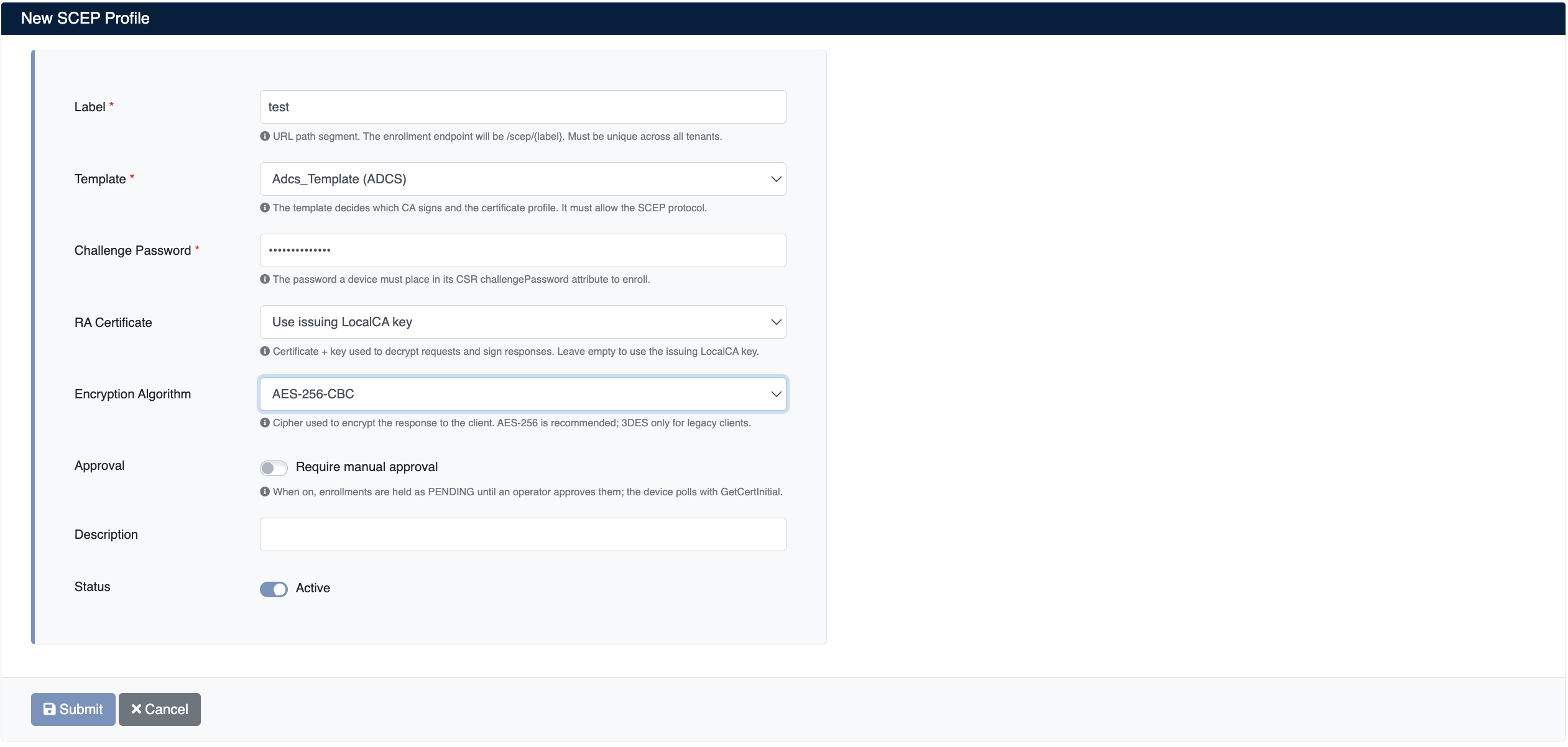
Enter the following information:
- Label (required): The URL path segment of the profile (e.g.,
default). The enrollment endpoint takes the form/scep/{label}. Only letters, digits, dot, hyphen, and underscore (A-Z a-z 0-9 . _ -) are allowed, and it must be unique across all tenants. - Template (required): The template of the certificates to be issued through this profile. It determines the CA that signs the certificate, the validity period, and the profile details.
- Challenge Password (required): The password the device must place in the
challengePasswordattribute of its CSR. Only printable ASCII characters are allowed (no Turkish or accented letters). If left blank on the edit screen, the existing password is kept. - RA Certificate (optional): The certificate and private key used to decrypt requests and sign responses. CA certificates in the inventory with a stored private key are listed. If left empty (Use issuing LocalCA key), the key of the Local CA the template is bound to is used.
- Encryption Algorithm: The encryption algorithm for the response sent to the device.
AES-256-CBCis recommended;AES-128-CBCis also supported.3DESshould only be used for legacy clients. - Approval: When Require manual approval is enabled, initial enrollment requests are held in pending status until an authorized person approves them. See Manual Approval.
- Description (optional): A short note describing the profile
- Status: Whether the profile is enabled (Active)
Click Submit to create the profile.
If the template is bound to a CA other than Local CA (e.g., Microsoft ADCS or DigiCert), there is no default Local CA key the server can use. In this case, select a CA certificate with a stored private key in the inventory in the RA Certificate field. Otherwise, the GetCACert request cannot be answered.
SCEP Profile List
Created profiles are displayed in the Certificate Authorities (CA) > SCEP Server > SCEP Profiles list:
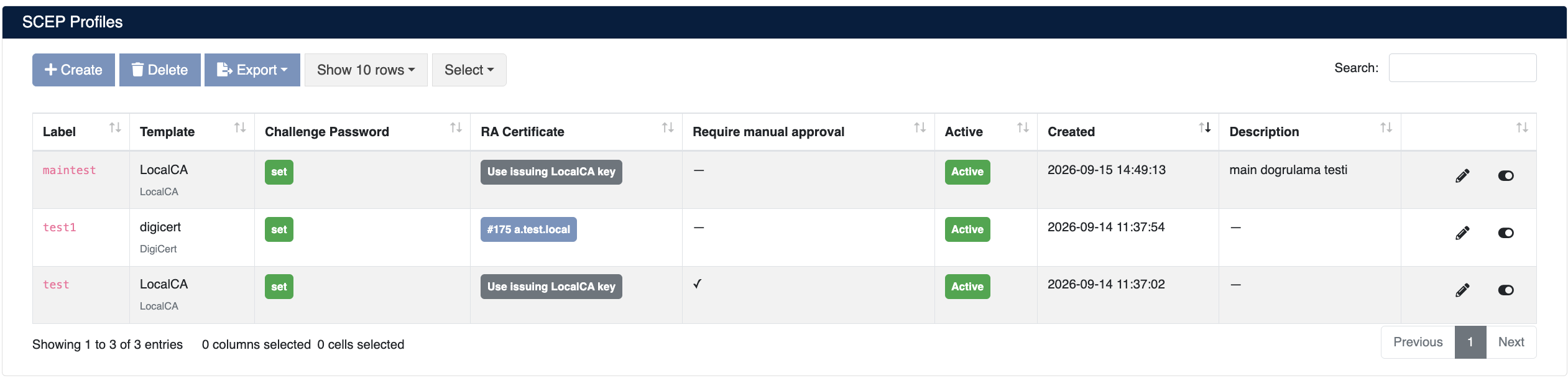
The list screen shows the following information:
| Column | Description |
|---|---|
| Label | The URL path segment and endpoint name of the profile |
| Template | The certificate template it is bound to and the template's CA type (e.g., LocalCA, DigiCert) |
| Challenge Password | Whether a challenge password is set (set / not set). The password itself is not shown. |
| RA Certificate | The selected RA certificate or Use issuing LocalCA key |
| Require manual approval | Whether manual approval is enabled (✓ / —) |
| Active | Whether the profile is enabled (Active) or disabled (Inactive) |
| Created | The creation date of the profile |
| Description | The profile description |
Profile Actions
- Edit: Edit the profile settings
- Enable/Disable: Use the toggle at the end of the row to disable or re-enable the profile
- Delete: Delete the profile
- Export: Export the list
When a profile is disabled, new certificate enrollments and renewals cannot be performed through that profile's endpoint. Keep in mind that the certificate renewal processes of devices bound to the profile will be affected.
Manual Approval
When Require manual approval is enabled on the profile, additional fields appear on the form:
- Approver groups: Ownership approver groups whose members approve requests from this profile. Groups are managed under Ownership → Groups and must be flagged as an approver group.
- Approver emails: Additional email addresses for approvers without an account. Use the Add More button for each address.
- Mail Subject / Mail Content: The subject of the email sent to approvers and the message shown above the request details. If left blank, the default text is used.
The approval process works as follows:
- The device sends a
PKCSReq; the request is recorded as pending, and aPENDINGresponse is returned to the device. - An approval workflow is started for the request. Approvers receive an email containing the Common Name, SANs, SCEP profile, client IP, and transaction ID.
- The authorized person resolves the request through the workflow or with the Approve (✓) / Deny (✕) buttons on the SCEP Transactions screen.
- The device sends a
GetCertInitialpoll with the same Transaction ID. If the request was approved, it receives the certificate; if it was denied, it receives aFAILUREresponse.
Manual approval applies only to initial enrollment (PKCSReq) requests. A RenewalReq message is signed with the device's current certificate and therefore already proves the device's identity, so renewals are processed without waiting for approval. The CN and DNS SAN values in the renewal request must be a subset of those in the current certificate; renewal requests that broaden the identity are rejected.
If the template is bound to a CA that runs its own approval process for issuing certificates (e.g., DigiCert), a pending response from the CA is handled the same way. SecTrail CM tracks the order in the background; when the device polls with GetCertInitial, the certificate is delivered if it is ready.
SCEP Transactions
All enrollment and renewal operations performed by devices are tracked under Certificate Authorities (CA) > SCEP Server > SCEP Transactions:
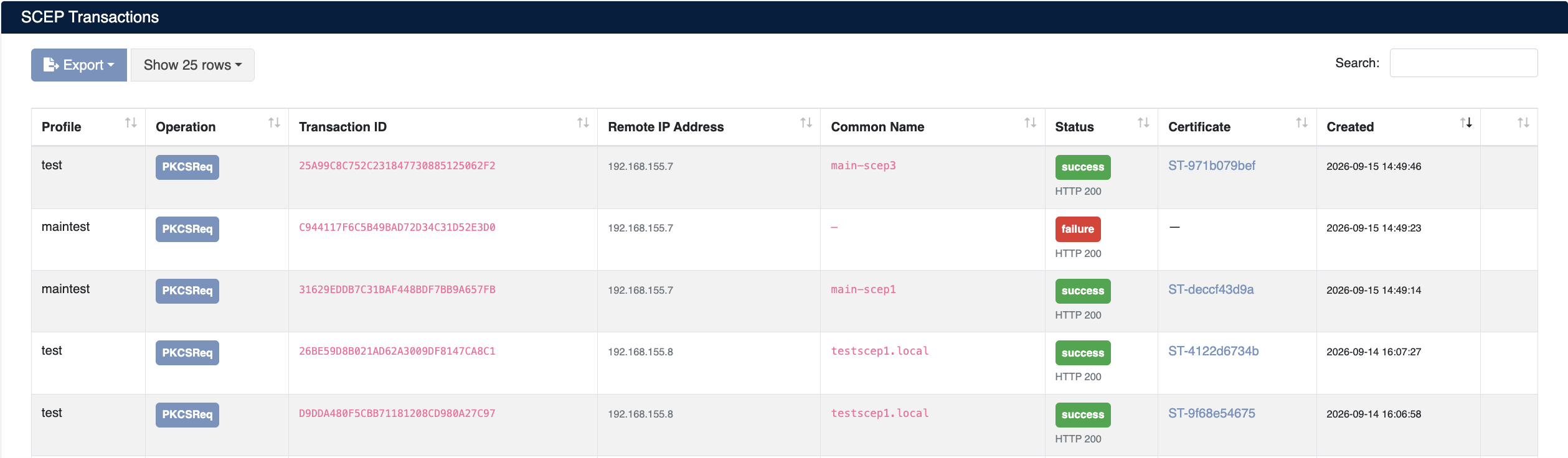
The list screen shows the following information:
| Column | Description |
|---|---|
| Profile | The SCEP profile on which the operation was performed |
| Operation | The operation type (PKCSReq, RenewalReq) |
| Transaction ID | The transaction ID the client sent in its SCEP message. Pending requests are polled with this ID. |
| Remote IP Address | The IP address of the device that sent the request |
| Common Name | The CN value of the requested certificate |
| Status | The operation result (success, pending, failure) and the HTTP status code |
| Certificate | A link to the issued certificate's record in the inventory. If the certificate has been revoked, a revoked label is shown. |
| Created | The date the operation was performed |
For operations in pending status, Approve (✓) and Deny (✕) buttons appear at the end of the row.
For successful operations, click the certificate number in the Certificate column to go to its record in the inventory, where you can download, monitor, or revoke the certificate.
Most operations in failure status are caused by:
- The challenge password in the CSR not matching the profile
- The names in a renewal request not matching those of the current certificate
- The license limit having been reached
Client Configuration Examples
In the examples below, replace cm.sectrail.local with your own SecTrail CM address and default with your profile's Label value.
Retrieving Capabilities and the CA Certificate
# Supported capabilities
curl "https://cm.sectrail.local/scep/default?operation=GetCACaps"

# CA/RA certificate
curl -o ca.der "https://cm.sectrail.local/scep/default?operation=GetCACert"
Creating a CSR with the Challenge Password
openssl req -new -newkey rsa:2048 -nodes \
  -keyout device.key -out device.csr \
  -subj "/CN=device01.sectrail.local" \
  -addext "subjectAltName=DNS:device01.sectrail.local" \
  -reqexts challenge -config <(cat /etc/ssl/openssl.cnf; \
    printf "[challenge]\nchallengePassword=CHALLENGE_PASSWORD\n")
Enrolling with sscep
# Download the CA certificate (a chain is saved as ca.crt-0, ca.crt-1 ...)
sscep getca -u https://cm.sectrail.local/scep/default -c ca.crt

# Send the enrollment request
sscep enroll -u https://cm.sectrail.local/scep/default \
  -c ca.crt -k device.key -r device.csr -l device.crt \
  -E aes256 -S sha256
If manual approval is enabled on the profile, sscep automatically keeps polling with the same Transaction ID until the request is approved.
Windows NDES / Intune Compatible URL
For clients that expect the NDES URL format (Intune SCEP profile, MDM solutions, etc.), use the following as the server URL:
https://cm.sectrail.local/scep/default/pkiclient.exe