EST Server
SecTrail CM includes a built-in EST Server (Enrollment over Secure Transport - RFC 7030). EST is a standard certificate enrollment protocol that runs over HTTPS and is designed specifically for network devices, IoT devices, and embedded systems.
Devices with EST support can obtain certificates directly from SecTrail CM and renew them automatically, without requiring any additional agent to be installed on them. Certificates are issued by the CAs managed by SecTrail CM (Local CA, Microsoft ADCS, etc.) according to the template rules you define.
- EST Server: Designed for network and IoT devices. Device identity is verified with HTTP Basic credentials or mTLS (client certificate). It does not require domain ownership validation (challenge).
- ACME Server: Designed for servers and automation tools. Domain validation is performed, and it works with clients such as Certbot and acme.sh.
Benefits
- Device-oriented enrollment: Standard, agentless certificate enrollment for network devices, IoT, and embedded systems
- RFC 7030 compliance: Works with all EST-capable clients
- Flexible authentication: HTTP Basic, mTLS, or both can be used together
- Profile-based authorization: Each profile is configured in isolation with its own endpoint, template, and trust anchor
- Full visibility: All enrollment operations and issued certificates are recorded and added to the inventory
How It Works
The core components of the EST Server are:
| Component | Description |
|---|---|
| Profile | Defines an EST endpoint. It determines which template certificates will be issued with, the authentication methods, and the trust anchor. |
| Client | A device user defined for HTTP Basic authentication. It is bound to a profile. |
| Transaction | The record of each enrollment operation performed by devices. |
The flow proceeds as follows:
- The administrator creates an EST Profile and binds it to a certificate template and a trust anchor.
- If HTTP Basic will be used, one or more EST Clients (username/password) bound to the profile are defined.
- The device sends a CSR to the profile's endpoint together with its credentials (
simpleenroll). - If authentication succeeds, the certificate is issued according to the template rules and added to the inventory.
- The device renews its certificate with
simplereenrollbefore it expires.
An EST profile can only produce certificates against the template it is bound to. The template determines which CA will be used, the validity period, and other certificate parameters. For template management, see Inventory → Issue Certificate → Templates.
EST Endpoints
Each profile gets its own endpoint based on its Label value:
| Endpoint | Description |
|---|---|
/.well-known/est/{label}/simpleenroll | New certificate enrollment |
/.well-known/est/{label}/simplereenroll | Renewal of an existing certificate |
/.well-known/est/{label}/cacerts | Download of the trust chain (CA certificates) |
EST Profiles
Creating an EST Profile
Navigate to Certificate Authorities (CA) > EST Server > Profiles and click the Create button:
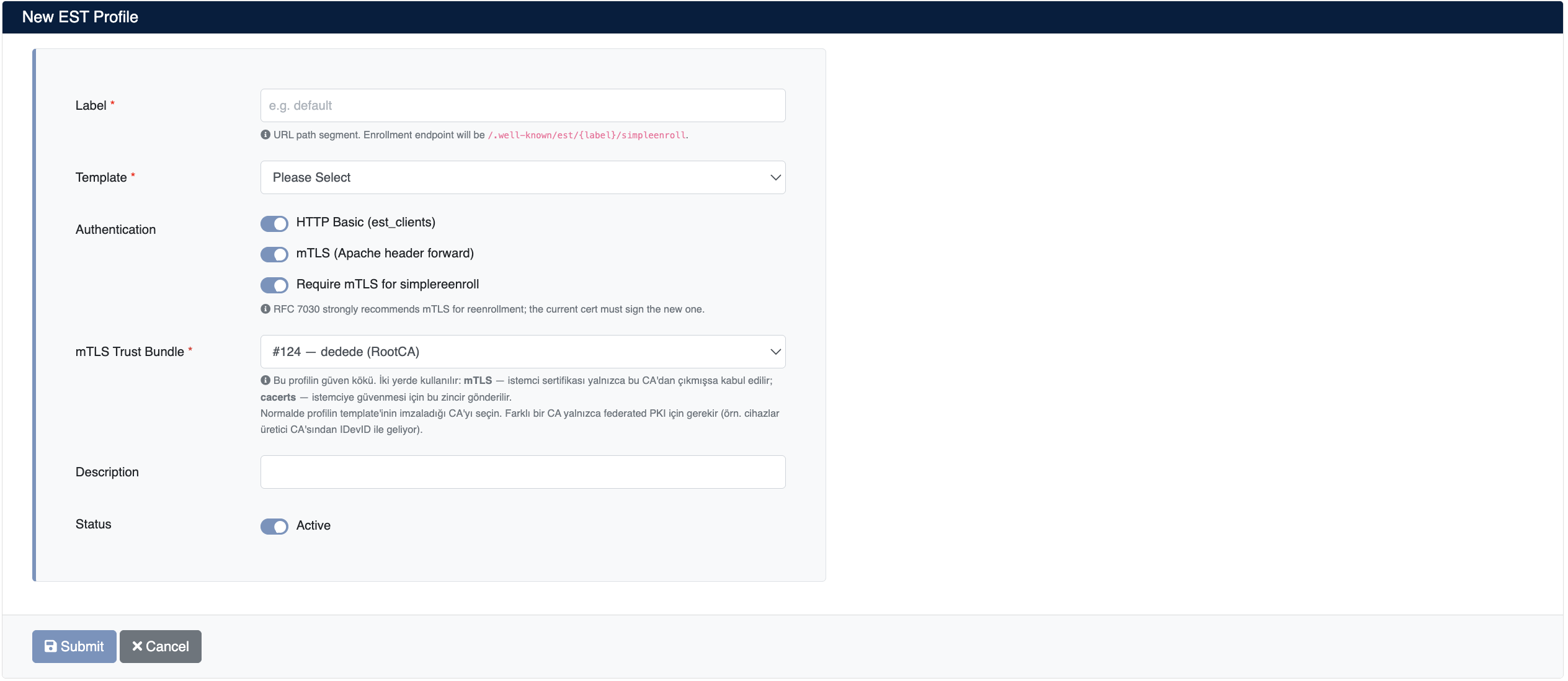
Enter the following information:
-
Label (required): The URL path segment of the profile (e.g.
default). The enrollment endpoint is formed as/.well-known/est/{label}/simpleenroll. -
Template (required): The template for certificates issued through this profile. It determines the certificate's CA, validity period, and profile information.
-
Authentication: The authentication methods the profile will accept. They can be used together:
- HTTP Basic (est_clients): The device authenticates with the username and password of a defined EST Client.
- mTLS (Apache header forward): The device authenticates with a client certificate.
- Require mTLS for simplereenroll: mTLS is enforced for renewal operations. RFC 7030 strongly recommends using mTLS for reenrollment; in this mode the current certificate signs the new one.
-
mTLS Trust Bundle (required): The trust anchor of the profile. It is used in two places:
- mTLS: A client certificate is accepted only if it was issued by this CA.
- cacerts: This chain is sent to the client as the trust chain.
Normally, select the CA that signs the profile's template. A different CA is only needed in federated PKI scenarios (e.g. if devices arrive with an IDevID from the manufacturer's CA).
-
Description (optional): A short note describing the profile
-
Status: Whether the profile is enabled (Active)
Click the Submit button to create the profile.
EST Profile List
Created profiles are displayed in the Certificate Authorities (CA) > EST Server > Profiles list:
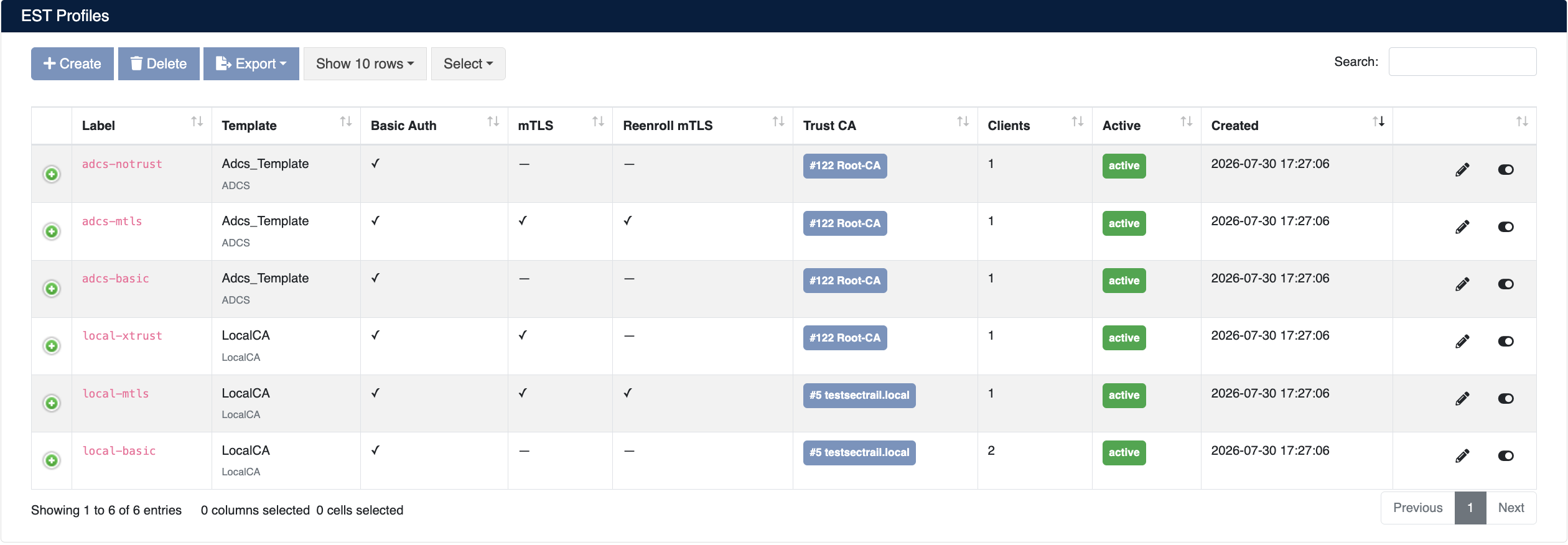
The list screen shows the following information:
| Column | Description |
|---|---|
| Label | The URL path segment and endpoint name of the profile |
| Template | The certificate template it is bound to and the CA type of that template (e.g. LocalCA, ADCS) |
| Basic Auth | Whether HTTP Basic authentication is enabled (✓ / —) |
| mTLS | Whether mTLS authentication is enabled (✓ / —) |
| Reenroll mTLS | Whether mTLS is enforced for renewal operations (✓ / —) |
| Trust CA | The CA selected as the trust anchor of the profile |
| Clients | The number of EST Clients bound to the profile |
| Active | Whether the profile is enabled (active) or disabled (inactive) |
| Created | The date the profile was created |
Profile Operations
- Edit: Edit the profile settings
- Enable/Disable: Use the toggle at the end of the row to disable or re-enable the profile
- Delete: Delete the profile
- Export: Export the list
When a profile is disabled, no new certificate enrollment or renewal can be performed through that profile's endpoint. Keep in mind that the certificate renewal processes of devices bound to the profile will be affected.
EST Clients
For devices using HTTP Basic authentication, credentials bound to the relevant profile are defined.
Creating an EST Client
Navigate to Certificate Authorities (CA) > EST Server > Clients and click the Create button:
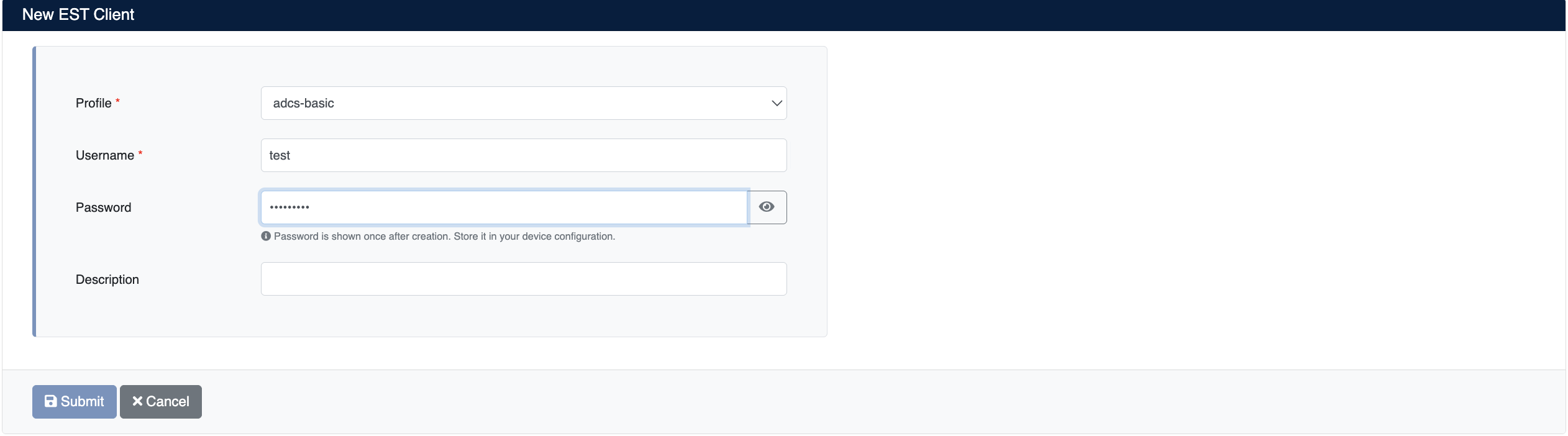
Enter the following information:
- Profile (required): The EST profile the client will connect to. The device can only obtain certificates through this profile's endpoint and template.
- Username (required): The username the device will use for HTTP Basic authentication
- Password: The password of the device
- Description (optional): A short note describing the client
Click the Submit button to create the client.
The password is shown only once after creation. Make sure you store it in your device configuration.
EST Client List
Defined clients are displayed in the Certificate Authorities (CA) > EST Server > Clients list:
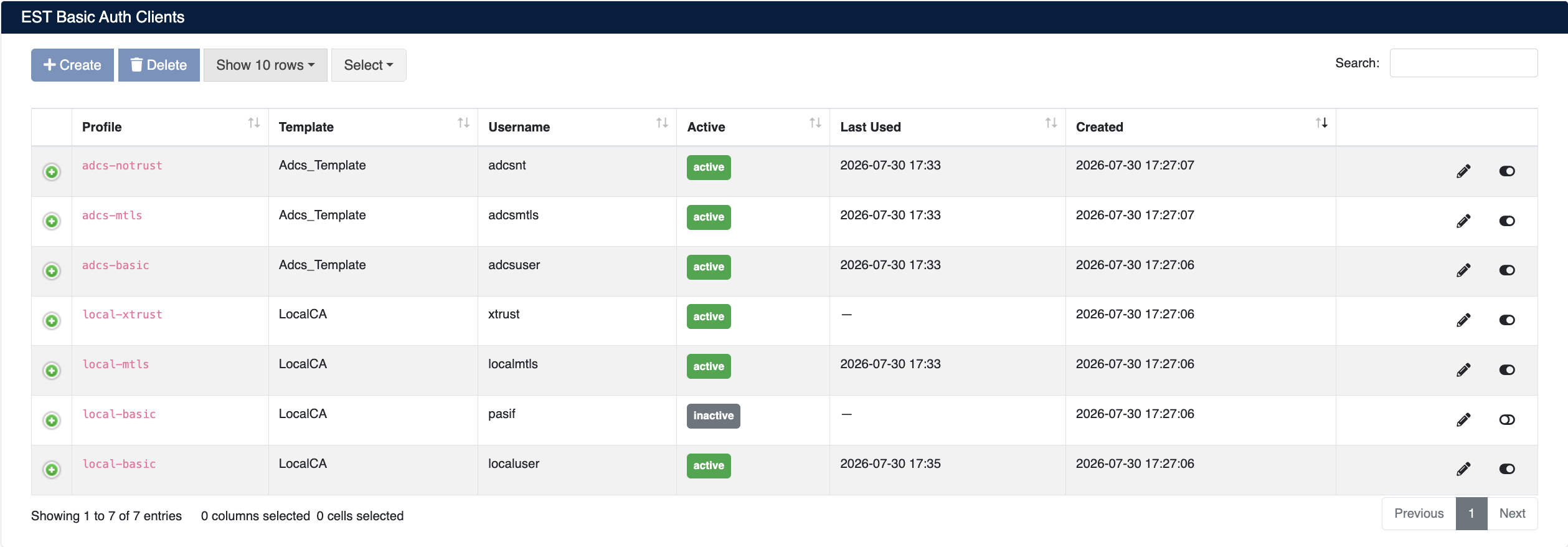
The list screen shows the following information:
| Column | Description |
|---|---|
| Profile | The EST profile the client is bound to |
| Template | The certificate template inherited through the profile |
| Username | The username of the client |
| Active | Whether the client is enabled (active) or disabled (inactive) |
| Last Used | The date the client last performed a certificate operation. If never used, — is displayed. |
| Created | The date the client was created |
Client Operations
- Edit: Edit the client information
- Enable/Disable: Use the toggle at the end of the row to disable or re-enable the client
- Delete: Delete the client
The Last Used column lets you see which devices are actively obtaining certificates. By reviewing clients that have not been used for a long time or have never been used (—), you can revoke unnecessary access.
EST Transactions
All enrollment and renewal operations performed by devices are tracked under Certificate Authorities (CA) > EST Server > Transactions:
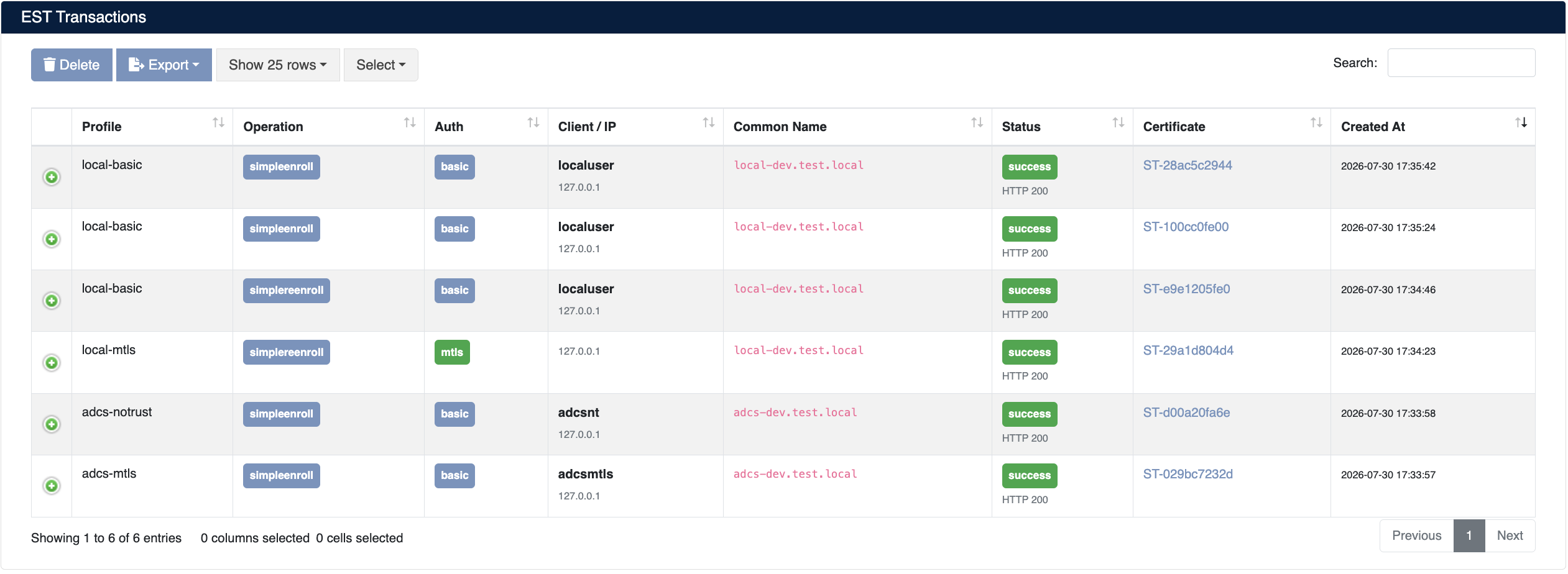
The list screen shows the following information:
| Column | Description |
|---|---|
| Profile | The EST profile the operation was performed on |
| Operation | The operation type (simpleenroll, simplereenroll) |
| Auth | The authentication method used (basic, mtls) |
| Client / IP | The username and IP address of the client that performed the operation |
| Common Name | The CN value of the requested certificate |
| Status | The operation result (success / error) and the HTTP status code |
| Certificate | A link to the inventory record of the issued certificate |
| Created At | The date the operation was performed |
For successful operations, you can click the certificate number in the Certificate column to go to the inventory record, where you can download, monitor, or revoke the certificate.
Client Configuration Examples
In the examples below, replace est.sectrail.local with your own SecTrail CM address, and default with the Label value of your profile.
Downloading the Trust Chain (cacerts)
curl -o cacerts.p7 \
  https://est.sectrail.local/.well-known/est/default/cacerts
Certificate Enrollment with HTTP Basic (simpleenroll)
curl -o cert.p7 \
  --user "localuser:PASSWORD" \
  --header "Content-Type: application/pkcs10" \
  --data-binary @request.csr \
  https://est.sectrail.local/.well-known/est/default/simpleenroll
Certificate Renewal with mTLS (simplereenroll)
curl -o newcert.p7 \
  --cert current-cert.pem --key current-key.pem \
  --header "Content-Type: application/pkcs10" \
  --data-binary @request.csr \
  https://est.sectrail.local/.well-known/est/default/simplereenroll