Password Reset
The Password Resetter allows users to reset their passwords without administrator involvement. It provides a secure reset flow with OTP verification for both LDAP and Local users.
Prerequisites
For the Password Resetter to work, at least one Password Resetter profile must be created in the admin panel and the Resetter feature must be active in the license.
User Flows
The Password Resetter can be used in two different scenarios.
Scenario 1 — Forgot My Password (Anonymous)
Used when a user wants to reset their password without logging in.
Step 1: Forgot Password Form
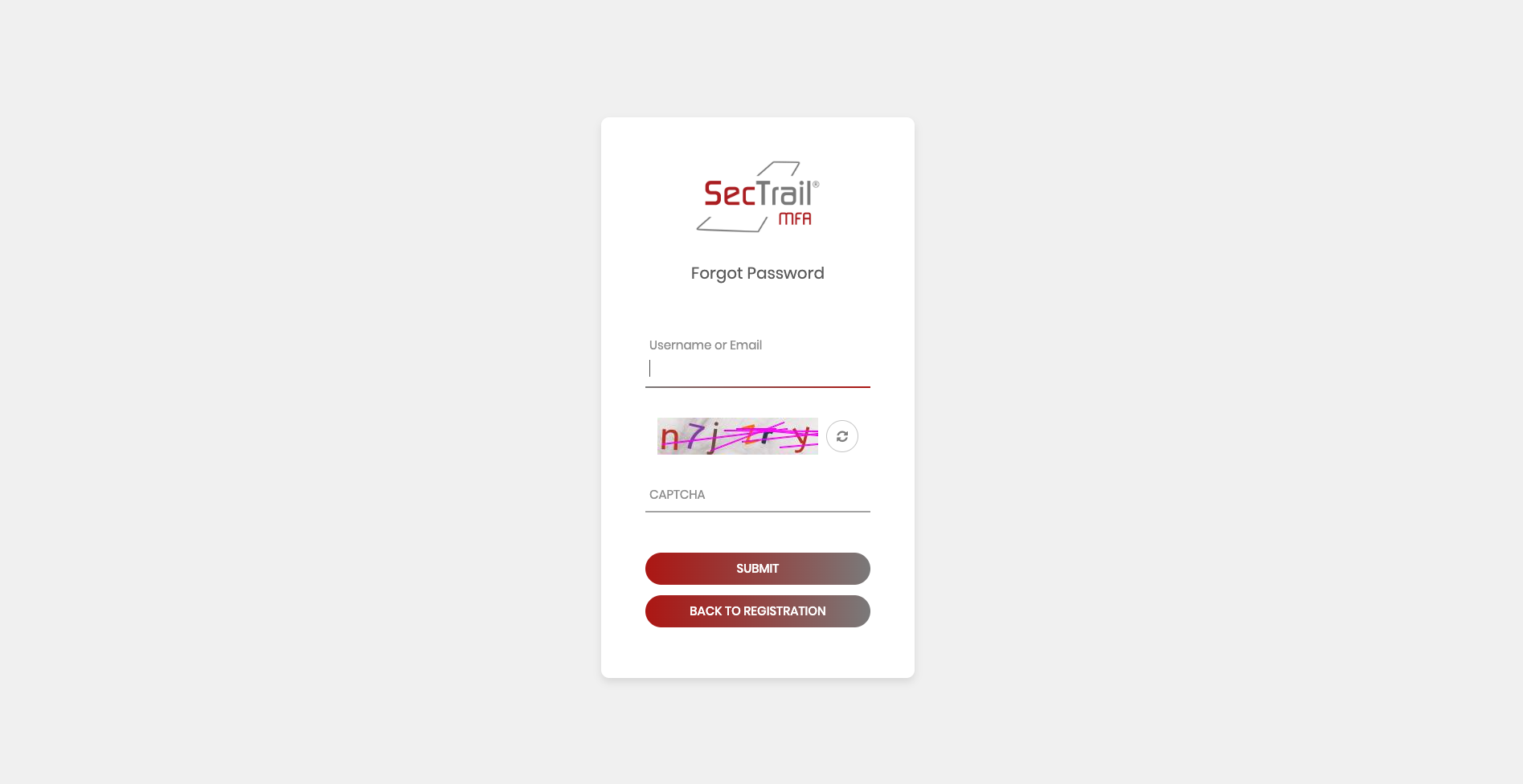
Enter username and captcha to send the OTP
- Click "Forgot Your Password?" on the Registration Portal login screen
- Enter your username
- Complete the captcha challenge (if configured)
- Click Submit
The username is searched across all auth profiles (LDAP and Local) in order. The OTP is sent to the registered email or phone number.
Step 2: OTP Verification
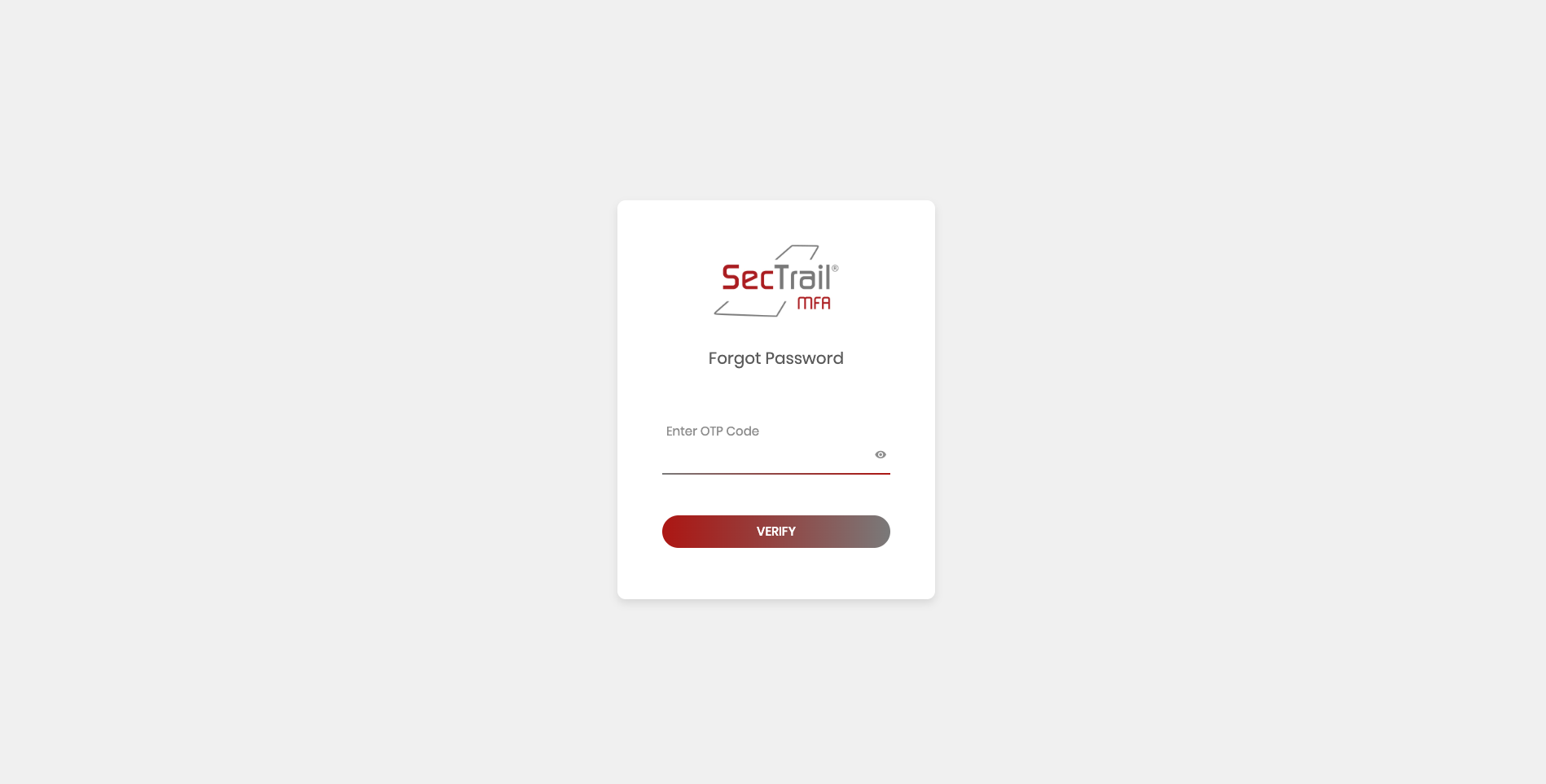
Enter the 6-digit OTP code received by SMS or email
- A 6-digit OTP code is sent via email or SMS
- The OTP has a limited validity period (default: 180 seconds)
Step 3: Set New Password
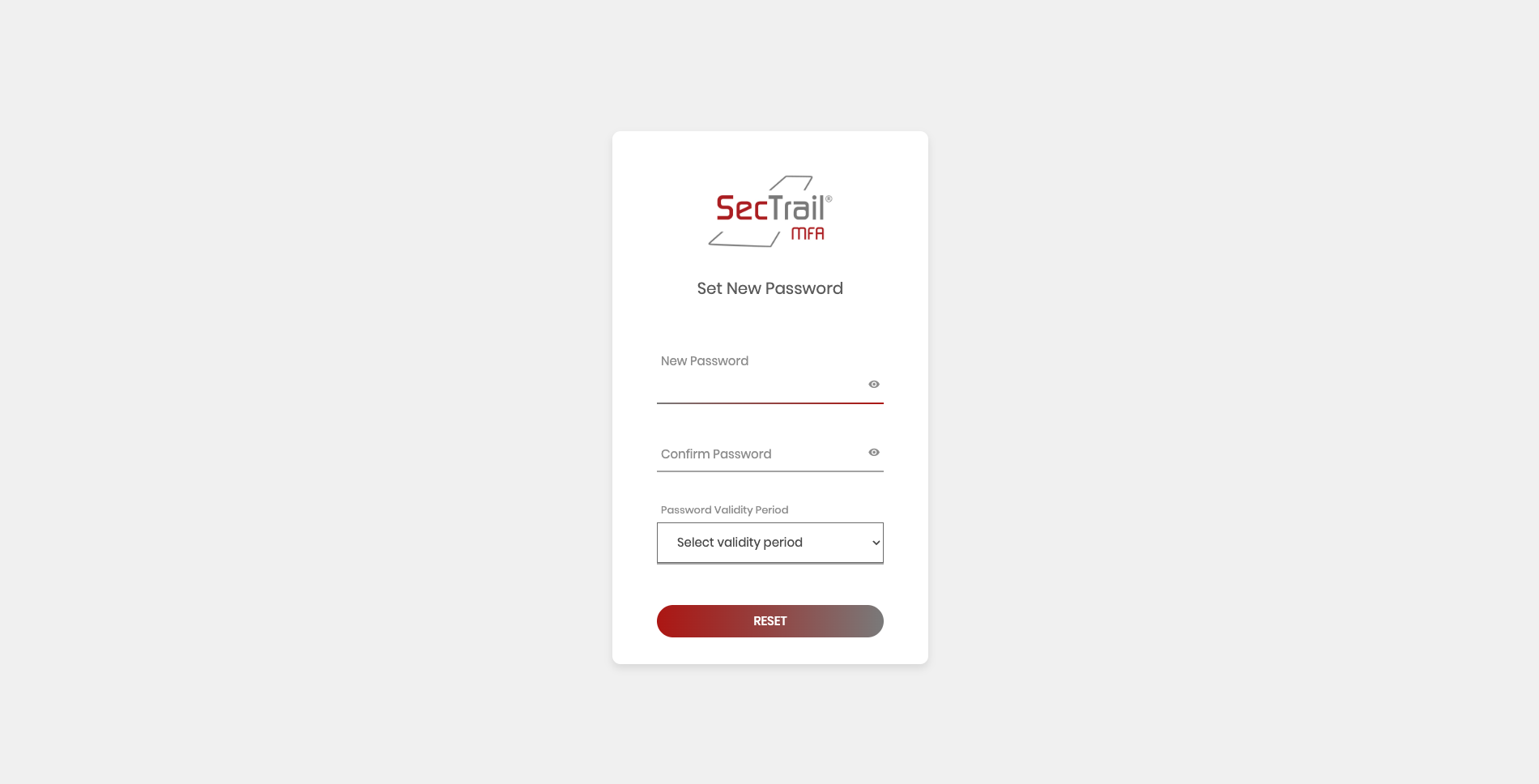
Set the new password. Local users must also select a validity period.
- The new password must comply with the configured Password Policy rules
- Local users must select a password validity period (1–6 months)
- LDAP users have their password written directly to LDAP
Scenario 2 — Change Password in Registration Portal (Authenticated)
Used when a user who is already logged into the Registration Portal wants to change their password.
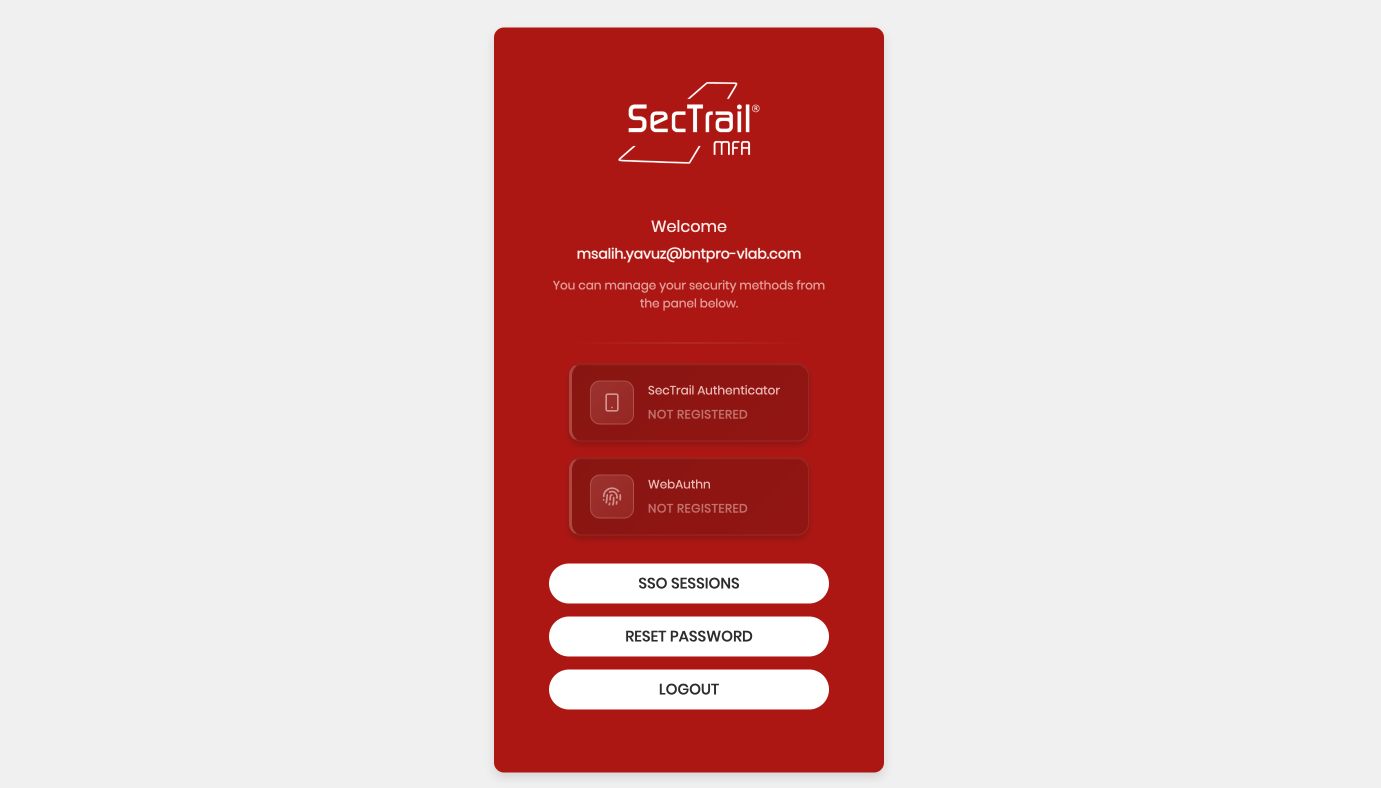
Logged-in Registration Portal — "Reset Password" button is visible
- Click "Reset Password" on the Registration Portal home page
- If your password is expired, OTP verification is required; otherwise you are redirected directly to the password form
- Set your new password
Related Pages
- Registration Portal: Overview of the Registration Portal
- Password Reset Configuration: Admin panel configuration
- Local User Management: Creating local users