Monitoring and Reporting
Track system activities in real-time and perform detailed analyses with SecTrail MFA's comprehensive monitoring and reporting features.
Service Status
Monitor the status of system services and cluster configuration.
RADIUS Service
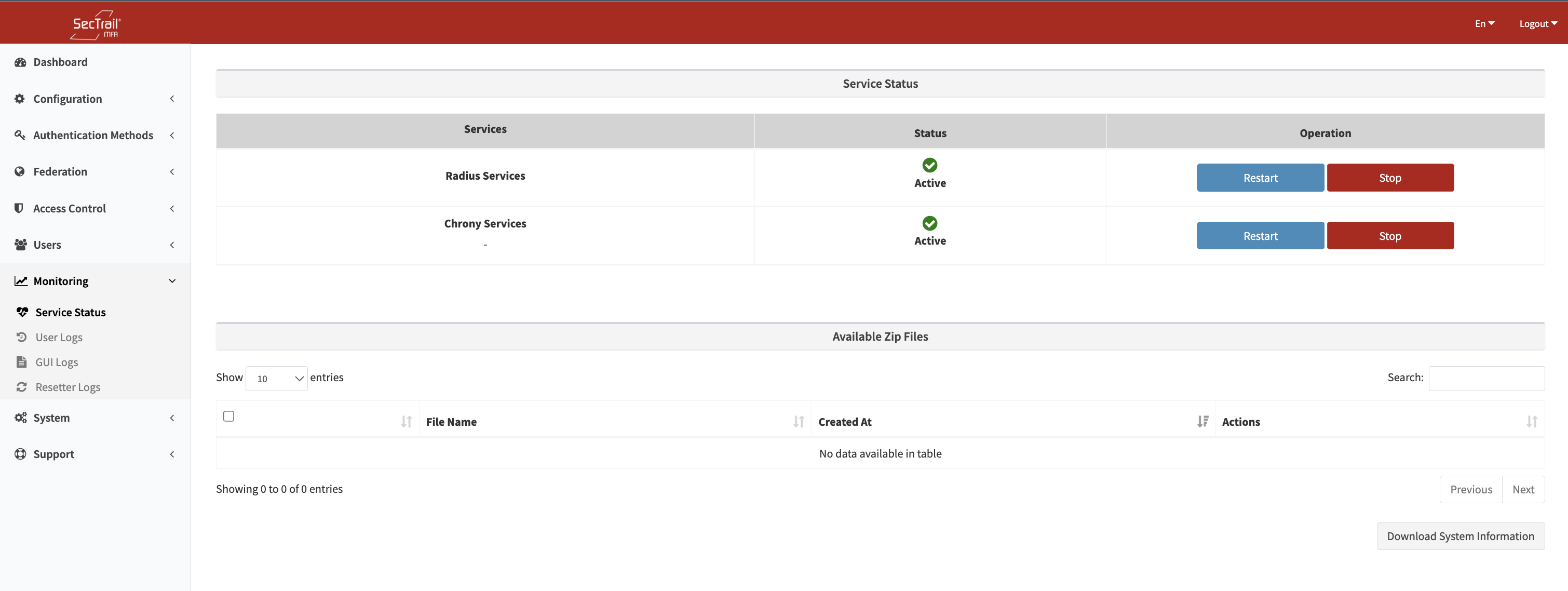
Service Status - RADIUS and Chrony services, start/stop/restart buttons
Service Controls:
- Start/stop the RADIUS service
- Restart the service
Chrony Service (NTP)
The Chrony (NTP) service is critically important, especially for Soft OTP and TOTP based authentication methods. If time synchronization is lost, OTP codes cannot be verified!
NTP Controls:
- Start/stop the Chrony service
System Information Download
Download system information in bulk for technical support and troubleshooting:
Downloadable Information:
- System Logs: Contents of /var/log/*
- Service Statuses:
systemctl statusoutput for all services - Configuration Files: Backups of critical config files
- Network Settings: IP, routing, firewall rules
- Disk Usage:
df,ducommand outputs - Running Processes:
ps,topcommand outputs - Package List: All installed packages and versions
- Cluster Status: Cluster configuration and status information
Download Format:
.tar.gzarchive file- Sensitive information (passwords, secret keys) is automatically masked
- File name with timestamp:
system_logs_2025-12-02-143022.tar.gz
Purpose of Use:
- Sending to the SecTrail support team
- System analysis and troubleshooting
- Data collection for capacity planning
User Logs
The logs here are detailed authentication logs. The step-by-step record of all authentication processes is maintained.
Log Level
The level of detail can be adjusted by changing the log level:
Log Levels:
- Debug: The most detailed log level. All debug messages, variable values, and code flow are logged. Should only be used during troubleshooting.
- Info: Normal operational logs. Successful operations, system status, and general information. This is the default log level.
- Notice: Normal but noteworthy conditions. Important events and configuration changes.
- Warning: Warning messages. Situations that are not errors but require attention. Example: Slow response times, high resource usage.
- Error: Error messages. The operation failed, but the system continues to run.
- Critical: Critical errors. Serious problems, some features are not working.
- Alert: Immediate action required.
- Emergency: System is unusable. Highest priority.
- Production Environment: Info or Notice
- Test Environment: Debug - For detailed log analysis
- Troubleshooting: Debug - To pinpoint the problem
The Debug level generates a large volume of logs and can quickly fill up disk space. Use it only when necessary and remember to lower the level afterwards!
Log Columns
User logs consist of the following columns:
| Column | Description | Example Value |
|---|---|---|
| Date | Log date and time | 2025-12-02 14:30:45 |
| Level | Log level | INFO, WARNING, ERROR, DEBUG |
| Request ID | Unique ID to track the same request | abc123-def456-ghi789 |
| Username | User performing the login | user@example.com |
| Message | Log message and details | Authentication SUCCESS |
| Server | SecTrail server IP address (which node in the cluster) | 192.168.1.10 |
Request ID
Tracking the Same Request:
The Request ID allows you to follow all steps of a single authentication process.
Filtering by Request ID:
- Click on the "Request ID" column on the log page
- Search for a specific Request ID
- All related log entries are listed
- You can see all steps from the beginning to the end of the operation
Always use the Request ID when debugging. If a user says "I cannot log in," search by username and date, then use the Request ID to examine all operation steps.
Server Column
Used to determine which node the request arrived at in a cluster configuration:
Column-Based Search
You can search separately for each column:
Searching in the Date Column:
- Date selection: 2025-12-01, 2025-12
Filtering in the Level Column:
- INFO
- WARNING
- ERROR
- DEBUG
Searching in the Request ID Column:
- Exact match:
abc123-def456-ghi789 - Partial match:
abc123(all starting with abc123)
Searching in the Username Column:
- Exact username:
user@example.com - Wildcard:
user*(all users starting with user) - Multiple users:
user1, user2, user3(separate with comma)
Searching in the Message Column:
- Keyword:
LDAP(all logs containing LDAP) - Regex support:
(SUCCESS|FAILED)(successful or failed ones) - Exact phrase:
"User not found in LDAP"(in quotes)
Filtering in the Server Column:
- IP address:
192.168.1.10 - Node name:
sectrail-node1 - Multiple servers:
192.168.1.10, 192.168.1.11
Export (CSV, Excel, PDF)
You can export user logs in CSV, Excel, or PDF format:
Export Options:
- Export All Logs: Download all records (caution: can be a large file)
- Export Filtered Results: Download current search/filter results (recommended)
- Export Selected Records: Download records selected with checkboxes
- Column Selection: Choose which columns to export
If there are more than 1 million log records, the export process may take a long time. First, reduce the number of results by using a date range or filtering.
Interface Logs
Logs related to operations performed in the Admin panel.
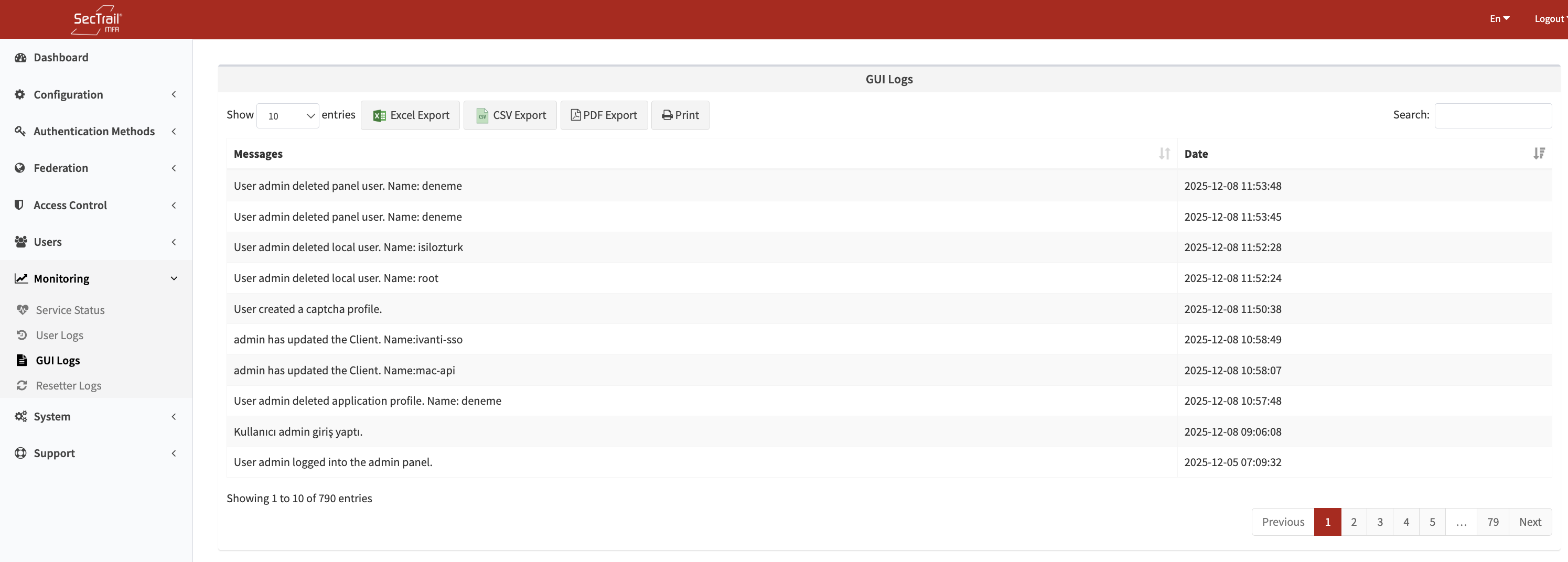
Interface Logs - Admin panel operations, user login/logout, and configuration changes
Monitored Operations
Administrator Operations:
- Admin user login/logout
- Session timeout
- Unauthorized access attempts
- Password change operations
Configuration Changes:
- Creating/editing/deleting application profiles
- Policy changes
- Authentication profile edits
- Adding/removing RADIUS clients
- LDAP settings changes
User Management:
- Adding/editing/deleting local users
- User password reset
- User blocking/unblocking
Reset Logs
Logs related to operations performed in the password reset panel.
Password Reset Logs
Monitored Operations:
- Password reset request
- PIN code sending
- PIN code verification
- Token generation
- Setting new password
- Successful/failed reset
Best Practices
Service Monitoring
- ✅ Regular Check: Check service statuses daily
- ✅ Cluster Health: Regularly check the health of cluster nodes
Log Management
- ✅ Log Level: Use Level 2 (Standard) in a production environment, increase to Level 3 when problems occur
- ✅ Request ID: Always use the Request ID for tracking during troubleshooting
- ✅ Regular Review: Review ERROR logs daily
- ✅ Export and Archive: Download and archive monthly logs
Security Monitoring
- ✅ Interface Logs: Regularly review changes made in the Admin panel
- ✅ Failed Logins: Track failed admin login attempts
- ✅ Reset Security: Set up alerts for suspicious reset requests
Before submitting a support request, use the "System Information Download" feature to collect all system information. This allows the support team to resolve your issue much faster.
In a cluster configuration, sending logs to a central SIEM system is the best practice. This allows you to view the logs of all nodes in one place.