ITSM Integration
SecTrail CM can connect to different ITSM (IT Service Management) tools — ServiceNow, Jira, Remedy, and Maximo — through a common interface. The integration serves three main purposes:
- Automatically open tickets for expired/soon-to-expire certificates and assign them to the owner.
- Read renewal requests opened on the ITSM side and start a fully automated signing workflow in CM.
- Keep ticket status and renewal outcome synchronized in both directions.
Supported ITSM Tools
| Type | Notes |
|---|---|
| ServiceNow | Works via the Table API; authentication is Basic or OAuth2 (client_credentials) |
| Jira | Both Cloud (email + API token) and Server/DC (username + password) are supported |
| Remedy | AR-JWT authentication, form-based integration |
| Maximo | OSLC REST API, API Key or Basic authentication |
1. Creating a Profile
The starting point of the integration is the ITSM Profile. Each profile corresponds to an ITSM tool, a connection configuration, and a set of automation flags.
Menu: Integrations → ITSM → Profiles → Create
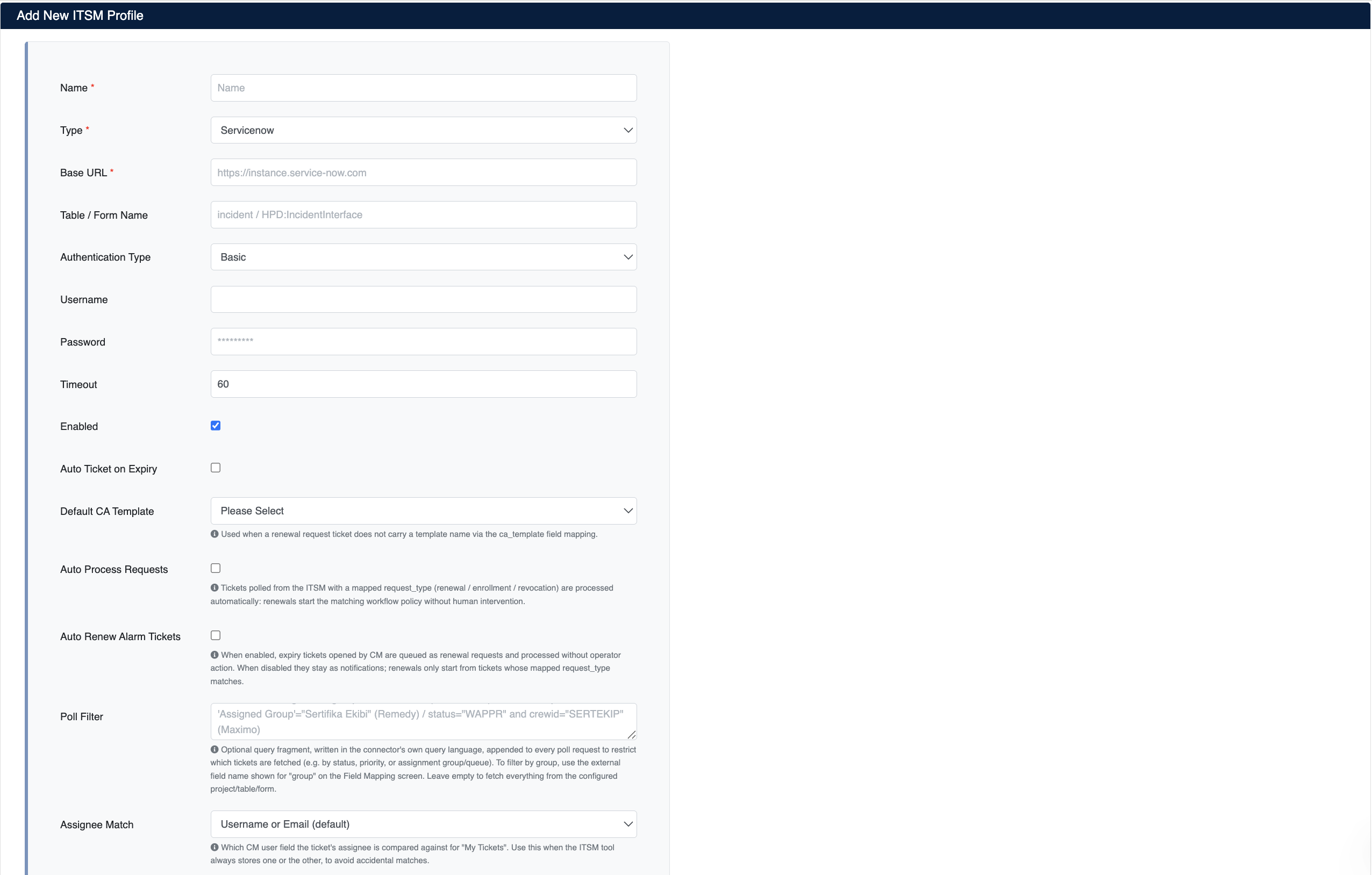
Add New ITSM Profile Form
Connection Fields
| Field | Description |
|---|---|
| Name | A descriptive name for the profile (e.g. jira-tester) |
| Type | ServiceNow, Remedy, Jira, Maximo |
| Base URL | The root address of the ITSM tool (e.g. https://instance.service-now.com) |
| Table / Form Name | Table/form name — the table in ServiceNow, the form in Remedy, the project key in Jira, the object structure in Maximo |
| Authentication Type | Basic or OAuth2 |
| Username / Password | Basic auth (email + API token for Jira Cloud, username + password for Server/DC) |
| Client ID / Client Secret / Token URL | Only shown when OAuth2 is selected (client_credentials grant) |
| Timeout | HTTP request timeout, in seconds (5-600, default 60) |
| Enabled | Whether the profile is active — no job uses it while disabled |
Password/secret fields always appear empty in the form. Leaving them empty while editing preserves the existing value — they only change if you fill them in.
Automation Flags
| Field | Effect |
|---|---|
| Auto Ticket on Expiry | Lets the general alarm engine (the default scan for expiring certificates) automatically open tickets on this profile |
| Auto Process Requests | Lets CM automatically process tickets created (polled) on the ITSM side |
| Auto Renew Alarm Tickets | Lets CM's own alarm tickets automatically be converted into a renewal request |
| Default CA Template | The default CA template used in the automated renewal workflow (kicks in when the ticket has no template name) |
Test Connection: Before saving, performs a real connection test using the values currently in the form (not yet written to the database). Empty secret fields fall back to the existing database value if the profile is already saved.
Poll Scope and Assignment Settings
| Field | Effect |
|---|---|
| Poll Filter | A free-text filter, written in the ITSM tool's own query language, that restricts the scope of polled tickets (see Restricting Poll Scope) |
| Assignee Match | Which field the assignment comparison uses in the "My Tickets" view: username, email, or both (see Assignee Matching) |
Profile List
Saved profiles are listed under Integrations → ITSM → Profiles:
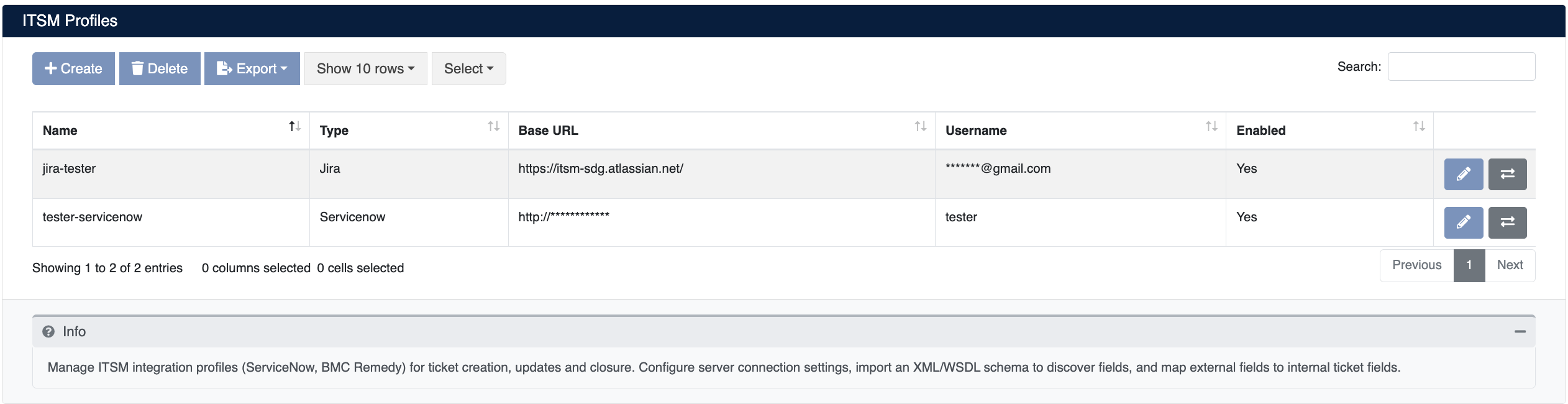
ITSM Profiles List
Table columns: Name, Type, Base URL, Username, Enabled. From the actions column you can edit a profile (✏️), go to its field mapping screen (🔁), or delete it (🗑️).
2. Field Mapping
Every ITSM tool has its own field names and status codes. CM operates over a fixed set of internal fields and translates them to the external system through a profile-specific mapping table.
Menu: Profile list → Mapping
Internal Fields
number, subject, description, status, priority, assignee,
group, ci, resolution, request_type, certificate, ca_template
Schema Discovery (Optional)
If you don't know the external system's field names, there are two ways to fill the External Field dropdown on the mapping screen:
- Upload or provide a URL to XML/WSDL (e.g.
https://instance.service-now.com/incident.do?WSDL), or - Leave it empty — the system fetches the field list directly from the selected ITSM tool:
| Tool | Automatic discovery source |
|---|---|
| Jira | All field IDs via the fields list API |
| ServiceNow | The table's WSDL |
| Remedy | The form field list API |
| Maximo | The object structure JSON schema |
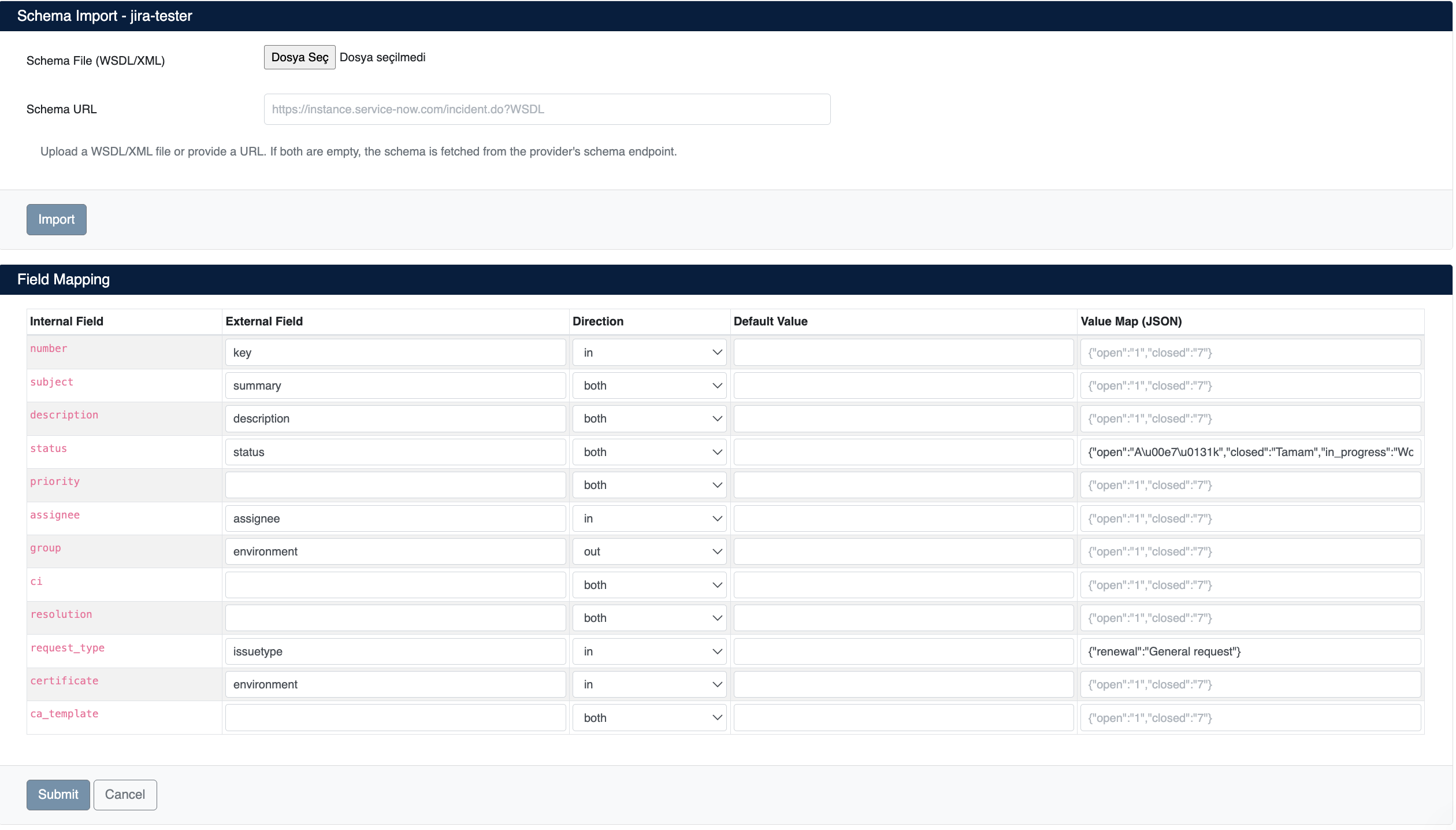
Schema Discovery / Import Interface
The Four Settings on Each Row
| Setting | Meaning |
|---|---|
| External Field | The corresponding field name on the external system |
| Direction | out (CM→ITSM only), in (ITSM→CM only), both (both directions) |
| Default Value | A fixed value sent from CM when the internal field is empty |
| Value Map (JSON) | A JSON translation dictionary, e.g. {"open":"1","closed":"7"} |
How Direction Works
- Creating/updating a ticket (CM → ITSM): only rows with
Directionset tooutorbothare sent out; a row markedinis never sent out. If the internal field is empty,Default Valueis used; if that's also empty, the row is skipped. - Polling (ITSM → CM): only rows with
Directionset toinorbothare read; a row markedoutis never read from poll results, even if present it's ignored.
For example, the group field carrying the certificate owner on auto-opened tickets is usually marked out: the value of that same field coming back from ITSM during polling is not read back into CM. This is intentional — group is a value CM determines itself, and it's expected to not change CM's view even if it changes on the ITSM side.
Transform Works in Both Directions
A single Transform dictionary is used both outbound and inbound, but is searched from different sides:
- Outbound: the internal value is looked up as a key in the dictionary; if found, the corresponding value is sent out. E.g. with
{"closed":"7"}, CM's status beingclosedgoes out to ITSM as7. - Inbound: the external value is looked up as a value in the dictionary; if found, the corresponding key is written to the internal field. In the same example, if ITSM returns
7, CM interprets it asclosed.
So a single dictionary is enough — CM always represents the key side, ITSM always represents the value side.
3. Alarm Integration — Automatic Ticket Creation
CM's various alarm engines can automatically open a ticket by selecting an ITSM profile on their own rule screens.
| Alarm type | Profile source | Becomes a renewal request? |
|---|---|---|
| Default expiry alarm | All profiles with Auto Ticket on Expiry enabled | Depends on the profile's Auto Renew Alarm Tickets flag |
| Owner/regex/IP rules | The single profile selected in the rule | Depends on the profile's Auto Renew Alarm Tickets flag |
| TLS version alarm | The profile selected in the TLS rule | No — always a notification (doesn't resolve the TLS issue by renewing) |
| Ownership rules | The profile selected in alarm customization | Depends on the profile's Auto Renew Alarm Tickets flag |
If a ticket is already open (not closed) for the same certificate/target, a new one is not opened.
Two Ticket Types
- Renewable: the ticket is marked as a renewal request → triggers the automated renewal workflow in the poll cycle.
- Notification: the ticket is closed immediately (not processed) — purely informational.
4. Poll and Processing Cycle
The system checks active profiles every 30 minutes:
-
The current ticket list is fetched from the ITSM tool and written/updated in the local ticket cache.
-
For profiles with
Auto Process Requestsenabled, tickets that are not yet processed and are marked as renewal requests are processed in order:Request type Behavior Renewal Fully automatic — triggers an existing workflow if one exists, otherwise builds one from scratch Enrollment / Revocation Requires manual review — CM does not start automated processing Unknown type Marked as notification, the external system is not touched Every processed ticket is updated on the external system to at least "in progress" status (best-effort; failures are only logged).
Restricting Poll Scope
By default, each profile fetches all tickets in the defined project/table/form. You can narrow this scope by adding an extra condition, written in the ITSM tool's own query language, to the profile's Poll Filter field:
| Tool | Query language | Example |
|---|---|---|
| Jira | JQL | status = "Open" AND priority = "High" |
| ServiceNow | sysparm_query fragment | active=true^priority=1 |
| Remedy | Qualifier | 'Status'="Open" |
| Maximo | OSLC oslc.where | status="WAPPR" |
If the filter is empty, behavior is unchanged (all records are fetched).
Uses the same mechanism — using the external field name that the group internal field maps to on the Field Mapping screen:
| Tool | Example (group = "Certificate Team") |
|---|---|
| Jira | "Assignment Group" = "Certificate Team" |
| ServiceNow | assignment_group=Certificate Team |
| Remedy | 'Assigned Group'="Certificate Team" |
| Maximo | crewid="CERTTEAM" |
Multiple conditions (e.g. status + group) can be combined in a single line using the tool's own logical operator (Jira AND, ServiceNow ^, Remedy AND, Maximo and).
If ITSM integration is disabled on the server side (ITSM_ENABLED=false), the scheduled poll cycle never runs. The manual Refresh button on the ticket screen works independently of this.
5. Automated Renewal Workflow
While processing a renewal ticket, CM builds and runs a complete signing flow itself.
Building the Workflow
- Certificate resolution: the certificate reference on the ticket (fingerprint or CN) is used to reach the corresponding discovery record. If not found, it errors out.
- Template resolution: first the ticket's template field (if present), otherwise the profile's
Default CA Template. If neither is present, it errors out. - Workflow setup: a certificate-based automation type is set up — no approval step, no human intervention required, and signing is triggered immediately on first run.
- The workflow is queued to run immediately.
Result Handling
| Status | Action |
|---|---|
| Completed + a new certificate was issued | The external ticket is closed with the new certificate's name and validity date |
| Failed | An error description is written to the external ticket, and the ticket stays open (for operator intervention) |
Workflows spawned from an ITSM ticket are one-time renewal requests: once completed, CM automatically disables the workflow, so signing isn't attempted repeatedly for the same request.
6. Ticket Tracking (UI)
Menu: Integrations → ITSM → Tickets
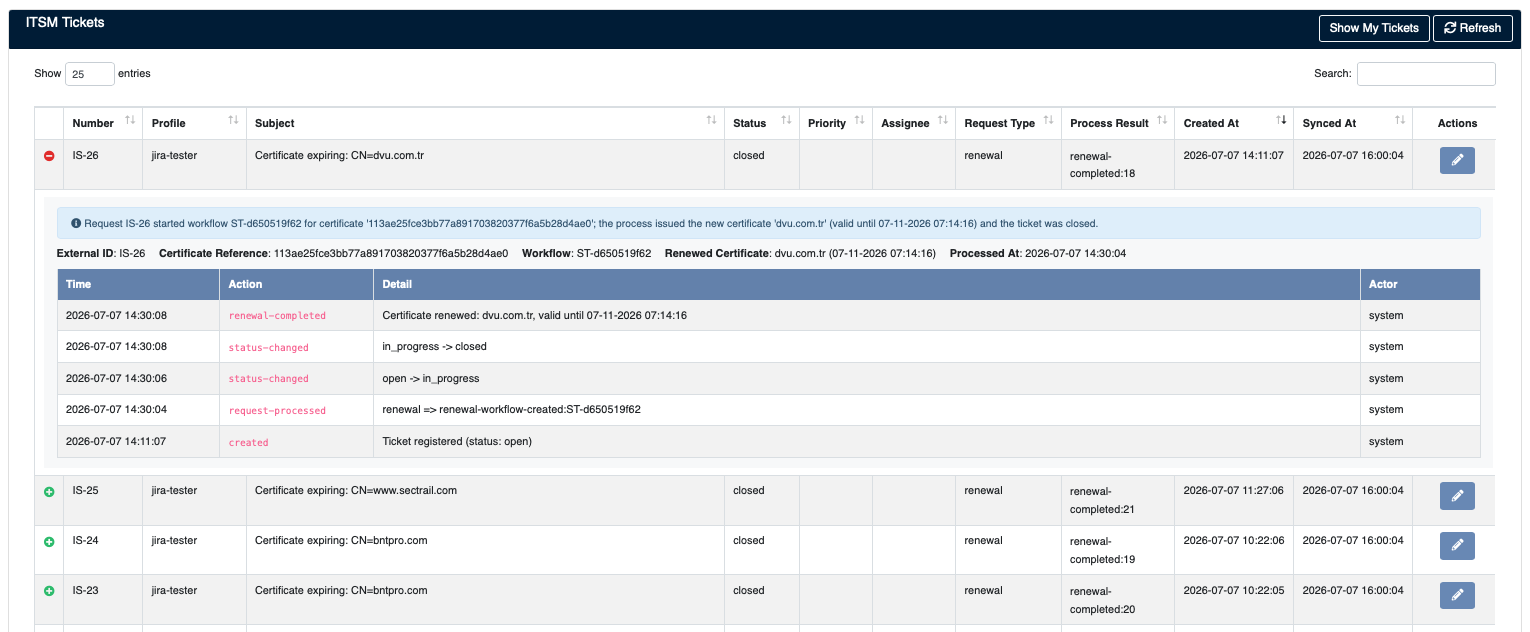
ITSM Tickets List and Detail Panel
- The default view lists all tickets; use Show My Tickets to switch to only tickets assigned to the logged-in user.
- Table columns: Number, Profile, Subject, Status, Priority, Assignee, Request Type, Process Result, Created At, Synced At, Actions.
- Detail panel (via row expansion): a summary sentence if available (e.g. "Renewed: valid until X" / "Renewal failed" / "Renewal process started" / "Pending"), the certificate reference, linked workflow ID, renewed certificate info, processing time, and the full history (actions like
created,status-changed,request-processed,renewal-completed). - Refresh button: manually polls all active profiles immediately (without waiting for the schedule).
- Create Ticket: a manual ticket creation form from within CM.
Assignee Matching
"My Tickets" (the default view) compares the ticket against the logged-in user's username or email (case and leading/trailing whitespace are ignored). This is a comparison against the raw ITSM value written to the ticket's assignee field — CM has no separate "assign this ticket to this user" mechanism; the ITSM tool itself is the sole source of assignment.
Some ITSM tools always store a username in the assignee field, others always store an email. The profile's Assignee Match setting narrows the comparison to only the correct field, preventing accidental matches:
| Value | Behavior |
|---|---|
| Username or Email (default) | Ticket shown if either matches |
| Username Only | Compared against username only |
| Email Only | Compared against email only |
This setting does not affect the certificate owner (group) field on auto-opened alarm tickets — group and assignee are independent concepts: group is filled based on the certificate owner when the ticket is opened, while the assignee is the person set on the ITSM side (or during manual creation).
End-to-End Example Flow
- An alarm rule (ITSM profile selected, configured to open a renewal ticket) catches a certificate nearing expiry.
- A ticket is opened on ITSM with the owner/group information, marked as a renewal request.
- The next poll cycle reads the ticket and processes it: if no workflow exists, it builds a new automation workflow.
- The workflow generates a CSR from the discovered certificate, signs it with the defined CA template, and writes the result to inventory.
- Once the workflow completes, the ticket is closed with the new certificate's info, and the workflow is disabled since it's one-time.
- All steps are visible in the history on the ticket's detail panel.